Why Connect Google Forms to Salesforce?
Google Forms is free, simple, and everyone already knows how to use it. But the responses sit in a spreadsheet — they don’t automatically become leads, contacts, or cases in Salesforce.
That means someone on your team is manually copying form responses into Salesforce. Or worse, nobody does, and the data just sits there.
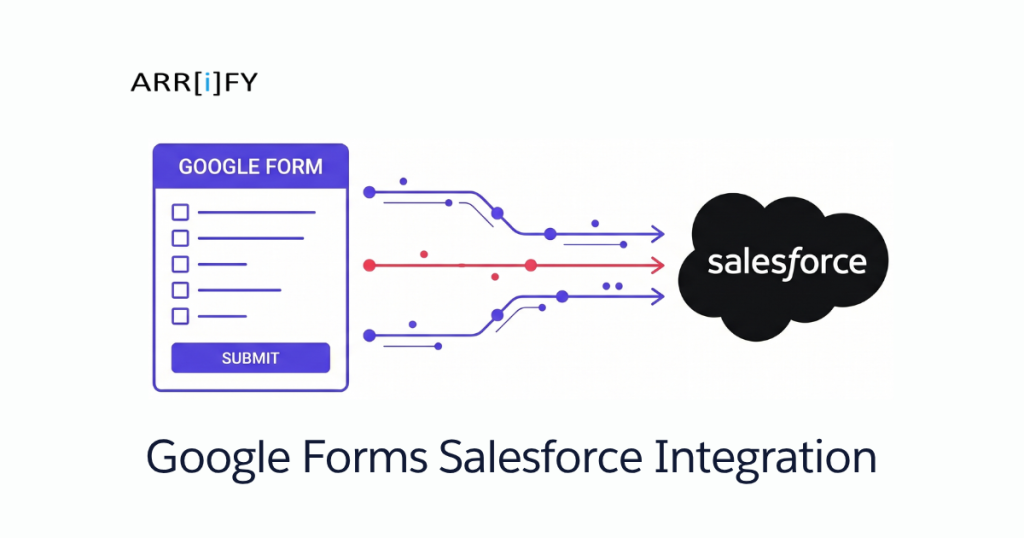
A Google Forms Salesforce integration fixes that. Every form submission creates or updates a record in Salesforce automatically. No copy-paste, no lag between “someone filled out a form” and “the sales team sees it.”
What this actually looks like in practice:
- A “Contact Us” form creates a Lead in Salesforce within seconds
- A support request form creates a Case and assigns it to the right queue
- An event registration form populates a custom object with attendee details
- A feedback form updates an existing Contact record with new survey data
The method you choose depends on your budget, technical comfort, and how much control you need over the data mapping.
Key Takeaway: If your team uses Google Forms for anything customer-facing and Salesforce as your CRM, connecting them eliminates the manual handoff that slows down your response time.
3 Methods to Integrate Google Forms with Salesforce
There are three practical ways to send Google Form responses into Salesforce. Here’s the quick version:
| Method | Cost | Setup Time | Technical Skill | Best For |
|---|---|---|---|---|
| Apps Script + REST API | Free | 30–60 min | Intermediate (JavaScript, Apex) | Full control, custom objects, no recurring fees |
| Zapier | $19.99+/mo | 5–10 min | None | Quick setup, standard Lead/Contact creation |
| Google Sheets + Connector | Varies | 15–30 min | Low | Teams already using Google Sheets with Salesforce |
The Litmus Test: Can someone on your team write basic JavaScript and Apex? Go with Apps Script. Nobody technical? Zapier. Already syncing Google Sheets to Salesforce? Add the connector.
Method 1: Apps Script + Salesforce REST API (Step-by-Step)
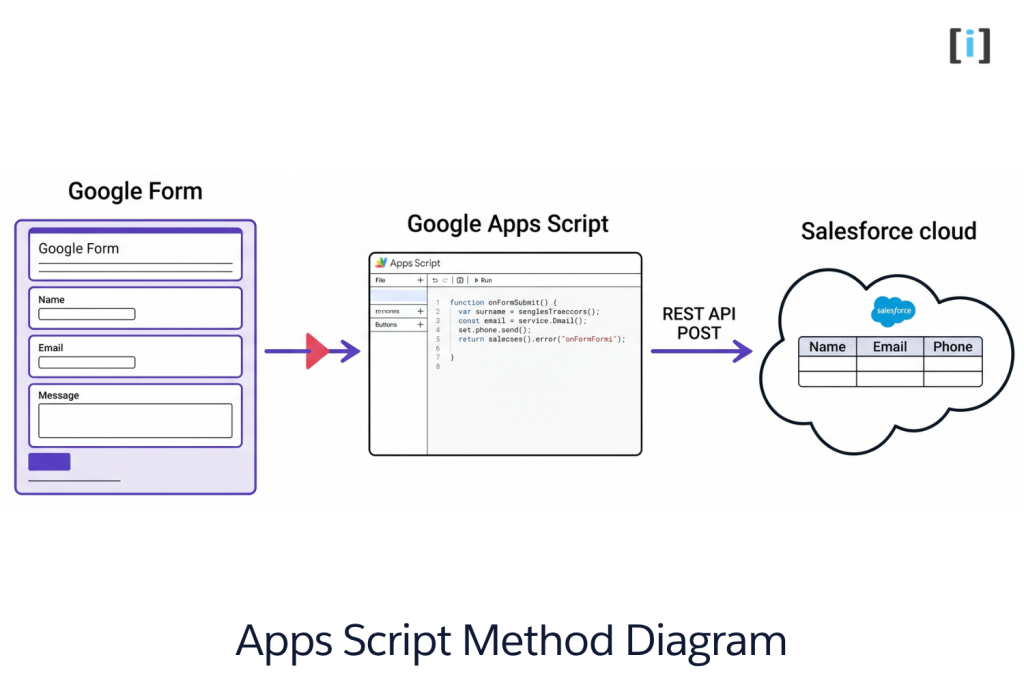
This is the free method with full control. You’ll write a Google Apps Script that fires when someone submits your form, then pushes the data to a Salesforce REST endpoint.
What you’ll need before starting:
- A Google account with access to Google Forms
- A Salesforce Developer or production org with API access enabled
- Basic knowledge of JavaScript (for Apps Script) and Apex (for the Salesforce endpoint)
Total Time: 20 minutes
Step 1: Create Your Google Form
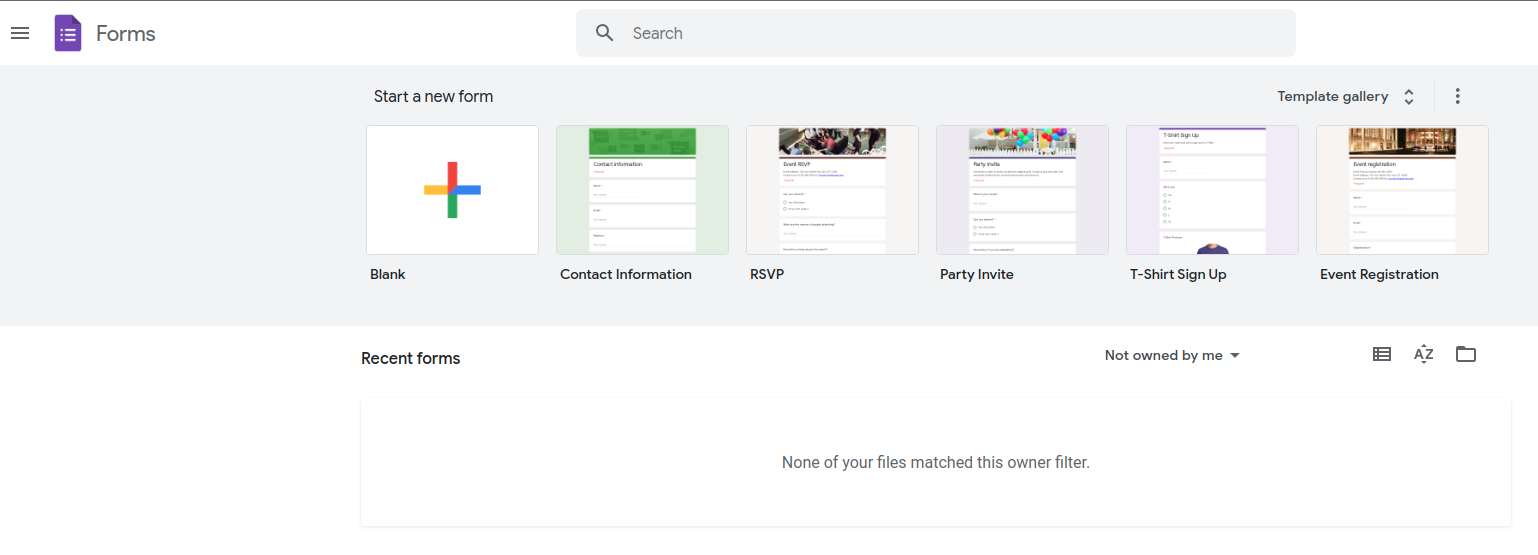
Head to Google Forms and create a new form (or open an existing one). Add the fields you want to capture — Name, Email, Phone, Message, whatever makes sense for your use case.
Pro Tip: Keep your Google Form fields aligned with the Salesforce fields you’ll map to. If your Salesforce Lead has “First Name” and “Last Name” as separate fields, split them in the form too. It saves messy string-splitting later.
Step 2: Set Up a Contact Form
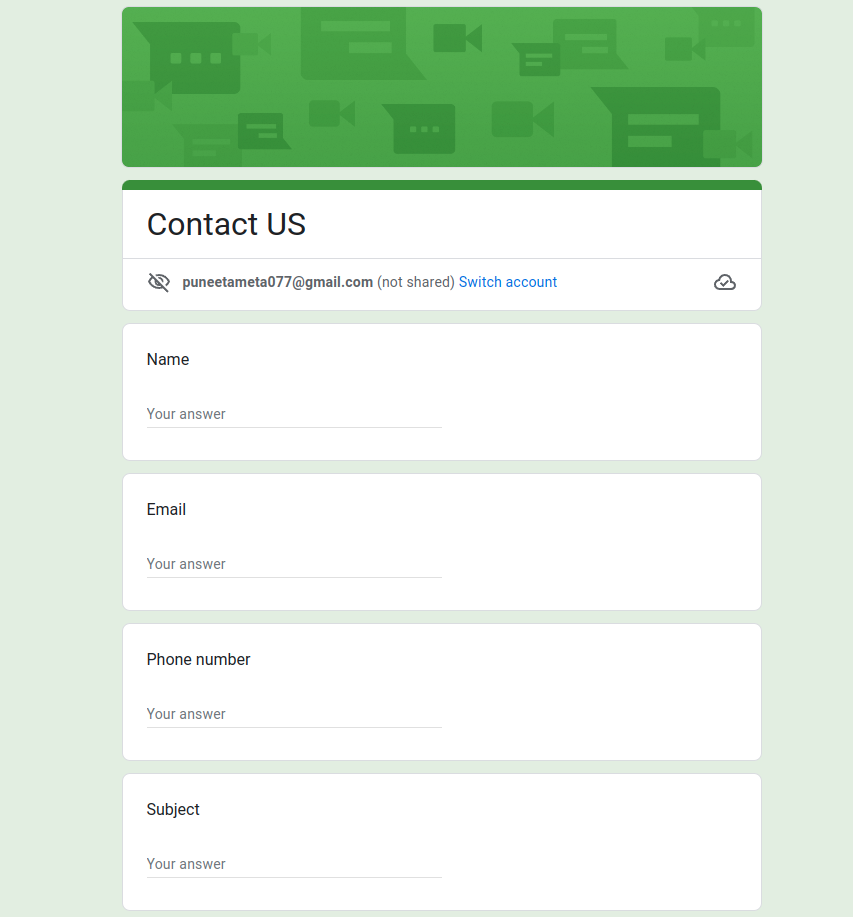
For this walkthrough, we’re using a “Contact Us” form with these fields: Name, Email, Phone Number, Subject, Message, “How did you hear about us?”, and a marketing consent checkbox. Adjust based on what data your Salesforce org actually needs.
Step 3: Create the Object and Fields in Salesforce
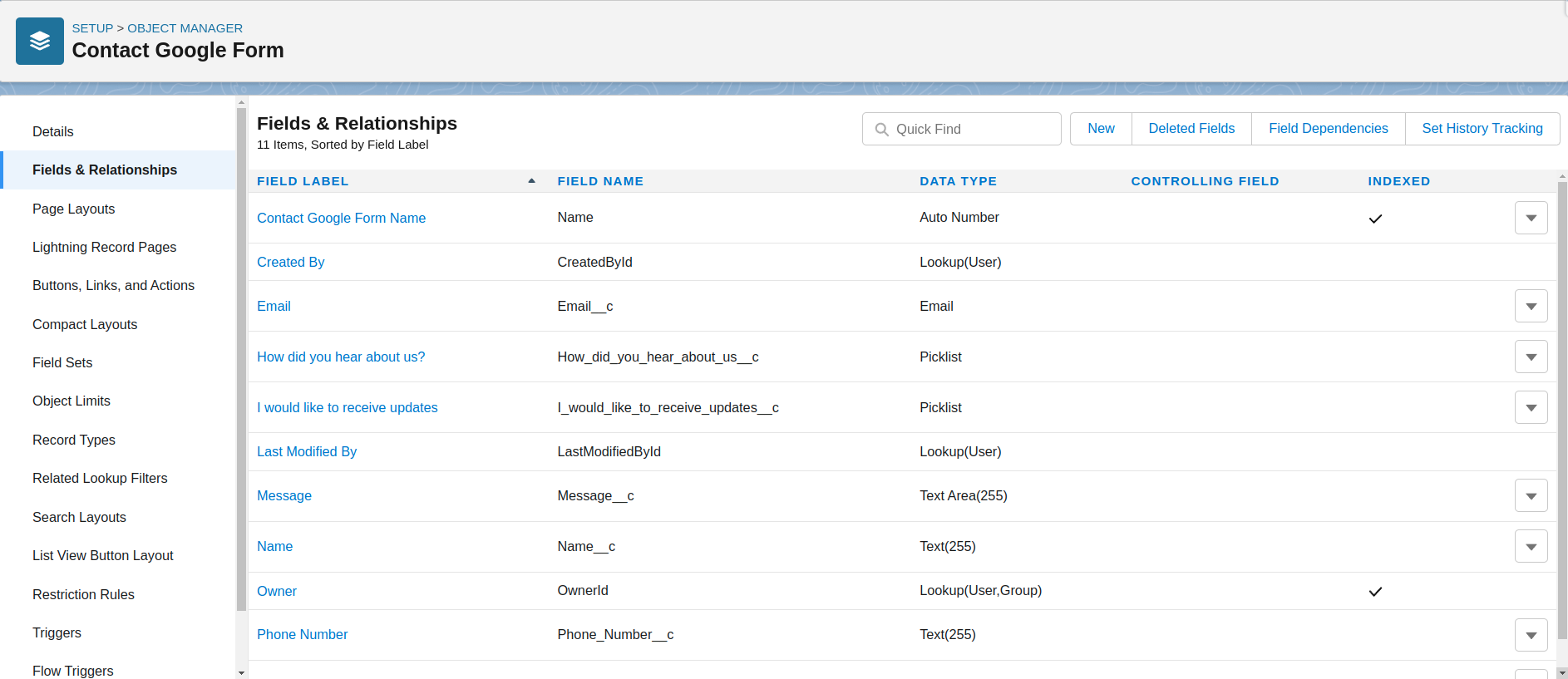
In Salesforce, create a custom object (or use a standard one like Lead) with fields that match your form. If you’re using a custom object, create fields for each piece of data you’re collecting.
For standard objects, just make sure the field API names are handy — you’ll need them when writing the Apex endpoint.
Learn more about Salesforce objects, fields, and how to create them.
Step 4: Build the REST Endpoint in Salesforce
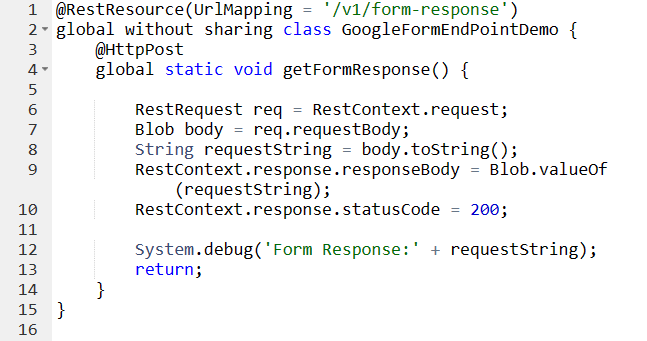
Create an Apex REST endpoint that can receive POST requests from your Google Apps Script. This endpoint will parse the incoming JSON and create the record in Salesforce.
A basic example:@RestResource(urlMapping='/GoogleFormSubmission/*')
global class GoogleFormEndpoint {
@HttpPost
global static String createRecord() {
RestRequest req = RestContext.request;
// Parse the body and create your record
}
}
Make sure you configure a Connected App in Salesforce for OAuth authentication, and whitelist the endpoint in your org’s CORS settings if needed.
Learn more about Salesforce REST API endpoints.
Step 5: Write the Google Apps Script
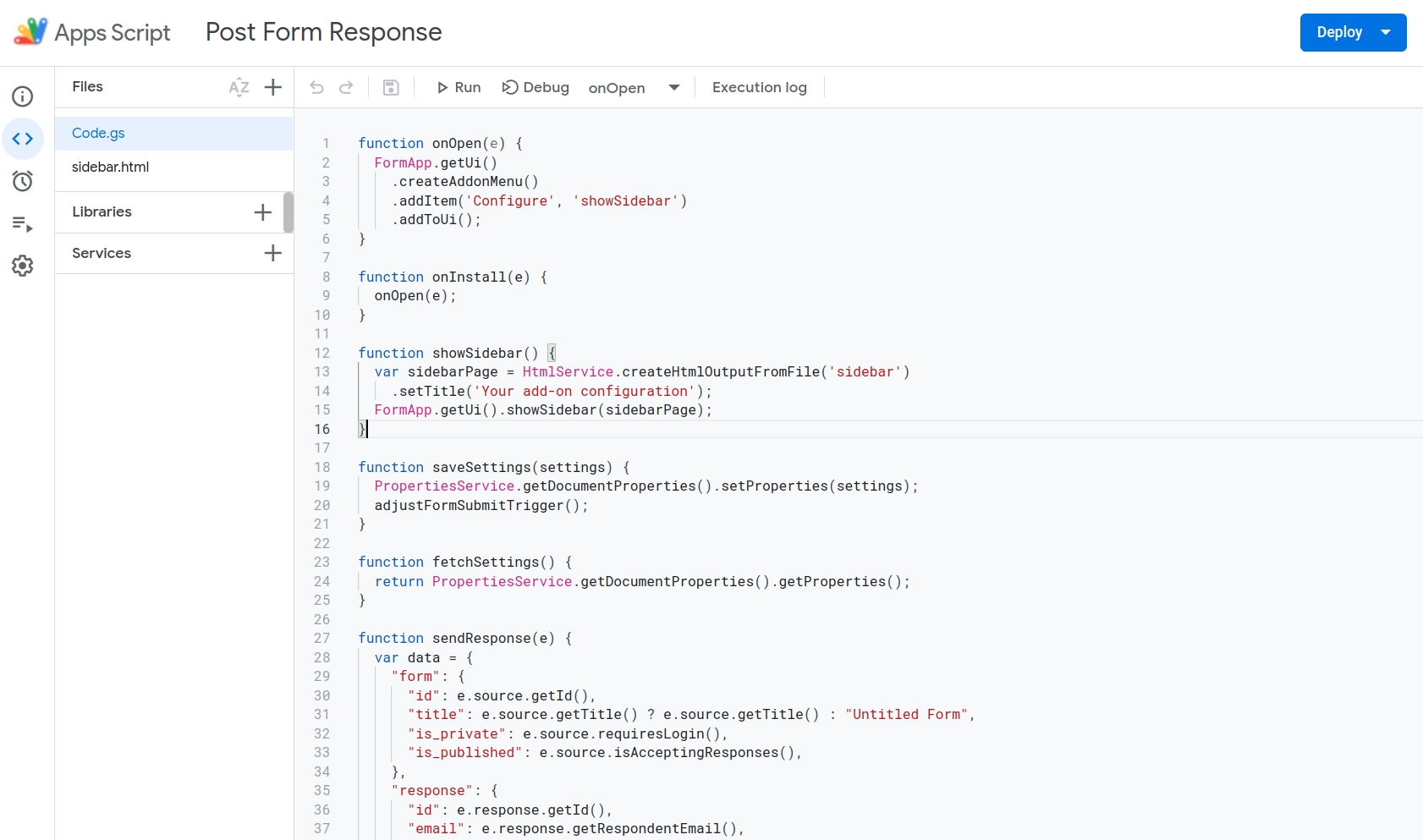
Open your Google Form, click the three-dot menu, and select Script editor. Write a script that:
1. Triggers on form submission (onFormSubmit)
2. Grabs the response values
3. Authenticates with your Salesforce Connected App (OAuth 2.0)
4. Sends a POST request to your Apex REST endpoint with the form data as JSON
The script uses UrlFetchApp.fetch() to make the HTTP call. Store your Salesforce credentials (client ID, client secret, username, password + security token) in the script’s Properties Service — don’t hardcode them.
Step 6: Configure the Endpoint URL
In your Apps Script, set the Salesforce REST endpoint URL (your org’s instance URL + the @RestResource path). Save the script and set up an installable trigger for form submissions.
Test it by submitting a test response on the Google Form and checking whether the record appears in Salesforce.
Step 7: Verify the Data in Salesforce
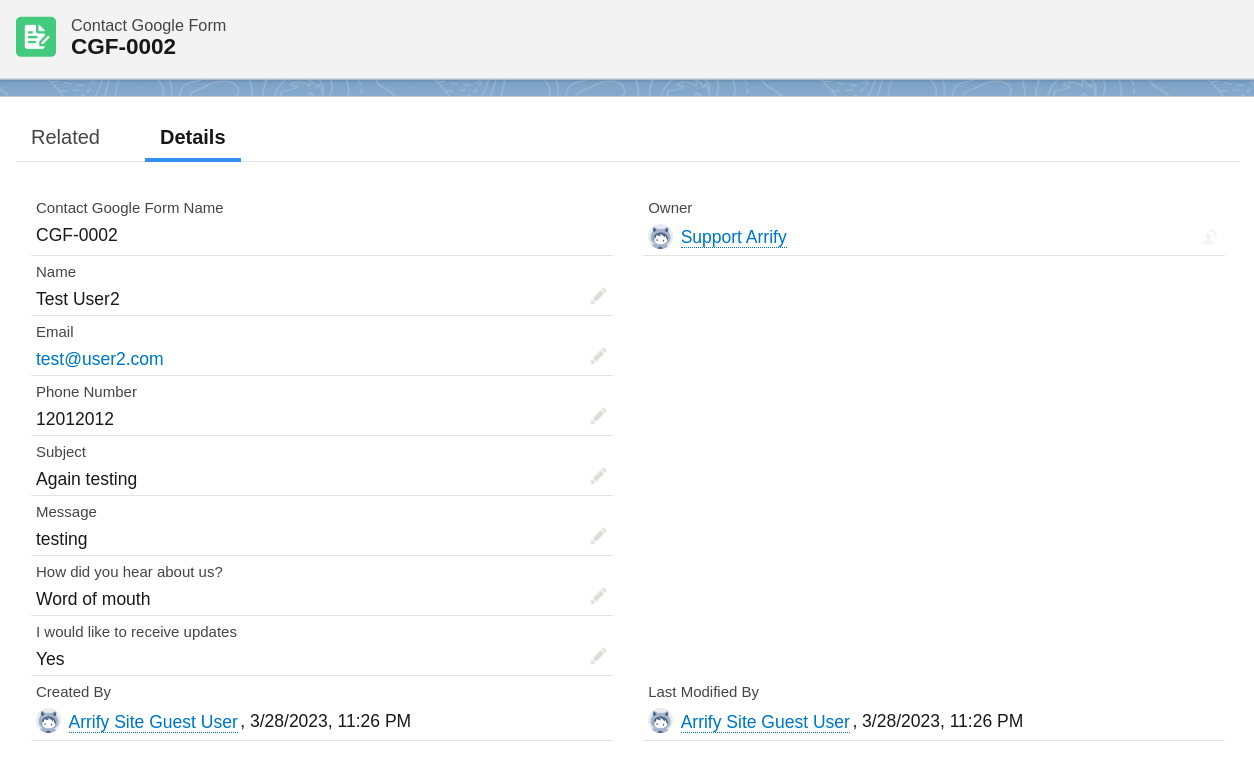
If everything’s wired up correctly, your test submission should appear as a new record in Salesforce. Check the field mapping — make sure each form field landed in the right Salesforce field.
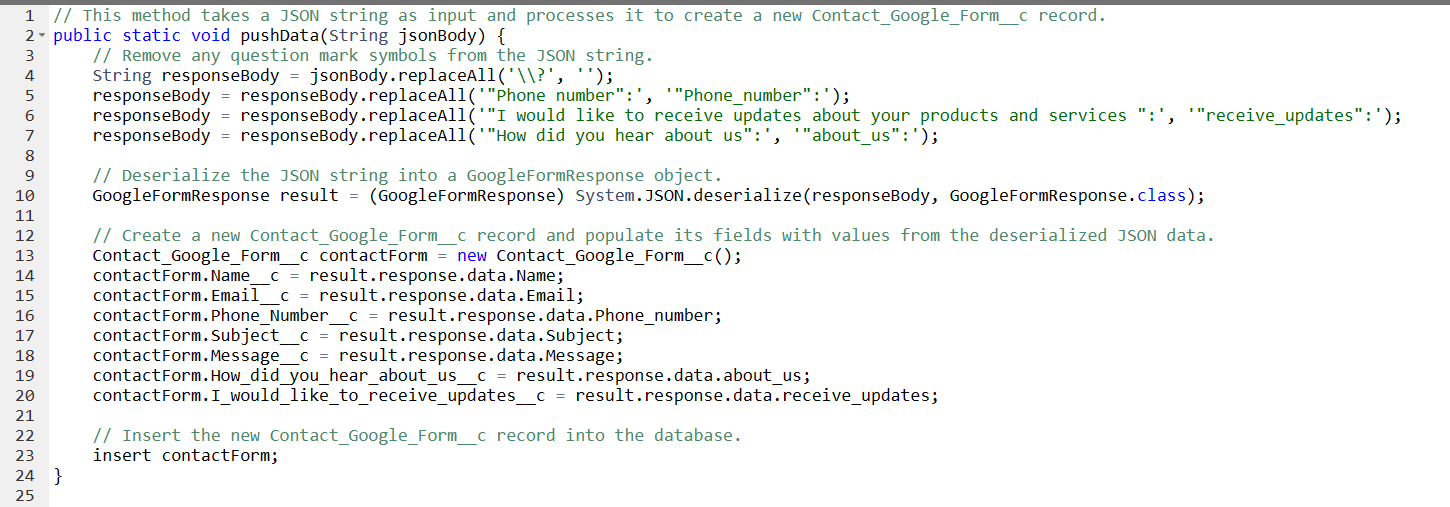
If something’s off, check the Google Apps Script execution log (View > Executions) for errors, and review the Salesforce debug logs for the REST endpoint.
Real Talk: The Apps Script method is the most powerful option, but it’s also the most fragile. If Salesforce changes your security token, or your Connected App expires, the integration breaks silently. Build in error handling — log failures to a Google Sheet or send yourself an email when a submission fails.
Method 2: Zapier — No-Code Google Forms to Salesforce
If nobody on your team writes code (or you just want this running in 5 minutes), Zapier is the fastest path. It connects Google Forms to Salesforce without any scripts, APIs, or Apex.
What you’ll need:
- A Zapier account (free tier won’t work — Salesforce is a premium app requiring a paid plan at $19.99+/month)
- A Google account with your form
- Salesforce login credentials
How to Set It Up
- Create a new Zap in Zapier. Set the trigger app to Google Forms and the trigger event to New Response in Spreadsheet (make sure your form has a connected Google Sheet — Zapier reads from the sheet, not directly from the form).
- Connect your Google account and select the spreadsheet and worksheet tied to your form.
- Set the action app to Salesforce and choose the action — usually Create Record (Lead, Contact, or any object).
- Connect your Salesforce account and select the object type.
- Map the fields — match each spreadsheet column to the corresponding Salesforce field. Zapier shows you a dropdown of all available fields on the object.
- Test the Zap — Zapier pulls the latest row from your sheet and creates a record in Salesforce. Verify it worked.
- Turn it on.
That’s it. Every new form submission flows through to Salesforce automatically.
Pro Tip: Add a filter step in Zapier if you only want certain submissions to reach Salesforce — for example, skip submissions where the email is blank, or only create Leads for a specific “How did you hear about us?” response.
Zapier Limitations to Know
- Cost adds up. Salesforce is a premium Zapier app. You’ll pay $19.99/month minimum, and the cost scales with the number of tasks (submissions processed per month).
- No custom Apex logic. Zapier creates standard records — it can’t trigger Salesforce Flows, call Apex classes, or do complex field transformations.
- Delay. Zapier polls for new responses every 1–15 minutes depending on your plan. It’s not real-time.
- Sheet dependency. Your Google Form must have a connected spreadsheet. If someone disconnects it, the Zap breaks.
Method 3: Google Sheets + Salesforce Connector
This is the middle ground — more control than Zapier, less code than Apps Script. The idea: Google Form responses land in a Google Sheet, and a Salesforce connector syncs that sheet data into Salesforce.
Options for the Connector
- Salesforce Connector for Google Sheets (free Salesforce Labs app) — lets you push data from Sheets into Salesforce using a sidebar interface. Works for one-time or periodic imports.
- Dataloader.io — cloud-based data loader that can pull from Google Sheets on a schedule.
- G-Connector (now Xappex) — a Google Sheets add-on built specifically for Salesforce data operations. Supports scheduled pushes.
Basic Setup
- Connect your Google Form to a Google Sheet (Responses tab > Google Sheets icon).
- Install your connector of choice from the Google Workspace Marketplace or Salesforce AppExchange.
- Authenticate with Salesforce.
- Map the sheet columns to Salesforce object fields.
- Set a sync schedule (every 15 minutes, hourly, etc.) or run manual imports.
This method works well for teams that already use Google Sheets as an intermediate data layer. The downside: it’s not truly real-time, and scheduled syncs can miss the window if timing matters.
Key Takeaway: The Google Sheets connector method is ideal if you need to review or transform form data before it hits Salesforce — the sheet acts as a staging area.
Which Method Should You Pick?
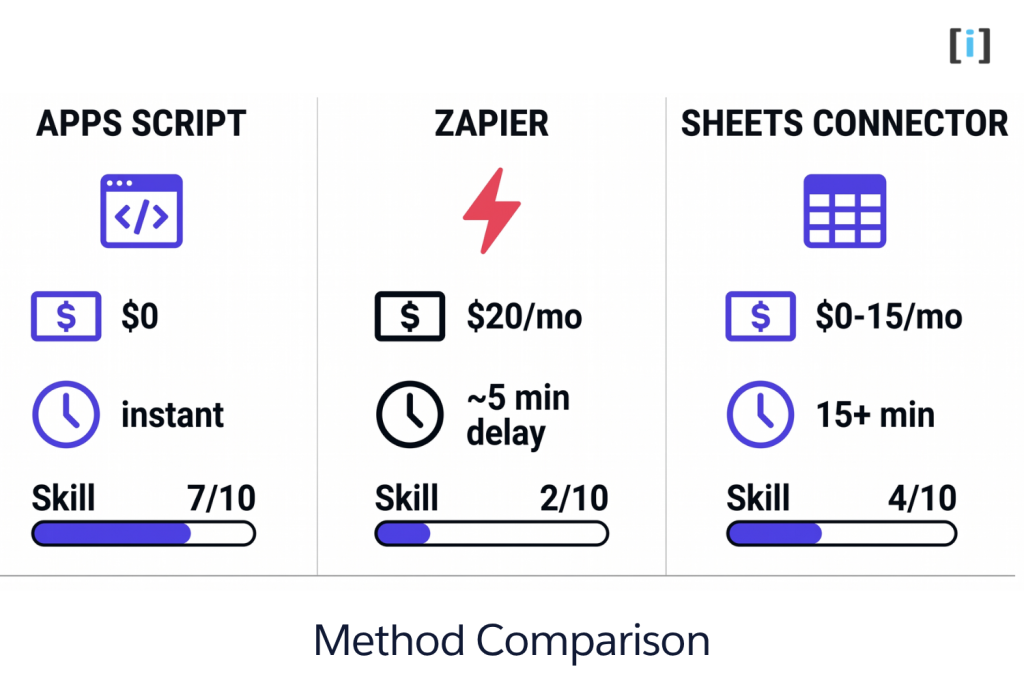
| Factor | Apps Script | Zapier | Sheets Connector |
|---|---|---|---|
| Cost | Free | $19.99+/mo | Free–$15/mo |
| Speed | Near real-time | 1–15 min delay | Scheduled (15 min+) |
| Custom objects | Yes | Yes | Yes |
| Complex field logic | Yes (Apex) | Limited | Limited |
| Error handling | You build it | Built-in retries | Varies |
| Maintenance | You maintain code | Zapier maintains | You configure |
| Data review before sync | No (direct push) | No (direct push) | Yes (sheet as staging) |
Quick decision:
- You have a developer on the team → Apps Script. Free, flexible, real-time.
- You need it working today with zero code → Zapier. Pay the monthly fee, move on.
- You want to review/clean data before it hits Salesforce → Sheets Connector. The spreadsheet is your buffer.
Real Talk: Don’t over-engineer this. If you’re pushing 50 form submissions a month into standard Lead records, Zapier at $20/month is probably the right answer. Save the Apps Script approach for custom objects, complex field mapping, or when you need to trigger Salesforce automations on record creation.
Limitations and Gotchas
Before you commit to any method, here’s what can go wrong:
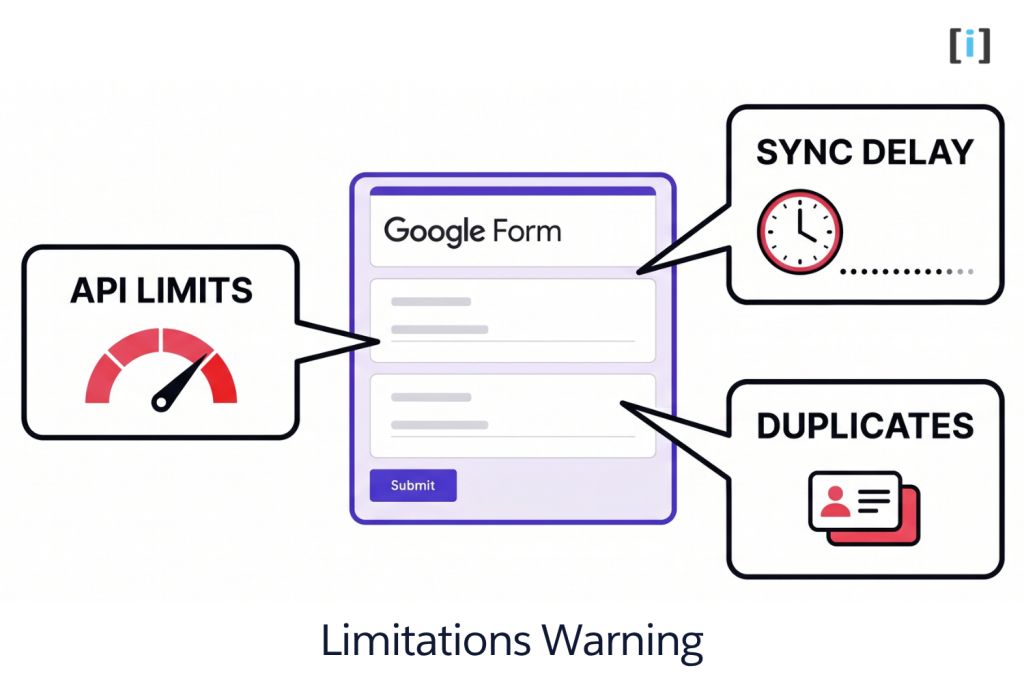
Google Forms limitations:
- No conditional logic (everyone sees all fields). If you need dynamic forms that show/hide fields, Google Forms isn’t the right tool — look at JotForm, Typeform, or FormAssembly instead.
- File upload fields don’t map cleanly to Salesforce. The file goes to Google Drive, and you’ll need extra logic to attach it to a Salesforce record.
- No prefill from Salesforce. You can’t pull existing Contact data into a Google Form the way you can with FormAssembly or native Salesforce web forms.
Salesforce-side issues:
- API limits. Every form submission that hits the REST API counts against your org’s daily API limit. For most orgs this isn’t a problem, but high-volume forms (1,000+ submissions/day) can eat into it.
- Field validation rules. If your Salesforce org has required fields or validation rules on the target object, the integration will fail silently unless you handle errors. Make sure every required field is either mapped from the form or has a default value.
- Duplicate management. None of these methods check for existing records by default. You’ll get duplicate Leads unless you add dedup logic (in Apex for the code method, or using Salesforce duplicate rules).
Sync delays:
- Apps Script: near real-time (seconds), but subject to Google’s execution quotas.
- Zapier: 1–15 minutes depending on plan tier.
- Sheets Connector: depends on your sync schedule — could be 15 minutes to 1 hour.
The Litmus Test: If a 15-minute delay between form submission and Salesforce record creation is unacceptable for your workflow, you need either the Apps Script method or a different form tool with native Salesforce integration.
FAQ
Can I create Leads and Contacts automatically from Google Forms?
Yes — all three methods support creating Leads, Contacts, or records on any standard or custom object. With Zapier, you pick the object type in the action step. With Apps Script, you control it in the Apex endpoint code. With the Sheets Connector, you select the target object during field mapping.
Do I need Salesforce admin access to set this up?
For the Apps Script method, yes — you need admin access to create a Connected App, write Apex classes, and configure the REST endpoint. For Zapier, you just need a Salesforce login with API access enabled (check with your admin). For the Sheets Connector, you need at least data import permissions on the target object.
Can I use this with existing Google Forms?
Yes. All three methods work with existing forms. For Apps Script, add the script to your existing form’s Script Editor. For Zapier, connect the form’s linked spreadsheet. For the Sheets Connector, use the sheet that’s already collecting responses.
What happens if the integration fails on a submission?
With Apps Script, check the execution log in the Script Editor (View > Executions) and the Salesforce debug logs. With Zapier, failed Zaps appear in your Task History with error details, and Zapier retries automatically. With the Sheets Connector, failed rows are typically flagged in the sheet with an error column.
Can I map Google Form fields to custom Salesforce objects?
Yes. The Apps Script method gives you full control — your Apex endpoint can write to any object. Zapier also supports custom objects (you’ll see them in the object dropdown after connecting Salesforce). Most Sheets Connectors support custom objects too.
Is there a free way to connect Google Forms to Salesforce?
The Apps Script + REST API method is completely free. You’re using Google’s free scripting platform and Salesforce’s built-in API. The only “cost” is the time to set it up and maintain it. The Salesforce Connector for Google Sheets (by Salesforce Labs) is also free.
How do I handle duplicate records?
None of the three methods deduplicate by default. For Apps Script, add SOQL in your Apex endpoint to check for existing records before creating new ones. For Zapier, use a “Find Record” step before the “Create Record” step. In Salesforce, you can also enable duplicate rules and matching rules to catch duplicates regardless of the source.
Internal resources:
- Comparing Google Forms against JotForm, Typeform, Wufoo, and other tools? See our 10 web forms that integrate with Salesforce roundup.
- Want native Salesforce forms instead of third-party tools? Check our Salesforce web forms guide for Web-to-Lead, Web-to-Case, and custom object forms.
- For a high-level overview of all form options — native, AppExchange, and third-party — start with our Salesforce form options hub.
- Already using Gravity Forms with WordPress? See our Gravity Forms to Salesforce tutorial instead.
- Need dynamic, conditional forms for Salesforce? Check out FormAssembly’s Salesforce integration or native Dynamic Forms.
Still not sure which integration method fits your setup? Book a free consultation — we’ll look at your Salesforce org, your forms, and tell you exactly what to build (and what not to).