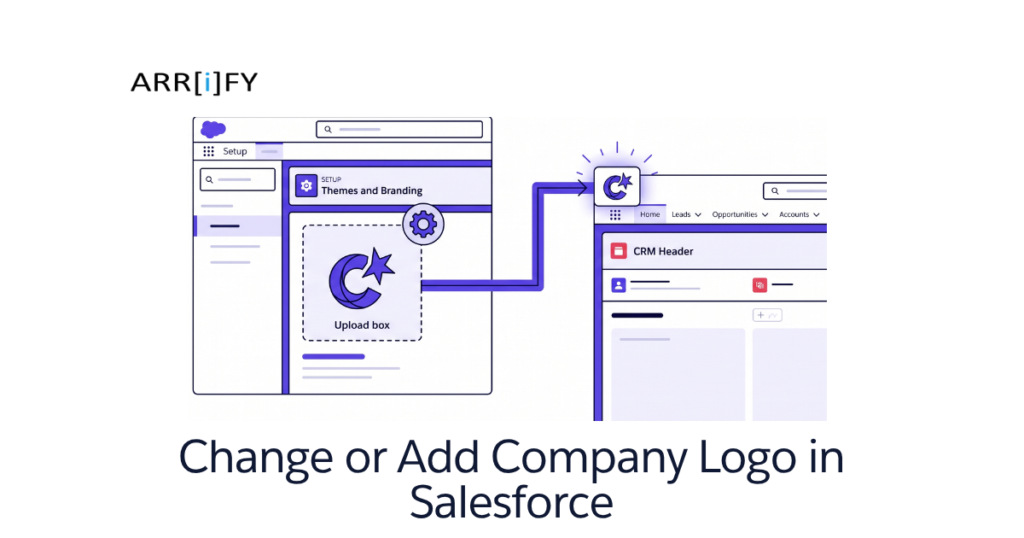
A company logo is the foundation of your business’s visual identity. When you add a company logo in Salesforce, you do more than just customize a piece of software—you reinforce your brand identity for your internal team, users, and customers.
Whether you want it displayed on the App Launcher, the login page, or your outbound email templates, customizing Salesforce with your brand assets is one of the quickest wins for Salesforce Administrators.
In this comprehensive tutorial, we will teach you exactly how to add, change, and optimize your company logo across different areas of your Salesforce instance.
Why Branding Your Salesforce Instance Matters
Before we dive into the technical steps, it’s essential to understand the value of branding your Salesforce environment:
Professionalism
When you put your company’s logo in Salesforce, it makes the system look official and put-together. Instead of looking like a generic software tool, it looks like a custom workspace built specifically for your team. This small touch makes your business look more professional.
User Adoption
Sometimes, employees don’t like using new software. But when they log in and see their own company’s logo, it feels familiar. It reminds them that this is their team’s home base.
External Trust
If you use Salesforce to send out emails or run portals for your customers, your logo is a must-have. When a customer receives an email or logs into a portal and sees your familiar logo, they instantly know it’s really you. It stops them from worrying about spam or fake links and makes them feel safe doing business with you.
Prerequisites & Image Requirements
Before you can add a company logo in Salesforce, you need to ensure you have the right permissions and the correct file format.
Requirements
- Salesforce Permissions: You need a Salesforce account with system administrator access (specifically, the “Customize Application” permission) to modify these settings.
- Company Logo Image File: You must have a high-quality image file of your logo.
Salesforce Logo Image Constraints
- The image must be in GIF, PNG, or JPEG format.
- The file size must be less than 20 KB for Lightning App logos.
- If the image is larger than 300 pixels wide by 55 pixels high, Salesforce will automatically scale it to fit.
- Pro Tip: For the best on-screen display, especially in Dark Mode or different themed backgrounds, we highly recommend using an image with a transparent background (PNG).
Adding And Changing Company Logo Step by Step in Salesforce
This is the most common method. It changes the logo that appears in the top-left corner of the screen when users are inside a specific Salesforce application
Total Time: 5 minutes
Access Setup

Click on the gear icon in the top right corner of your Salesforce screen and select Setup from the dropdown menu.
Navigate to App Manager

1. In the Quick Find box on the left, type App Manager and click on it.
2. You will see a list of all your Salesforce apps. Find the app you want to brand (e.g., “Sales”), click the dropdown arrow on the far right of that row, and select Edit.
Upload the Logo

1. You will be taken to the Lightning App Builder’s “App Details & Branding” section. Click the Upload button under the image section and select your logo from your system.
2. Click Save to upload the image to Salesforce.
Open App

1. Open the Sales App.
2. To see the company logo displayed on the Sales App homepage, click on the nine-dot icon in the top left corner and select and open the Sales App from the dropdown menu.
Verify the company logo on the homepage

The company logo should now be visible on the homepage.
Change the Company Logo

If you want to change the company logo in future. Then repeat the steps and at the time of adding the Logo section First Click the ” Clear ” button to clear the logo.
Tips and Best Practices for Salesforce Logos
To make sure your logo looks perfect and professional across the entire platform, keep these simple best practices in mind:
Use a high-quality image for the company logo
It is important to use a high-quality image for your company logo in Salesforce. A low-quality image can appear pixelated or blurry when displayed in Salesforce, which can negatively impact the appearance and branding of your organization.
Consider the file size and dimensions of the image
The file size and dimensions of the company logo image can affect how quickly it loads and how it displays in Salesforce. It is recommended to use an image that has a file size of less than 500KB and dimensions that are appropriate for the location where it will be displayed.
Verify that the company logo displays correctly
After adding the company logo in Salesforce, it is a good idea to check that it displays correctly on various pages in the platform. This will ensure that the branding of your organization is consistent and that the company logo is not distorted or misaligned.
Related Community Question
How to Update the Company logo in Salesforce?
How to Update the Company Logo in the Upper left corner in Lightning?
References
Learn more about the Assign Custom Logo to the App
Learn more about Update the Company
Learn more about adding Logo in PDF.
Frequently Asked Questions (FAQs)
Where are logos stored in Salesforce?
Logos in Salesforce are typically stored as image files within the Documents or Files section of the platform.
How do I remove or change an existing logo in Salesforce?
If you want to update an old logo, go to Setup > App Manager and edit your app. Under the “App Details & Branding” section, click the Clear button below your current logo. Once the old logo is removed, the Upload button will reappear, allowing you to select your new image.
Why does my logo look blurry in Salesforce?
If your logo looks blurry, it is likely because the uploaded file dimensions do not match Salesforce’s recommended dimensions (300×55 pixels), forcing the system to stretch or compress the image. Resize your image manually before uploading it to fix this issue.