When using Salesforce, it’s important to have a safe space to test and try out changes without affecting your real data. This is where sandboxes come in. It lets you experiment with new features or make changes without risking your business operations.
In this guide, we’ll explain what Salesforce sandboxes are, how much they cost, the different types available, and their features
What Is Sandbox?
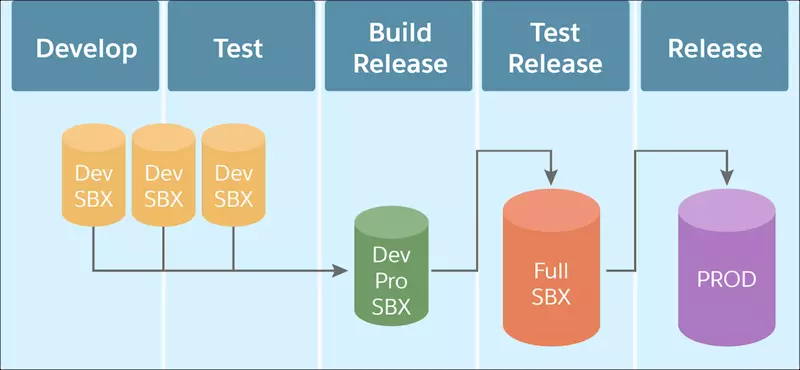
A Salesforce Sandbox is a copy of your live Salesforce environment (called the production organization). It allows you to create multiple, separate environments for different tasks, like development, testing, or training, without affecting your actual production data and applications.
Salesforce sandboxes are completely isolated from your production organization. This means that any work you do in a sandbox won’t impact your live data or processes, and changes in the production environment won’t affect the sandbox.
Each project phase usually needs a different environment. For example:
- Development: Multiple teams may need their own sandboxes for working on different features.
- Testing: After development, a shared sandbox is used for testing.
- Training: A sandbox environment is used for training without interfering with the live system.
- Staging: Before going live, a final sandbox is used to test the setup in an environment that mirrors production.
A Salesforce Sandbox is like copying your entire Salesforce organization into a separate, safe space to try new things, test changes, or train users without worrying about affecting your actual business operations.
It includes all the configurations, customizations, apps, and code (called metadata) from your production environment, giving you a controlled setting for development and testing.
So, a sandbox creates both a developing and testing environment within Salesforce.
Types of Salesforce Sandboxes
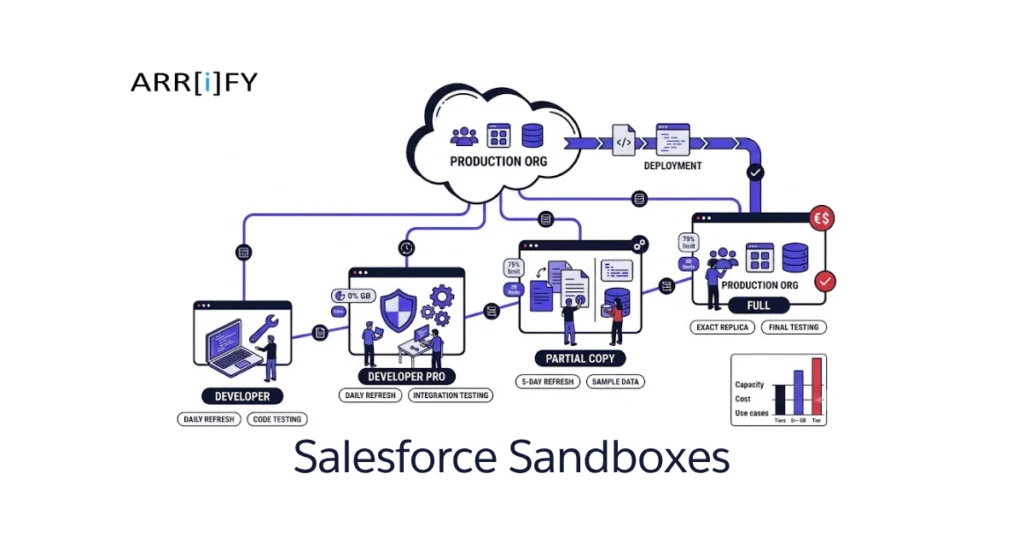
Salesforce provides several types of sandboxes, each designed for different purposes. Each type has its own features and limitations, so you can choose the one that best fits your needs :
Full Copy Sandbox
A Full Copy Sandbox is an exact copy of your production environment, including all data, custom and standard object records, attachments, and documents. It gives you complete data storage, equivalent to your live Salesforce environment. This sandbox is useful for thorough testing, training, and staging before deployment. It can be refreshed once every 29 days.
Partial Copy Sandbox
A Partial Copy Sandbox is a smaller version of the Full Copy Sandbox. It includes a subset of your production data up to 5 GB and a maximum of 10,000 records per object. This type of sandbox is ideal for testing with realistic data without using all your production data. It is suitable for testing new features or troubleshooting issues. It can be refreshed every 5 days.
Developer Sandbox
A Developer Sandbox is a copy of your production environment’s configuration, customizations, and code, but it doesn’t include any production data. This sandbox is limited to 200 MB of test data, which is often enough for development and basic testing tasks. It is ideal for individual developers or small testing tasks. It can be refreshed once a day.
Developer Pro Sandbox
A Developer Pro Sandbox is similar to the Developer Sandbox, but with more storage (1 GB of test data). It copies all your customizations, reports, dashboards, and configurations, but still doesn’t include production data. This sandbox is suitable for developers who need more storage for testing and development tasks. It can be refreshed once a day.
| Sandbox Type | Data Capacity | Refresh Interval | Refresh on Demand | Sandbox Template | What’s Copied |
|---|---|---|---|---|---|
| Developer Sandbox | 200 MB | 1 day | No | Not Available | Metadata only |
| Developer Pro Sandbox | 1 GB | 1 day | Yes | Not Available | Metadata only |
| Partial Copy Sandbox | 5 GB | 5 days | Yes | Required | Metadata and Sample Data |
| Full Copy Sandbox | Same as Production Org | 29 days | Yes | Available | Metadata and All Data |
Salesforce Sandbox Pricing
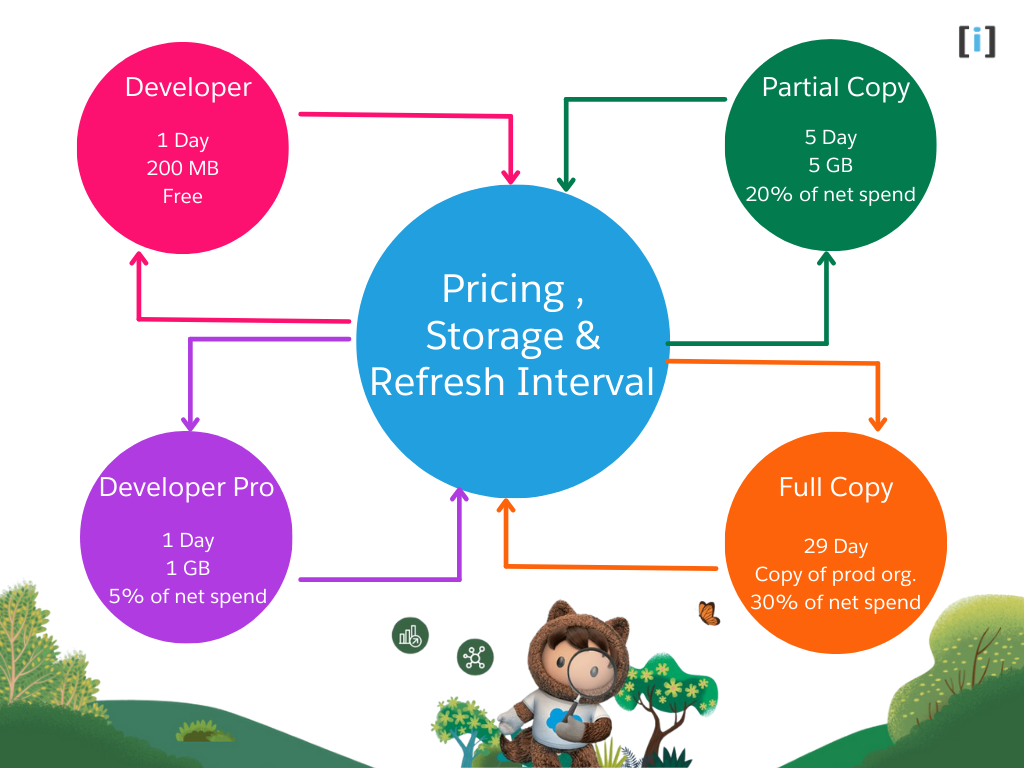
Salesforce sandboxes are available at different price points depending on the type of sandbox you need and your Salesforce edition. Generally, the pricing for sandboxes is included in your Salesforce subscription, but there may be additional costs for higher-level sandboxes or more frequent refreshes.
Developer Sandbox: It’s free. It is an Individual dev environment with a copy of all your metadata
Developer Pro Sandbox: It costs 5% of net spend.
Partial Copy Sandbox: It costs 20% of net spend.
Full Copy Sandbox: It costs 30% of net spend.
Salesforce Sandbox Limits and Storage
Understanding sandbox limits helps you avoid hitting walls during development and testing. Each sandbox type comes with specific storage and data constraints that are strictly enforced — unlike production, where Salesforce sometimes allows a small grace period.
Storage Limits by Sandbox Type
The table below shows the data storage, file storage, and refresh intervals for each sandbox type:
| Sandbox Type | Data Storage | File Storage | Refresh Interval |
|---|---|---|---|
| Developer | 200 MB | 200 MB | 1 day |
| Developer Pro | 1 GB | 1 GB | 1 day |
| Partial Copy | 5 GB | 5 GB | 5 days |
| Full Copy | Same as production | Same as production | 29 days |
Salesforce tracks data storage (records like Accounts, Contacts, Leads) and file storage (attachments, Salesforce Files, documents) in two separate buckets. Running out of one does not affect the other, but both limits are independently enforced.
What Happens When You Hit Storage Limits
When a sandbox reaches its storage limit, you won’t be able to create new records or deploy metadata that includes data. Apex tests may also fail if they generate test data that pushes storage over the cap. To fix this, delete unnecessary data, adjust your sandbox template to copy fewer records, or upgrade to a larger sandbox type.
If your production org is already over its storage allocation when you refresh a Full Copy sandbox, the new sandbox will inherit that overage — meaning it’ll also be blocked from record creation until you free up space.
Sandbox Allocations by Salesforce Edition
The number of sandboxes included with your Salesforce license depends on your edition. Additional sandboxes can be purchased separately as add-ons.
| Sandbox Type | Enterprise Edition | Unlimited & Performance Editions |
|---|---|---|
| Developer | 25 | 100 |
| Developer Pro | 1 | 5 |
| Partial Copy | 1 | 1 |
| Full Copy | 0 (add-on only) | 1 |
Tip: You can check your current sandbox allocations in Setup → Sandboxes. If you’ve recently upgraded your Salesforce license, use the “Match Production Licenses” button to sync allocations without a full refresh.
Salesforce Sandbox Template
Before creating a Salesforce Sandbox, it’s important to set up a Sandbox Template. This template allows you to choose which specific objects and data you want to copy into the sandbox. When you create or refresh a Partial or Full Sandbox, you can apply the template to control what gets included.
For example, if you add a child object (like Object B), Salesforce will automatically include the parent object (Object A) to maintain relationships between them. This helps ensure that your sandbox only contains the relevant data needed for development or testing, improving performance and focus.
By using templates, you can keep your sandbox environment clean and efficient, with the right data for each stage of your process.
Learn how to create and manage Salesforce Sandbox Templates effectively.
How To Create a Salesforce Sandbox?
How to Create Salesforce Sandbox.
Total Time: 10 minutes
-
Go to Setup
Log into the Salesforce org.
Once logged in, click on the gear icon (⚙️) in the upper right corner.
Select Setup from the dropdown menu. -
Quick Search Sandboxes

In the Setup menu, find the Quick Find box on the left-hand side.
Type “Sandboxes” into the search bar.
Under Environments, click on Sandboxes. -
Create New Sandbox

On the Sandboxes page, click the “New Sandbox” button to start the creation process.
Choose the type of Sandbox you want to create.
Enter a name for the Sandbox.
For Partial Copy and Full Sandboxes, you’ll need to select the data subset you want to copy from your production environment.
You can also enable templates for partial data copies, if applicable.
Choose the environment ( production or sandbox ) from which to copy the metadata and data.
After selecting the desired options, click the Create button to initiate the sandbox creation process. -
Monitor the Progress
You can track the progress of the sandbox creation on the Sandboxes page. Once the sandbox is ready, it will display a status of “Active” or “Completed.”
Important Note:
- After the sandbox is created, you can log into it using the sandbox URL. The URL will typically be: https://test.salesforce.com (instead of https://login.salesforce.com for production).
- For the Sandbox, the password is the same as production, but the username will include “.SandboxName”. if your username is [email protected] and the Sandbox name is DevSandbox, then [email protected].
Recent Salesforce Sandbox Updates
Salesforce regularly enhances sandbox capabilities through its three annual releases (Spring, Summer, Winter). Here are the most notable sandbox improvements from recent releases.
Quick Clone (Generally Available)
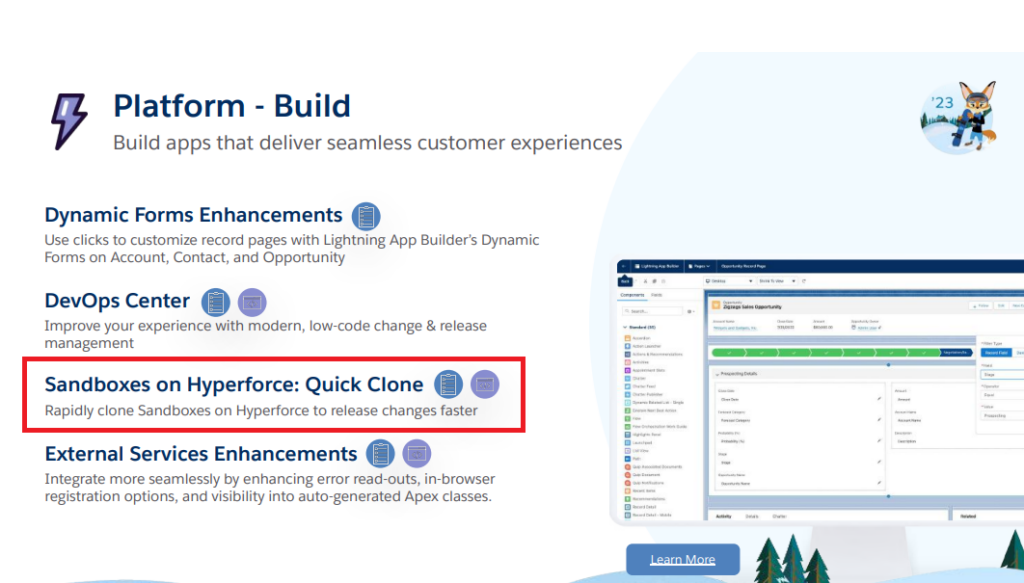
First introduced in the Winter ’23 release, Quick Clone is now generally available for all sandbox types — Developer, Developer Pro, Partial Copy, and Full — on Hyperforce.
Quick Clone uses the elasticity of public cloud infrastructure to significantly reduce sandbox creation time. When your source sandbox is on a Hyperforce instance, the system automatically uses Quick Clone during the cloning process — no special setup required.
This feature helps teams reduce idle developer time, enables parallel working across multiple sandboxes, and supports more efficient continuous integration jobs.
Sandbox Preview Program
Salesforce now lets you identify which sandboxes receive preview releases before production upgrades. Sandboxes on Preview instances are upgraded approximately 6 weeks before production, giving your team early access to test new features.
You can check your sandbox’s instance type on the Sandboxes page in Setup. To change a sandbox from Preview to Non-Preview (or vice versa), refresh it before the cutoff date listed on the Salesforce Trust site.
Understanding the Release Schedule
Salesforce releases major updates three times a year: Spring, Summer, and Winter.
Sandbox Preview instances are typically upgraded approximately 6 weeks before production rollout. Because these exact dates shift slightly with every release, the best way to stay prepared is to check the Salesforce Trust site for your specific instance’s maintenance dates.
You can also sign up for pre-release Developer Edition orgs to explore upcoming features in a clean environment before they hit your sandboxes.
Benefits of using Salesforce Sandbox
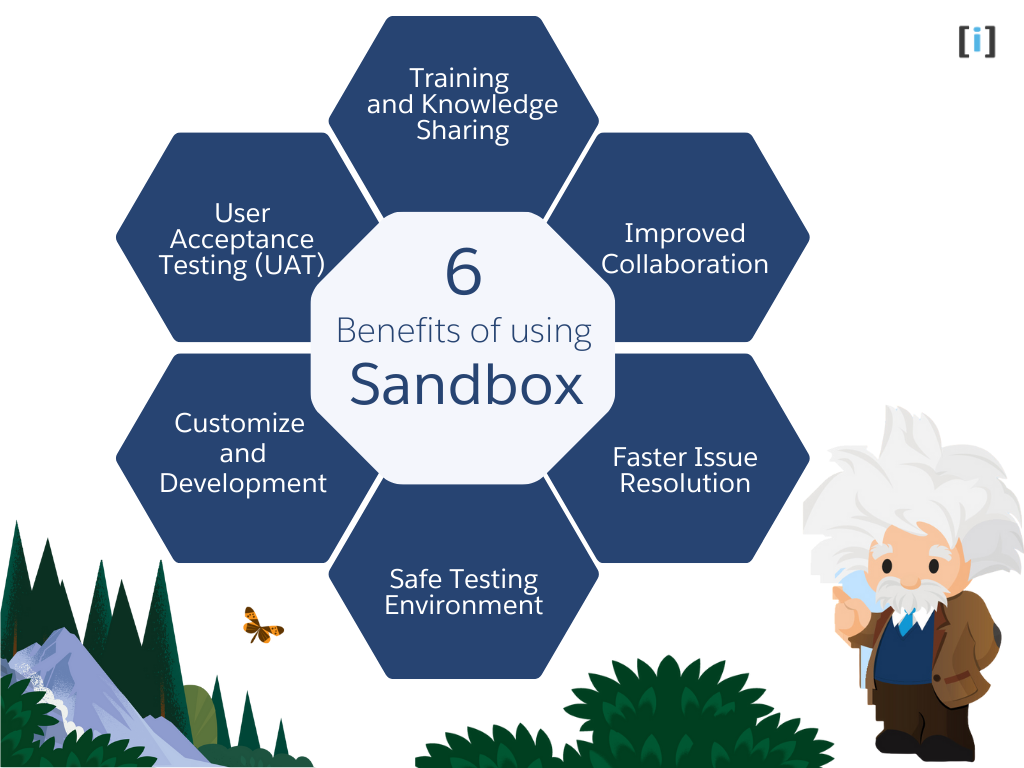
Salesforce Sandboxes offer many benefits that help organizations manage and improve their Salesforce environments. Here are the main advantages:
Safe Testing Environment
Risk-Free Testing
Sandboxes allow you to test new features, settings, or customizations without affecting the live system.
Real Data Simulation
Partial Copy and Full Sandboxes copy real production data, so you can test with realistic data without impacting real customers or business operations.
Customization and Development
Safe Development
Developers can create new features, write code, and make changes without disrupting the live system.
Version Control
Sandboxes give developers a place to test and adjust their changes before adding them to the live environment, ensuring stability.
User Acceptance Testing (UAT)
Real-World Testing
Full Sandboxes allow end-users to test new features before they go live, providing feedback for improvement.
Simulating User Behavior
Testing with real data helps to see how users will interact with new features, making it easier to find problems before they go live.
Training and Knowledge Sharing
Employee Training
Sandboxes offer a safe environment for training employees without risking data exposure or errors in the live system.
Trial Runs
You can test new features or tools in Sandboxes to ensure users are comfortable before rolling them out to production.
Improved Collaboration
Multiple Developers
Sandboxes allow different developers to work on separate tasks without affecting each other’s work.
Safe Collaboration
Teams can test their changes in Sandboxes, reducing the risk of conflicts before moving them to the live environment.
Faster Issue Resolution
Testing Bug Fixes
If issues arise in production, you can test solutions in Sandboxes before applying them to the live system. This helps ensure that the fixes won’t cause additional problems and speeds up the resolution process.
When to Use vs. When Not to Use Salesforce Sandboxes
| Criteria | When to Use Sandbox | When Not to Use Sandbox |
|---|---|---|
| Training | Safe environment for user training. | N/A |
| Testing | Test new features without affecting production. | N/A |
| Development | Work on changes without impacting production. | For small, low-risk updates, use production. |
| Emergency Changes | N/A | Delays when urgent changes are needed. |
| Simple Changes | N/A | Minor, low-risk updates can be directly made in production. |
Salesforce Sandbox Best Practices
Salesforce Sandboxes are essential for development, testing, and deployment without affecting your production environment. To ensure smooth processes and avoid issues, here are key best practices:
Understand Sandbox Types
Salesforce offers various sandbox types, each serving specific purposes like development, testing, or training. Choose the appropriate type based on your needs to avoid unnecessary resource allocation.
- Developer Sandbox: For small development tasks.
- Developer Pro Sandbox: For larger development tasks.
- Partial Copy Sandbox: For testing with a subset of production data.
- Full Sandbox: For a complete replica of your production environment.
Use Multiple Sandboxes
Keep separate Sandboxes for different development stages, like development, testing, staging, and production. This separation helps prevent conflicts and ensures each phase has its own controlled environment.
Refresh Sandboxes Regularly
Refresh Sandboxes regularly to keep them in sync with the latest data and configurations from Production. This ensures developers work with current information and helps produce accurate testing results.
Learn how to Refresh a Salesforce Sandbox with best practices.
Implement Change Sets
Use Change Sets to deploy configurations and customizations between Sandboxes and Production. This helps to control deployments, minimize errors, and maintain consistency across environments.
Explore how to use Salesforce Change Sets effectively.
Version Control
Use version control systems like Git to manage changes to Salesforce configurations, metadata, and code. This helps with collaboration, tracks changes, and allows for easy rollback if errors occur.
Governance and Permissions
Enforce strict governance policies and permissions to control access to sandboxes based on roles and responsibilities. This ensures data security and prevents unauthorized changes.
Data Management
Create a strategy for managing data in sandboxes, especially for testing purposes. Use anonymized or masked data to comply with privacy regulations and protect sensitive information.
Monitor Sandbox Usage
Monitor sandbox usage and allocate resources appropriately to avoid overutilization or underutilization. Regularly review sandbox activity to identify bottlenecks and optimize resource allocation.
Backup and Recovery
Implement backup and recovery procedures for critical sandbox data and configurations. Regularly backup sandbox metadata and data to mitigate the risk of data loss due to accidents or system failures.
Sandbox Setup Considerations
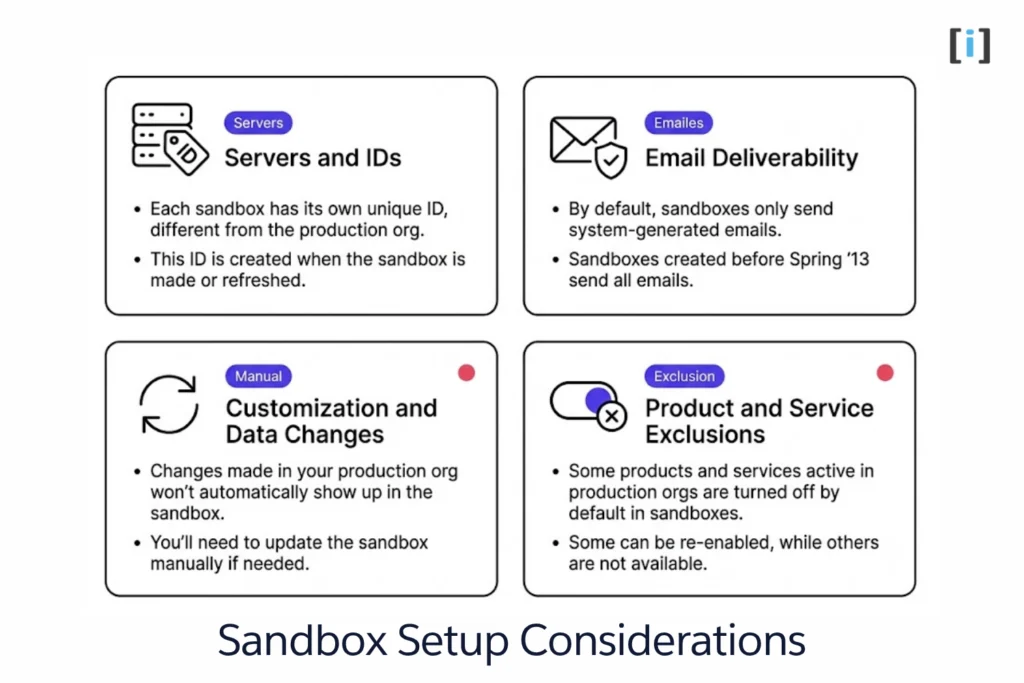
While setting up Salesforce Sandboxes, keep these setup considerations in mind to set up and use properly.
Servers and IDs
Each sandbox has its own unique ID, different from the production org. This ID is created when the sandbox is made or refreshed.
Visit here to learn how to find your Salesforce Org ID.
Email Deliverability
By default, sandboxes only send system-generated emails. Sandboxes created before Spring ’13 send all emails.
Customization and Data Changes
Changes made in your production org won’t automatically show up in the sandbox. You’ll need to update the sandbox manually if needed.
Product and Service Exclusions
Some products and services active in production orgs are turned off by default in sandboxes. Some can be re-enabled, while others are not available.
Conclusion
Salesforce Sandboxes are essential for any team that takes development and testing seriously. They provide isolated environments where you can build, break, and fix things without risking your production data or disrupting end users.
Key takeaways from this guide:
- Start with Developer Sandboxes for small tasks and quick experiments — they’re free with every edition
- Use Partial Copy Sandboxes when you need realistic data for quality assurance and integration testing
- Reserve Full Copy Sandboxes for UAT and staging environments before major go-lives
- Refresh sandboxes regularly to keep them in sync with production metadata and data
- Use Change Sets or the Salesforce CLI for clean, repeatable deployments from sandbox to production
Whether you’re a solo admin testing a new validation rule or a development team running parallel sprints, choosing the right sandbox type saves time, reduces risk, and keeps your production org clean.
Need help setting up your Salesforce sandbox strategy? Contact our team for a free consultation.
FAQs
What is Sandbox in Salesforce?
A Salesforce Sandbox is a copy of your Salesforce production environment that allows users to develop, test, and experiment without affecting the real data.
What are the different types of Salesforce Sandboxes?
Salesforce provides different types of Sandboxes, including Developer Sandbox, Developer Pro Sandbox, Partial Copy Sandbox, and Full Sandbox, each designed to serve specific development and testing needs.
How do Salesforce Sandboxes differ from production environments?
Sandboxes are isolated copies of your production org. They share the same metadata (configurations, code, page layouts) but are completely independent — changes in a sandbox never affect production until you explicitly deploy them. Key differences include separate login URLs, independent storage limits, and the ability to refresh sandboxes to pull the latest production data and configuration.
What is the cost of a Salesforce Sandbox?
Developer Sandboxes are free with all Salesforce editions. Additional sandboxes are priced as a percentage of your net Salesforce spend: Developer Pro costs 5%, Partial Copy costs 20%, and Full Copy costs 30%. These costs are in addition to your base subscription. Enterprise Edition and above include sandbox allocations at no extra charge — check your contract for the exact number of included sandboxes.
What does a Partial Copy Sandbox include?
A Partial Copy Sandbox includes all your metadata (custom objects, fields, Apex code, workflows) plus a subset of production data — up to 10,000 records per object — selected through a sandbox template. This gives you realistic data for testing without copying the full production dataset. Partial Copy sandboxes come with 5 GB of data storage and 5 GB of file storage, and can be refreshed every 5 days.
How often can I refresh a Salesforce Sandbox?
You can refresh Salesforce Sandboxes as follows:
Developer Sandboxes can be refreshed every 30 days.
Partial Copy Sandboxes can be refreshed every 5 days.
Full Sandboxes can be refreshed once every 29 days.
What happens if I exceed the storage limit in a Salesforce Sandbox?
If you exceed the storage limit in your Salesforce Sandbox, you may not be able to deploy changes or create new records. To resolve this, you’ll need to delete unnecessary data or upgrade to a Sandbox with more storage.
How do I deploy changes from a Salesforce Sandbox to production?
There are several ways to deploy from sandbox to production. Change Sets are the simplest option for point-and-click admins — create an outbound set in your sandbox, upload it, and validate in production. For developers, the Salesforce CLI (sf project deploy start) offers more control and supports CI/CD pipelines. Third-party tools like Gearset and Copado add comparison views and rollback capabilities. Always validate your deployment in production before activating to catch errors early.