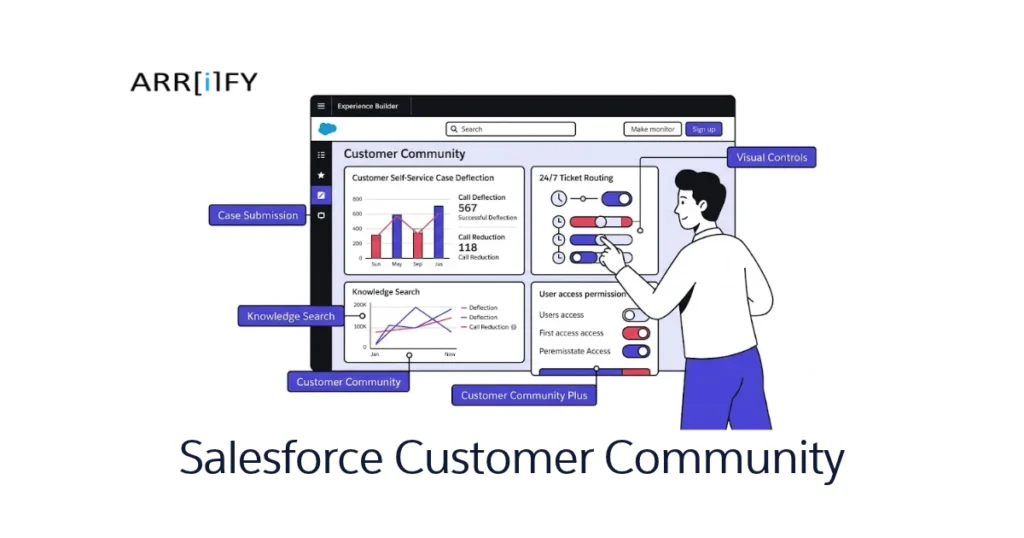
A Customer Community is a self-service client portal you build for your customers inside Salesforce. It’s where they log in to submit support cases, browse your knowledge base, check their account details, and interact with other customers — without contacting your team directly.
It runs on Salesforce Experience Cloud (what Salesforce used to call “Community Cloud”). If you’re looking for a full overview of the Experience Cloud platform — including partner portals, employee intranets, and public sites — see our Salesforce Experience Cloud guide.
This post focuses specifically on Customer Community portals: the license types, what you can build with them, and the practical steps to get one running.
Who this is for:
- Salesforce admins evaluating whether to set up a customer portal
- Teams trying to decide between Customer Community and Customer Community Plus licenses
- Businesses already using a community portal that want to improve adoption or reduce support volume
Quick clarification on naming: “Customer Community” refers to both the portal type and the license tier. Salesforce renamed the platform to “Experience Cloud” in 2021, but the license names (Customer Community, Customer Community Plus) stayed the same. You’ll see both terms used in Salesforce Setup and documentation.
Why Build a Customer Community Portal?
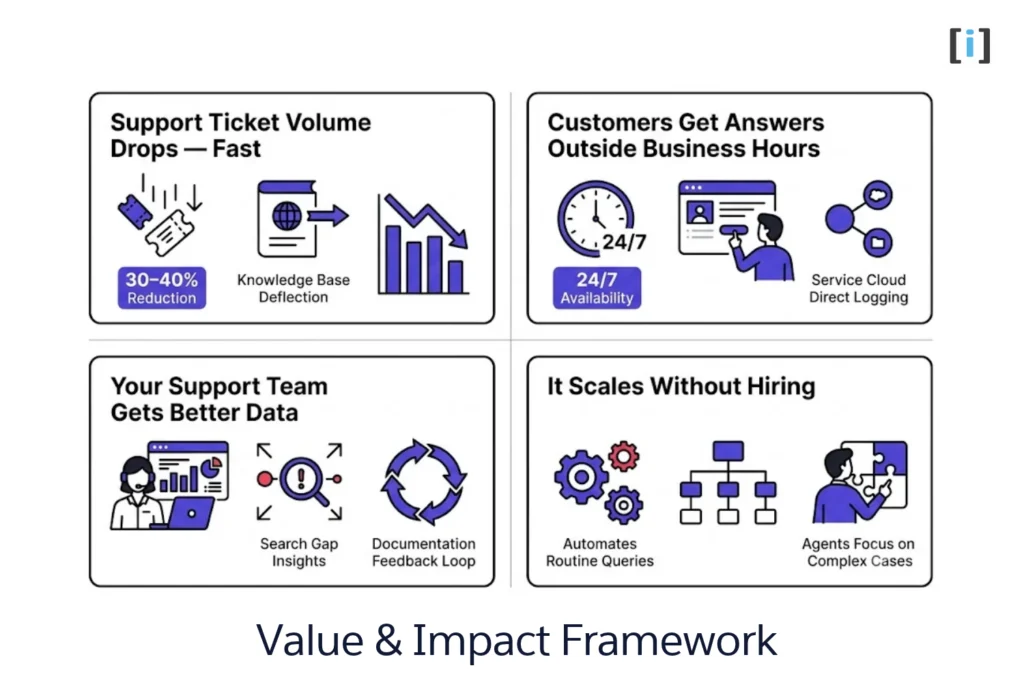
Support Ticket Volume Drops — Fast
This is the reason most companies build a Customer Community portal in the first place. When customers can search a knowledge base, check case status, and update their account info without calling or emailing, the impact on support volume is immediate.
We’ve seen companies cut inbound support tickets by 30–40% within the first quarter. The key is content — if your knowledge base has 5 placeholder articles, nobody’s going to use it. Stock it with answers to your actual top-20 support questions and the portal pays for itself.
Customers Get Answers Outside Business Hours
Your support team works 9-to-5. Your customers don’t. A self-service portal is available 24/7 — customers in different time zones, weekend users, people who’d rather search than wait on hold can all find what they need.
Case submission through the portal also means customers don’t lose their issue to a missed voicemail or buried email. It’s logged in Service Cloud the moment they hit submit.
Your Support Team Gets Better Data
Every portal interaction generates data: what knowledge articles get viewed most, which search terms return zero results, where customers drop off in the case submission form. This isn’t data you get from phone support.
Use it to identify gaps in your documentation, spot product issues early (if 50 customers search “login error” this week, something’s broken), and build a feedback loop between support and product teams.
It Scales Without Hiring
Adding a support agent costs $50K–$80K/year. Scaling a self-service portal costs nearly nothing after initial setup — the same knowledge base serves 100 customers or 10,000.
That said, portals don’t replace human support. They handle the routine questions (password resets, order status, how-to queries) so your agents can focus on complex issues that actually need a person.
What You Can Build with a Customer Community Portal
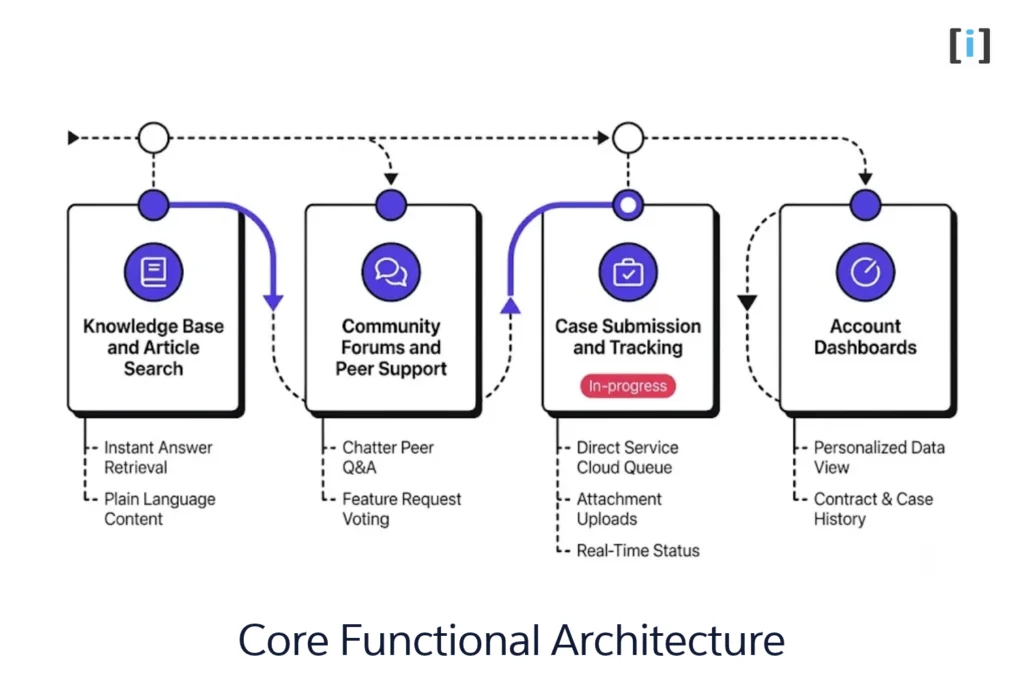
Knowledge Base and Article Search
The most-used feature in any Customer Community portal is search. Customers land on your portal, type a question, and expect to find an answer without submitting a case.
This runs on Salesforce Knowledge — you create articles with categories and tags, and the portal indexes them for search. The key is treating your knowledge base like a product: update articles when processes change, track which searches return zero results, and write in plain language (not internal jargon).
Lightning Web Components (LWC) let you customize the search experience — adding filters, featured articles, and “related topics” suggestions.
Case Submission and Tracking
Customers submit cases through the portal, and those cases land directly in your Service Cloud queue — alongside channels like Email-to-Case and Web-to-Case forms. No separate system, no manual import.
What makes this powerful:
- Customers see real-time case status updates
- They can add comments and upload attachments to existing cases
- Case history is tied to their account, so agents see the full picture
- SLAs and escalation rules apply automatically
If your portal doesn’t offer case submission, you’re missing the feature that drives the most adoption.
Community Forums and Peer Support
Chatter-powered forums let customers ask questions, share tips, and help each other. This creates a self-sustaining support channel — experienced customers answer questions without your team lifting a finger.
Practical tips that make forums work:
- Seed the first 20–30 discussions yourself (an empty forum stays empty)
- Assign a community moderator (even part-time)
- Use the Ideas object to let customers vote on feature requests
- Pin solved questions as reference threads
Forums work best for products with an active user base. If your customers only log in once a quarter, skip forums and invest in knowledge base content instead.
Account Dashboards
Customer Community portal users can see dashboards scoped to their own data — their open cases, Salesforce Account details, order history, or contract status. They can’t see other customers’ data (assuming sharing rules are set up correctly).
This is where the Customer Community Plus license matters: the Plus license gives full report and dashboard access, while the standard license limits what users can view. If your customers need to run their own reports, you’ll need Plus.
Customer Community vs Customer Community Plus: Which License Do You Need?
This is the question we get asked most. Both licenses let you build a customer portal on Experience Cloud, but they differ in what portal users can do.
Feature-by-Feature Comparison
| Capability | Customer Community | Customer Community Plus |
|---|---|---|
| Portal login and authentication | ✅ | ✅ |
| Knowledge base (read articles) | ✅ | ✅ |
| Case submission and tracking | ✅ | ✅ |
| Chatter / discussion forums | ✅ | ✅ |
| Account and contact management | ✅ | ✅ |
| Custom objects | 10 objects max | 10 objects (expandable) |
| Reports and dashboards | ❌ Limited to 1 report type | ✅ Full access |
| API access | ❌ | ✅ |
| Delegated administration | ❌ | ✅ |
| Advanced sharing rules | ❌ Basic (role-based only) | ✅ Full sharing model |
| Flow / automation triggers | Limited | ✅ Full access |
| Content management (CMS) | ✅ | ✅ |
Pricing
| License | Per Login | Per Member (monthly) |
|---|---|---|
| Customer Community | $2 / login | $5 / member |
| Customer Community Plus | $6 / login | $15 / member |
Per-login vs per-member:
- Per-login — you pay each time a user logs in (capped at 1 login/day). Best for occasional users — customers who check in once a month.
- Per-member — flat monthly fee regardless of login frequency. Best for daily active users.
For the full pricing breakdown including Partner and External Apps licenses, see the Experience Cloud pricing section in our main guide.
When to Use Each License
Choose Customer Community when:
- Your portal is primarily for support — case submission, knowledge base, case tracking
- Users don’t need to run reports or build dashboards
- You don’t need API integrations with the portal
- You want to keep costs low for a large user base
Choose Customer Community Plus when:
- Portal users need to view reports and dashboards (e.g., account performance, usage data)
- You need API access for custom integrations
- You want delegated admin — letting customer admins manage their own users
- You need advanced sharing rules (e.g., users within the same company can see each other’s cases)
Our Recommendation
Start with Customer Community licenses unless you have a specific reason to need Plus. You can upgrade individual users later — Salesforce lets you mix license types within the same portal. Going the other way (downgrading from Plus to standard) is messier, but possible.
The most common upgrade trigger we see: a customer asks for dashboards inside the portal. If that’s on your roadmap, start with Plus to avoid the migration.
Setting Up Your Customer Community Portal
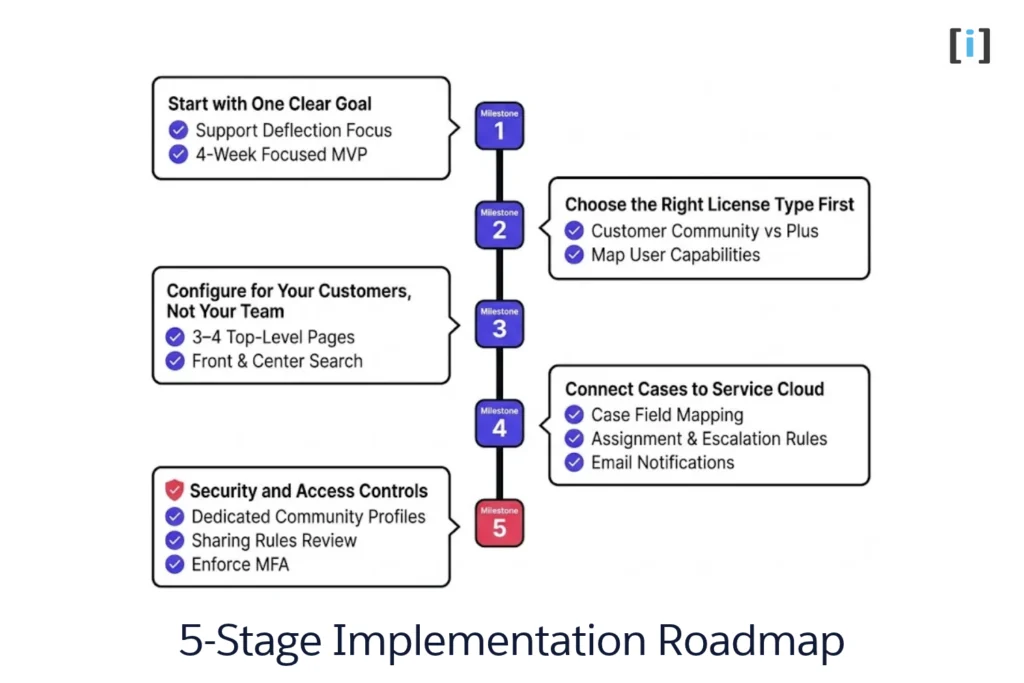
Getting a Customer Community portal from zero to live takes planning — but it’s more straightforward than most teams expect. Here’s what the process looks like, and the mistakes we’ve seen people make along the way.
For the full step-by-step technical setup with screenshots, see our Experience Cloud setup guide.
Start with One Clear Goal
The most common reason Customer Community portals fail isn’t technical — it’s scope creep. Teams try to build a portal that does everything on day one: support cases, knowledge base, partner collaboration, order tracking, and community forums.
Pick one use case to start with. For most companies, that’s support deflection — let customers submit and track cases, and search a knowledge base. Once that’s working and people are using it, expand from there.
We’ve seen teams spend 6 months building a “complete” portal that launches to crickets. The ones that ship a focused MVP in 4 weeks and iterate? They actually get adoption.
Choose the Right License Type First
This is the decision that trips up most teams. Salesforce offers two Customer Community license types, and picking the wrong one means either paying for features you don’t need or hitting walls when you try to add functionality later.
We cover the full comparison in the licensing section below — but the short version: start with Customer Community licenses for a basic self-service portal. Only upgrade to Customer Community Plus if you need reports, API access, or advanced sharing rules.
Don’t guess. List what your portal users need to do, then map it against the license feature matrix.
Configure for Your Customers, Not Your Team
Experience Builder gives you drag-and-drop tools to design the portal — no code needed for the basics. But the biggest mistake isn’t technical, it’s perspective.
We’ve seen portals designed around internal processes: ticket routing hierarchies, internal team names in navigation, jargon-heavy knowledge articles. Your customers don’t care about any of that.
What works:
- Keep navigation to 3–4 top-level pages max (Home, Support, Knowledge, My Account)
- Use plain language — “Get Help” instead of “Submit Service Request”
- Put the search bar front and center — it’s the most-used feature
- Test with actual customers before go-live, not just internal stakeholders
Connect Cases to Service Cloud
The real power of a Customer Community portal is that cases submitted by customers land directly in your Service Cloud queue — same as email and phone cases. No separate system, no manual import.
Set this up properly from the start:
- Map case fields (Subject, Description, Priority) to the portal submission form
- Configure case assignment rules so portal cases route to the right team
- Enable email notifications so customers get updates when case status changes
- Set up case escalation rules — portal cases shouldn’t sit in a queue longer than others
If you’re already using Service Cloud, this integration takes about an hour. If you’re not, consider starting with our Salesforce automation guide for the foundations.
Security and Access Controls
Customer Community users are external users with limited Salesforce access — that’s by design. But you still need to configure access controls properly.
Key settings to review before go-live:
- Community user profiles — create a dedicated profile, don’t modify the default
- Sharing rules — customers should only see their own cases and account data
- Guest user access — limit unauthenticated users to truly public pages only
- Login settings — enforce password complexity and consider enabling MFA
- GDPR/CCPA — if you’re storing EU/California customer data, review consent and data retention policies
Don’t skip the security review. One misconfigured sharing rule can expose Account data across all portal users — we’ve seen it happen.
Conclusion
A Salesforce Customer Community portal is one of the most practical ways to reduce support costs and improve customer experience — if you set it up right. The technology is straightforward; the hard part is content, adoption, and choosing the right license.
Key takeaways from this guide:
- Customer Community portals run on Experience Cloud — same platform, specific license type
- Start with the standard Customer Community license unless you need reports, API, or advanced sharing
- Focus your MVP on one use case (usually support deflection) and expand from there
- A self-service portal only works if your knowledge base has real, useful content
- Track case deflection rate and portal login frequency as your success metrics
For the full Experience Cloud platform overview — including partner portals, templates, and the step-by-step setup tutorial — see our Salesforce Experience Cloud guide.
Need help setting up or improving your Customer Community portal? Whether you need to hire a Salesforce consultant or require hands-on technical configuration, contact our team — we build and optimize portals for companies across industries.
FAQs
What is the difference between Customer Community and Customer Community Plus?
Both are license types for Salesforce Experience Cloud portals. The standard Customer Community license covers the basics — knowledge base, case submission, forums, and account management. Customer Community Plus adds reports and dashboards, API access, delegated administration, and advanced sharing rules. If your portal users only need support self-service, standard is enough. If they need data visibility or custom integrations, go with Plus.
Is Customer Community the same as Experience Cloud?
Yes and no. “Experience Cloud” is the platform — it powers all types of external sites (customer portals, partner portals, public websites, employee intranets). “Customer Community” is a specific license type within Experience Cloud, designed for customer-facing self-service portals. Salesforce renamed the overall platform from “Community Cloud” to “Experience Cloud” in 2021, but the license names didn’t change.
How many Customer Community licenses do I need?
It depends on your billing model. With per-member pricing, you need one license for every user who has portal access (whether they log in or not). With per-login pricing, you pay per login event — better for users who access the portal infrequently. Most Salesforce Enterprise Edition and above contracts include some community licenses — check your agreement before purchasing additional ones.
Can Customer Community users see each other’s data?
By default, no. Each customer sees only their own account, cases, and data. However, with Customer Community Plus licenses and advanced sharing rules, you can set up scenarios where users within the same company (Account) can see each other’s cases. This is useful for B2B portals where multiple contacts at a client company need visibility.
How do I improve adoption of my Customer Community portal?
The #1 adoption killer is a thin knowledge base. If customers search and find nothing, they won’t come back. Start with articles answering your top-20 support questions. Beyond content: send onboarding emails with direct links, run a webinar for early users, embed portal links in your email signatures and support responses, and track login rates weekly for the first 90 days.
Can I migrate from Customer Community to Customer Community Plus later?
Yes. You can upgrade individual user licenses from Customer Community to Customer Community Plus without rebuilding the portal. The portal itself stays the same — you’re just unlocking additional capabilities for those users. You can also mix license types, giving Plus to power users and standard to everyone else. Going from Plus back to standard is possible but may break features that depend on Plus capabilities (like dashboards or API integrations).