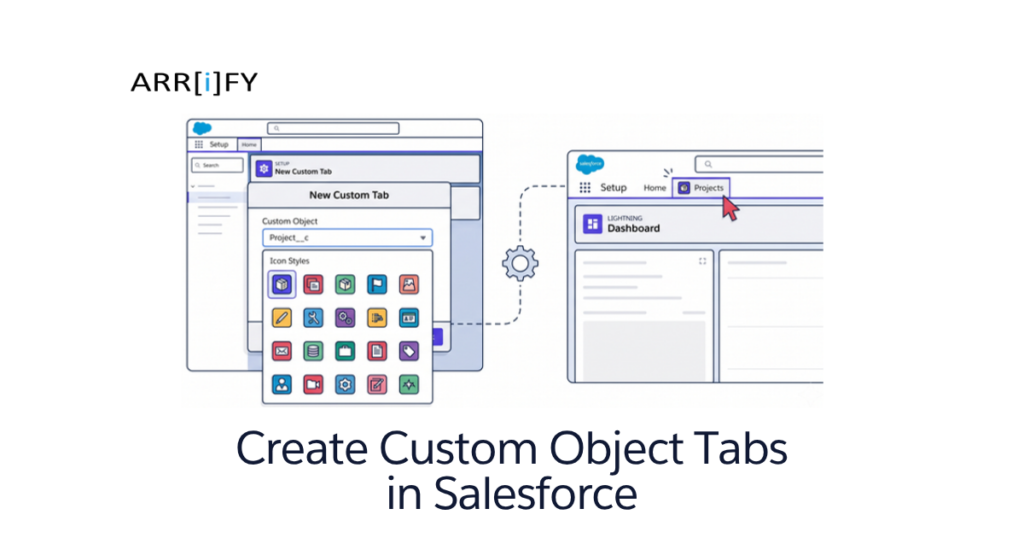
If you have built a custom object in Salesforce to store specialized data for your business, you might have noticed one issue: by default, it doesn’t appear in your main navigation menu. Without a dedicated tab, these custom objects exist securely in your backend database but are practically invisible and inaccessible to your day-to-day users.
Custom Object Tabs in Salesforce are like special buttons that help users quickly access and interact with custom data. They help your users quickly access, view, and interact with your custom data directly from the Salesforce Lightning interface.
In this guide, we will explore what Custom Object Tabs are, how to create them, their benefits, and how they can significantly enhance productivity in Salesforce.
What are Custom Object Tabs?
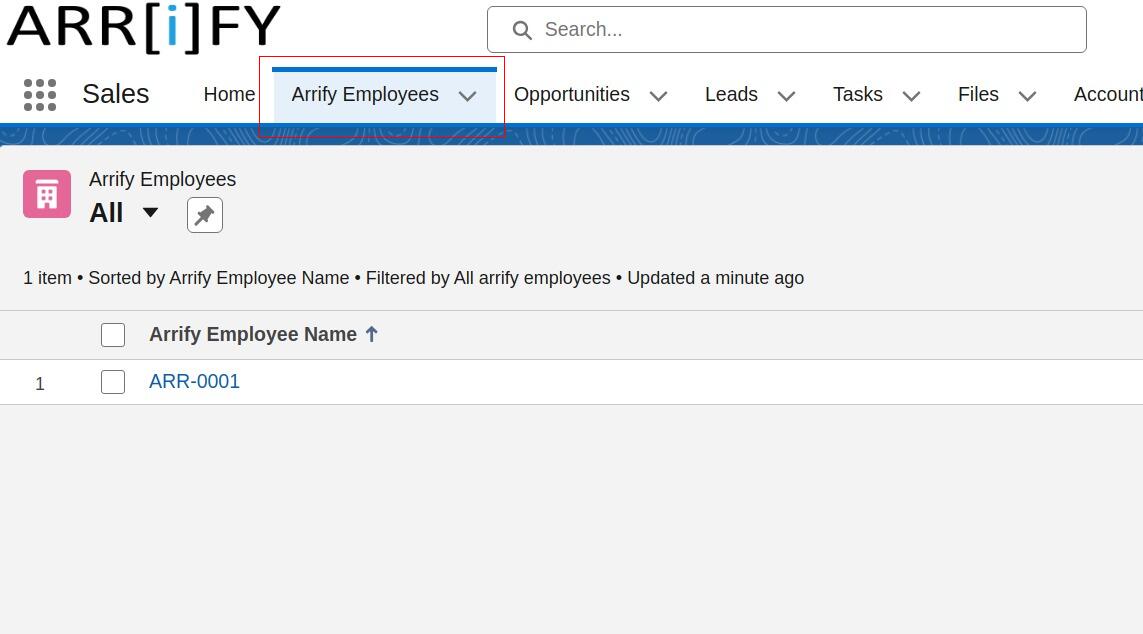
Custom Object Tabs in Salesforce are specialized user interface components that display the records or data of a custom object. When you add a custom tab to a Lightning App, it appears as an item in the app’s Navigation Bar and also becomes easily searchable within the App Launcher.
These tabs behave much like standard Salesforce tabs (such as Accounts, Contacts, or Opportunities), but they are specifically customized to fit your organization’s unique requirements. By default, the tab name will match the plural label of your custom object (e.g., “Students” for the “Student” object).
Custom Object Tabs allow users to:
- View records: Access custom object list views and individual records directly from the navigation bar.
- Create, Edit, and Delete: Provide full CRUD (Create, Read, Update, Delete) capabilities for the custom object.
- Custom User Interface: Customize the look and feel of the tab with specific visual designs or branding.
Note : These tabs appear at the top of the Salesforce screen and help users easily access and interact with custom data.
If you’re not yet familiar with objects in Salesforce, don’t worry! Check out to learn more about Salesforce objects and their capabilities.
5 Use case of Custom Object Tabs
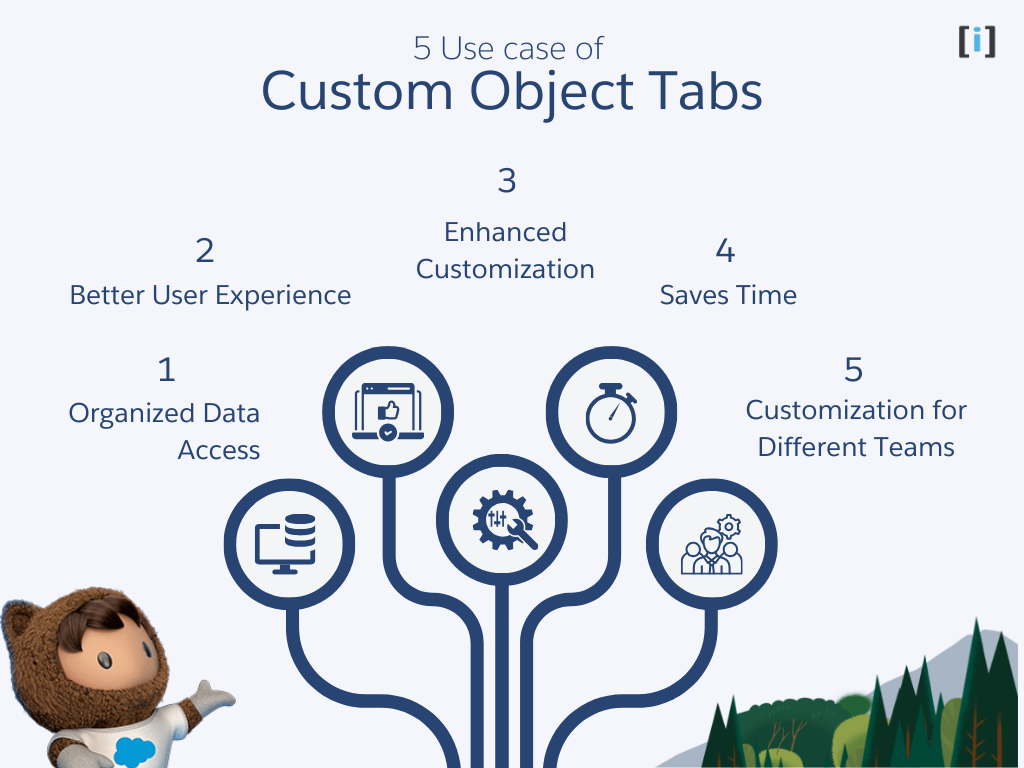
Custom Object Tabs are incredibly useful in Salesforce for several reasons:
Organized Data Access
Custom tabs let you quickly find important objects, like specialized customer info, project management metrics, or external sales data. There is no need for users to search through complex backend menus; they can simply click on the tab they need from their current Lightning App.
Better User Experience
With custom tabs, your team can get straight to the data they need, saving time and reducing confusion. This makes using Salesforce smoother and more enjoyable, improving user adoption.
Enhanced Customization
You can create tabs for your specific business needs. If you need to track products, services, or other custom data, custom tabs make it simple to organize everything.
Saves Time
Custom tabs help your team work faster. They give users quick access to records, so they can find, update, or create data without navigating through multiple steps.
Customization for Different Teams
You can create and assign different custom object tabs based on user profiles and specific Lightning Apps. For example, your sales team might need quick access to a “Contracts” custom tab in their Sales App, while your support team might need a “Warranties” tab in their Service App. This keeps the workspace organized and highly relevant for each specific team.
How to Create Custom Object Tabs
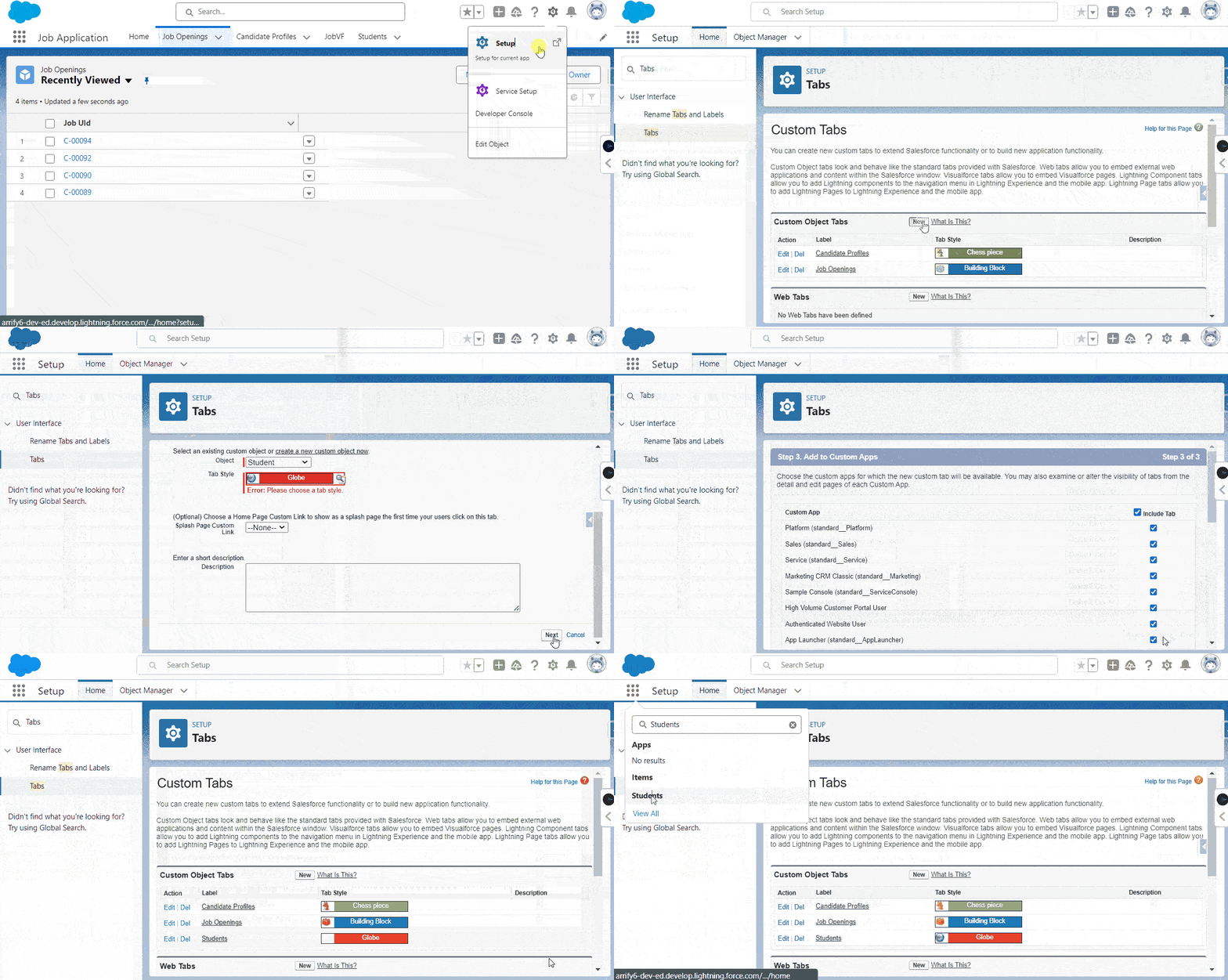
We will create a Custom Object Tab for a custom object named “Student.” (Note: The custom “Student” Object must already be created before proceeding).
Total Time: 5 minutes
Go to setup
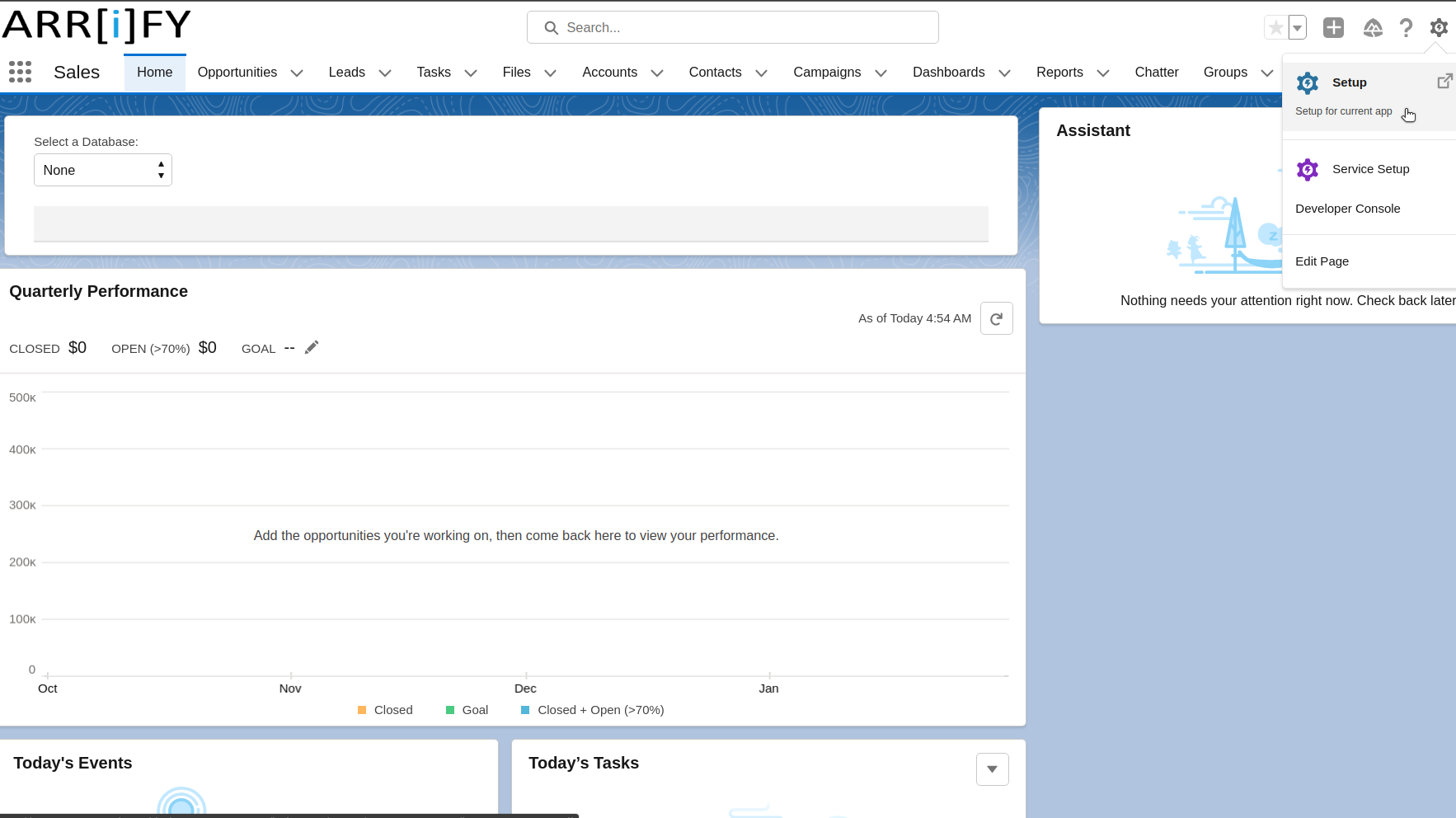
1. Log into your Salesforce org.
2. Click on the Gear icon in the upper-right corner of the screen.
3. Select Setup from the dropdown menu to open the backend configuration area.
Search Custom Object Tabs
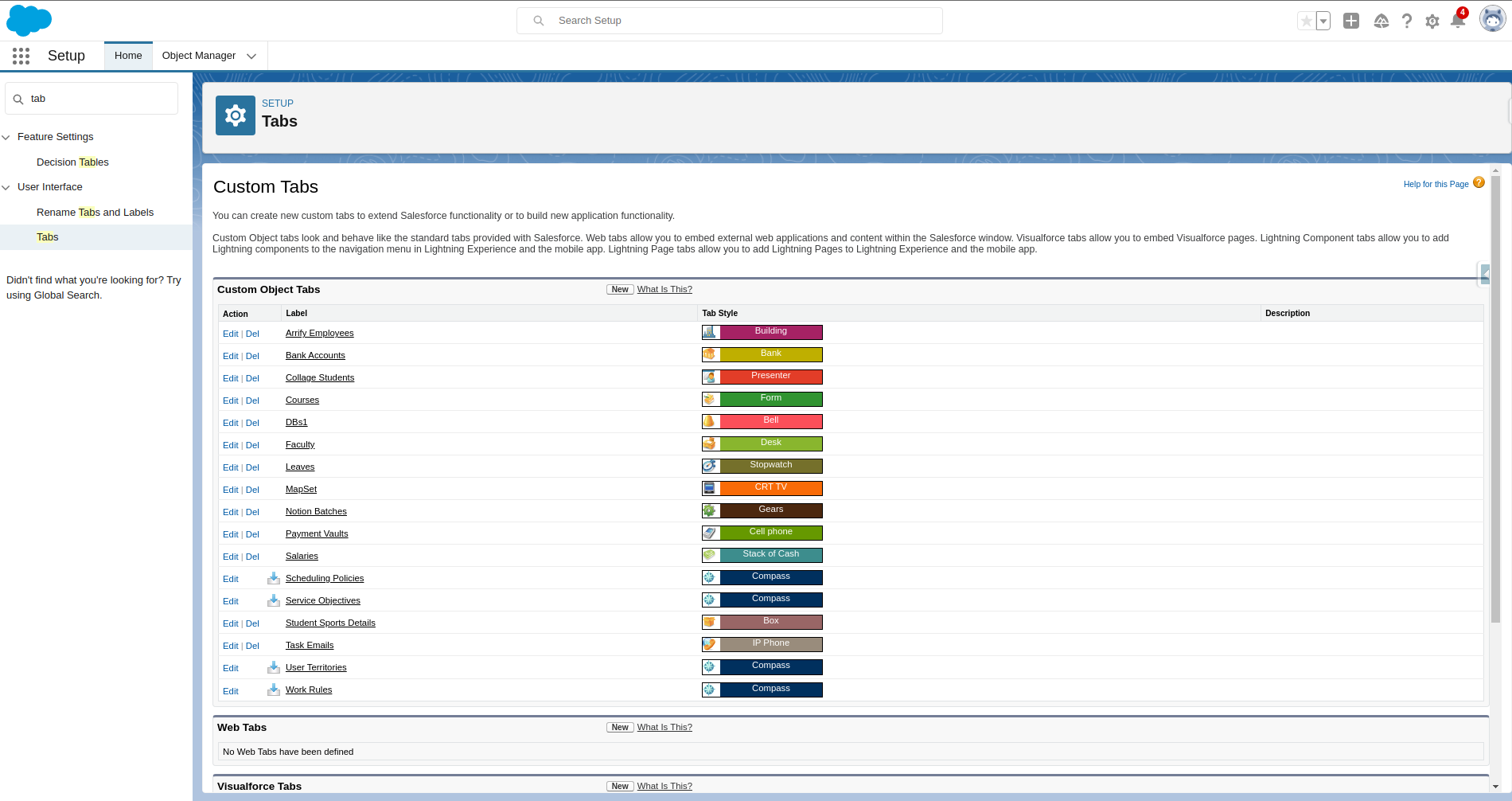
1. In the Quick Find search box on the left-hand side, type “Tabs”.
2. Under the User Interface section, select the Tabs option.
3. In the Custom Object Tabs section at the top of the page, click the New button.
Select Custom Object
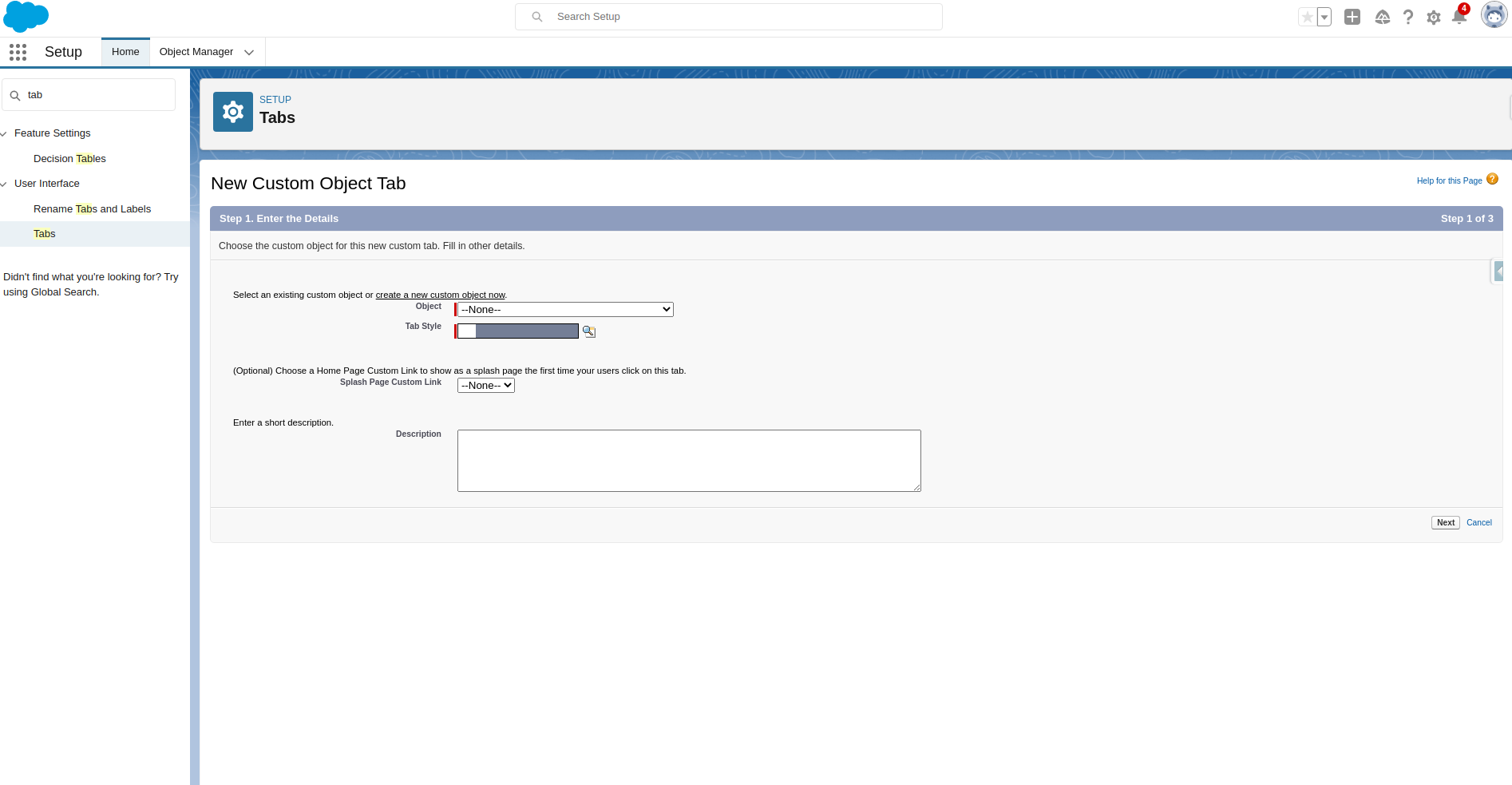
1. Object: Choose the custom object for which you want to create a tab from the dropdown menu.
2. Tab Style: Click the magnifying glass icon to pick a Tab Style. Salesforce provides a wide variety of colorful icons you can use to visually represent your custom object. Choose one that closely matches the theme of your data.
3. (Optional) Add a description to help other admins understand the purpose of this tab.
4. Click Next.
Assign User Profiles
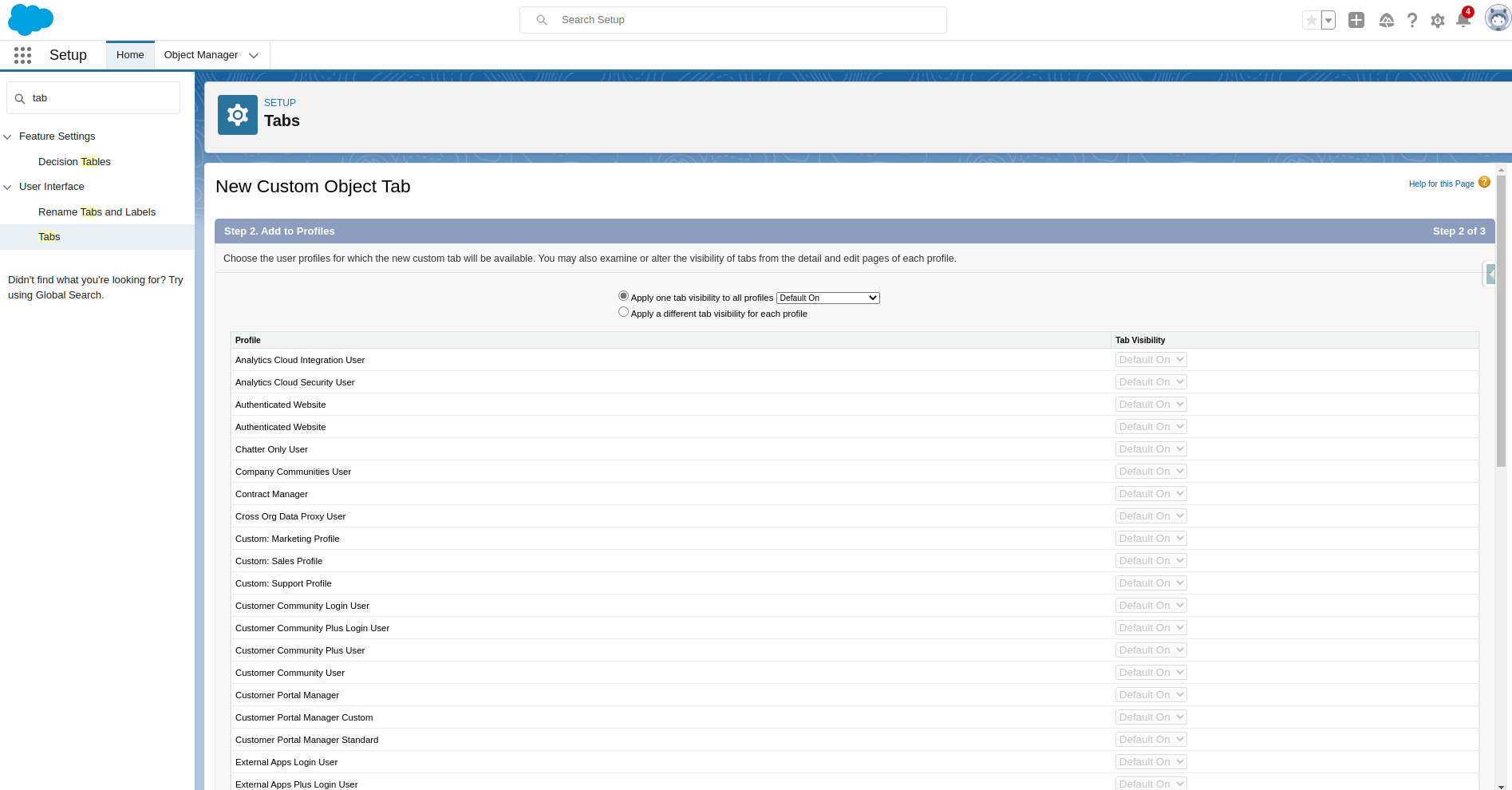
1. Choose which user profiles should have access to the tab. You can set the tab visibility to:
Default On: The tab will appear in the navigation bar.
Default Off: The tab won’t appear by default, but users can add it manually by customizing their navigation bar.
Tab Hidden: The tab is completely invisible to the user.
2. Apply the settings to all profiles, or customize visibility based on specific user roles.
3. Click Next.
Select Custom Apps
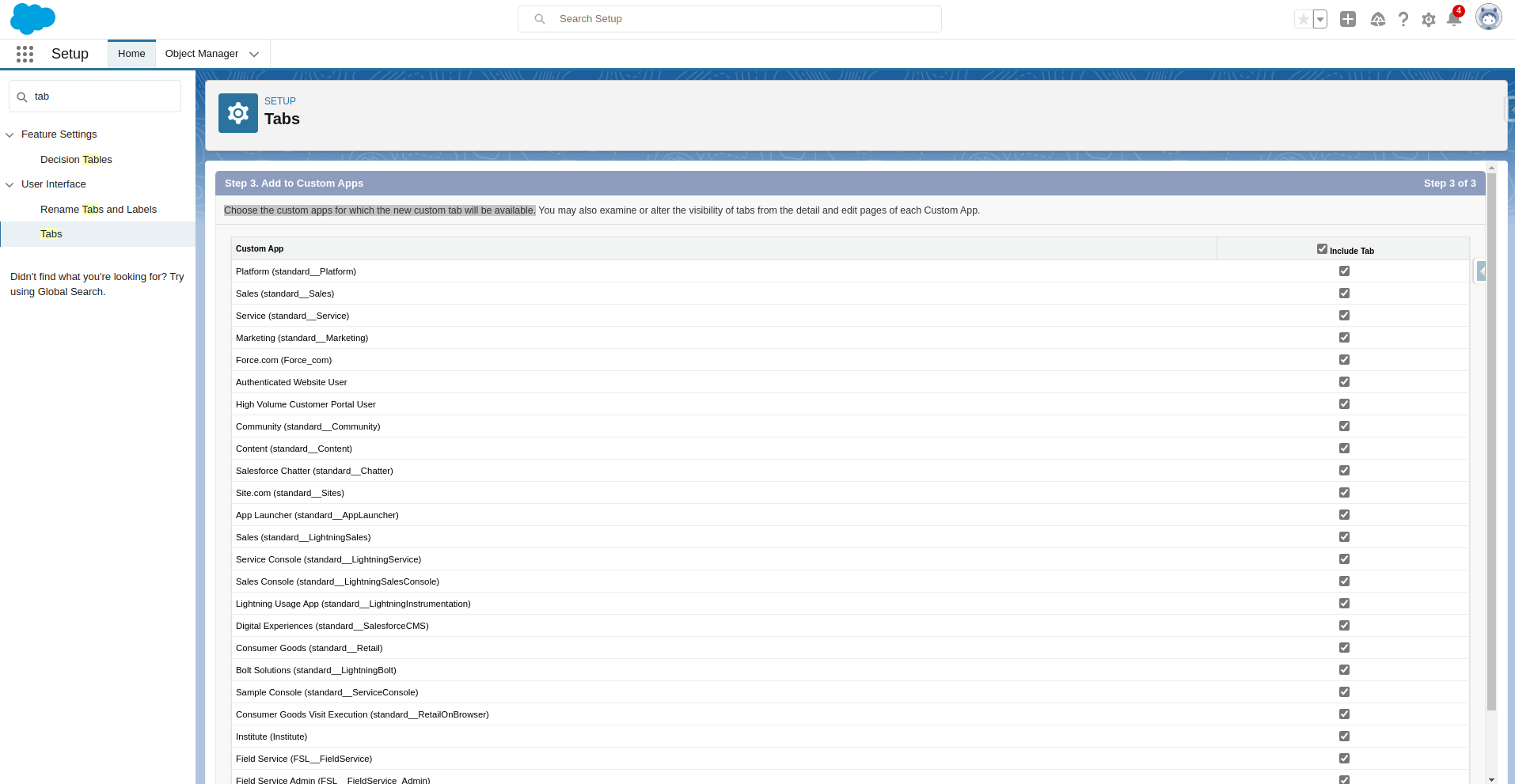
1. Choose the custom apps where this new tab will appear. This helps ensure that the tab is accessible within the right Salesforce environments.
2. Once you’ve made your selections, click Save.
Tab created
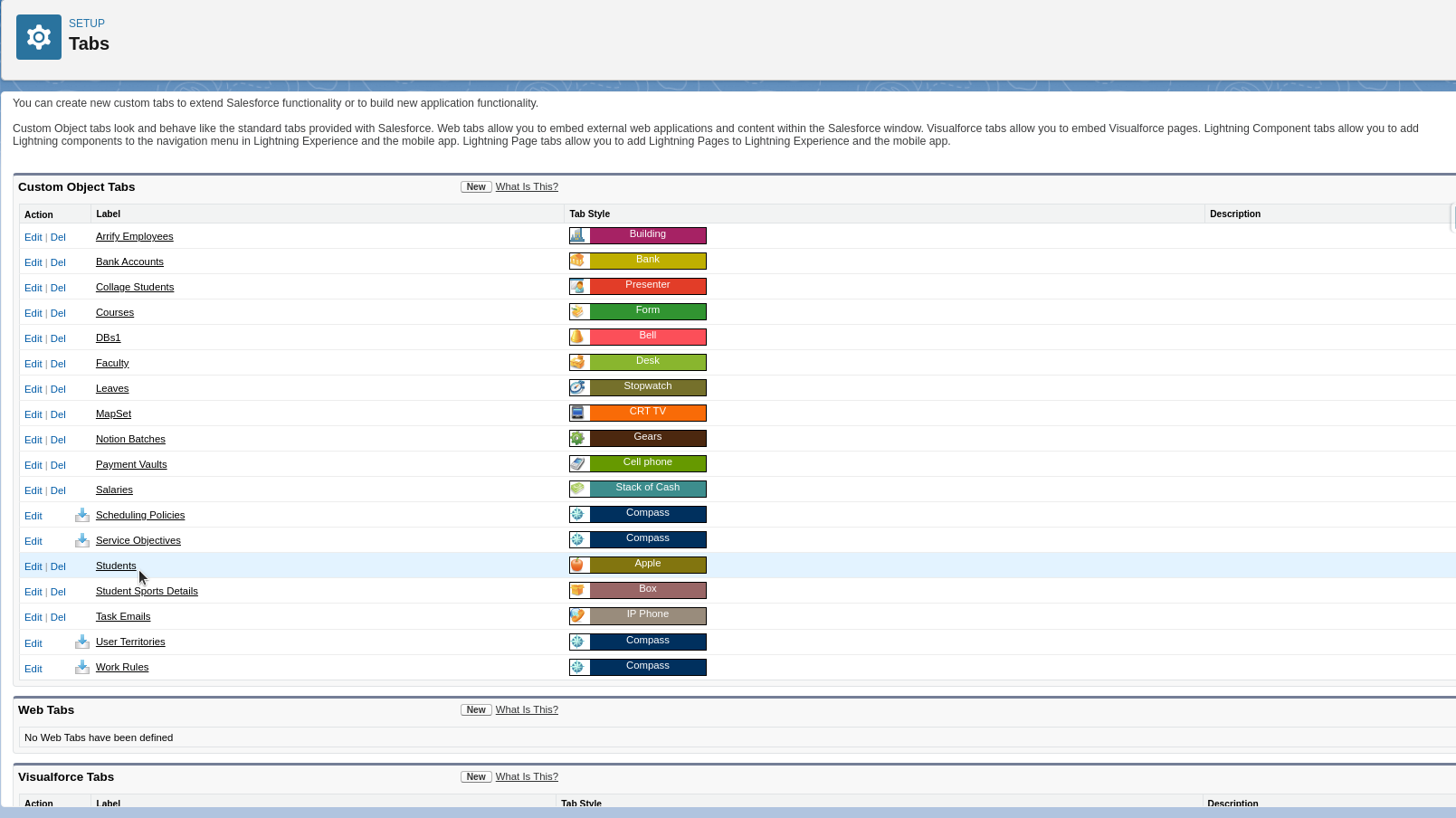
The new custom object tab “Student” will be created and appear as part of the Salesforce interface.
Verify the Tab on the Home Page
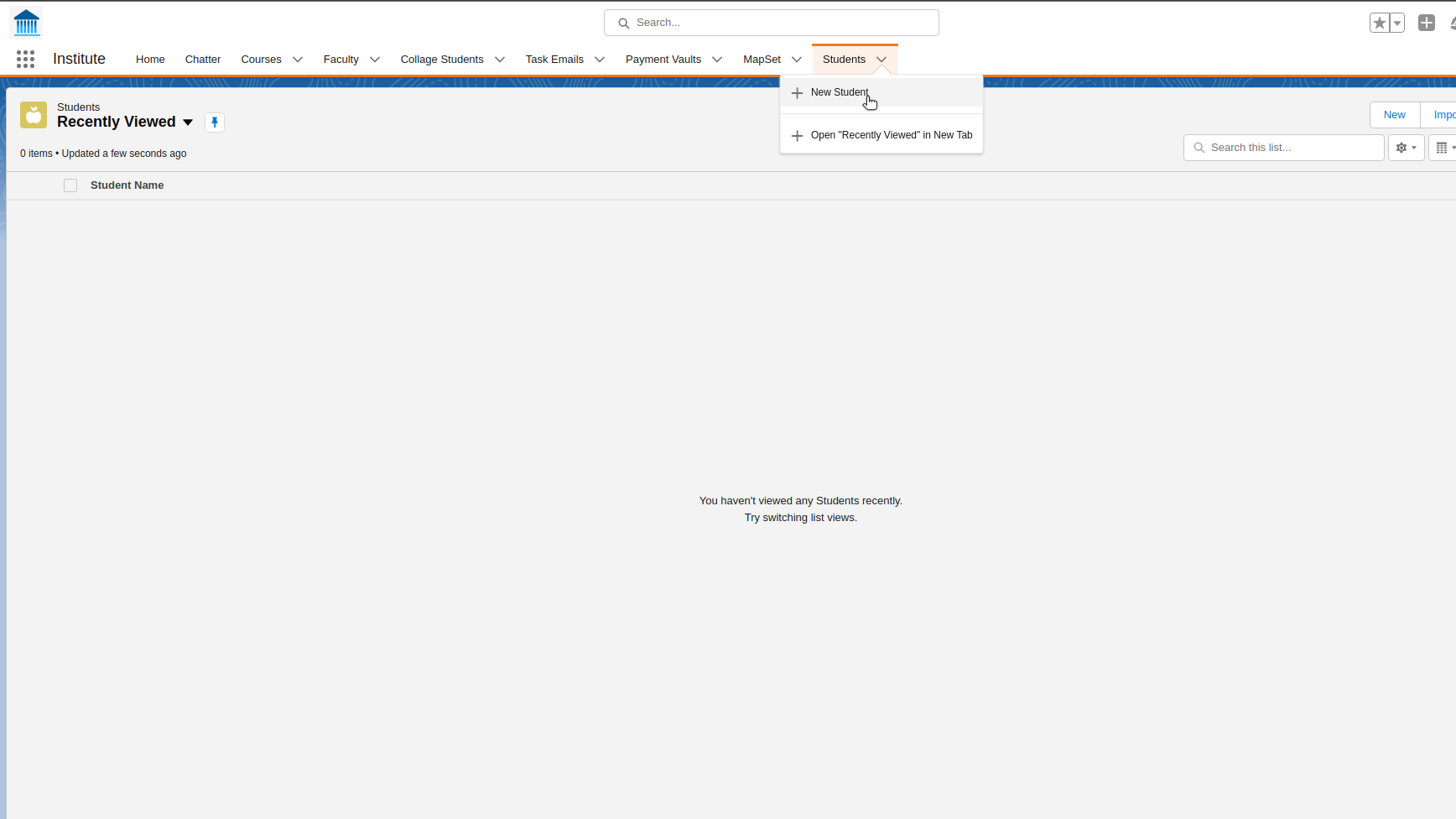
1. Click the App Launcher (the 9-dot grid icon on the top left).
2. Search for the app you added the tab to, or simply type “Students”.
3. Navigate to the App and look for your newly created Student Tab listed seamlessly in the navigation menu!
Making Your Tabs Even Better
Creating the tab is just the first step. You can improve your Custom Object Tabs in a few simple ways to make them even more powerful:
Lightning Components
You can add special features to your tabs using Lightning Components. For example, you can add a custom component that lets users quickly create new related records, or embed important dashboard charts directly within the tab’s list view space.
Page Layouts
Page Layouts and Lightning Record Pages let you decide exactly how information is shown once a user clicks into a record from your custom tab. If you’re working with a “Project” object, you can display related tasks, deadlines, and custom fields like “Project Status” in a highly organized, visually appealing format.
Record Types
Record Types help you manage different kinds of records in your tabs. For example, if your custom tab is for “Support Tickets,” you can have different types of tickets like “Technical Issue” or “Billing Issue,” each with its own layout and fields.
Helpful Resource
Custom Object Tab Not Visible for Users – Salesforce Help
Tab Not Visible After Defaulting – Salesforce Stack Exchange
Custom Object Not Visible in Salesforce – Salesforce Stack Exchange
How to create Visualforce Tab in Salesforce
How to create Lightning Page Tabs in Salesforce
FAQ’s
What is the custom object tab in Salesforce?
Custom object Tabs are user interface components that display custom Object data or other web content to users in Salesforce. They act as the primary navigational link in Lightning Apps, allowing users to quickly access, search, and manage custom records.
Why Custom object tab is not visible in Salesforce?
If a custom object tab is not appearing for a specific user, go through this troubleshooting checklist:
1. Object Permissions: Ensure the user’s profile or permission set has at least Read access to the custom object itself.
2. Tab Visibility Settings: Go to the user’s profile settings and confirm that the tab visibility is set to Default On instead of Tab Hidden.
3. App Navigation Settings: Navigate to Setup > App Manager, edit the relevant app, and ensure the tab is included under Navigation Items.
4. Deployment Status: Check the custom object’s settings in Object Manager. If the deployment status is set to In Development, standard users won’t be able to see the tab even if it is configured correctly.
Can I create and edit custom object records without creating a tab?
Yes! If you have hit your custom tab limit, you can still import and edit data using the Data Loader, the Data Import Wizard, or via API integrations. Additionally, you can create custom Lightning pages or add a related list to standard page layouts to view and manage these records without a dedicated tab.
Why can’t I edit tab visibility for a standard profile?
Standard profiles have read-only permissions and configurations that cannot be edited directly. To change tab visibility for users on standard profiles, you must either clone the standard profile to create a custom profile, or create a Permission Set and assign it to those users.