
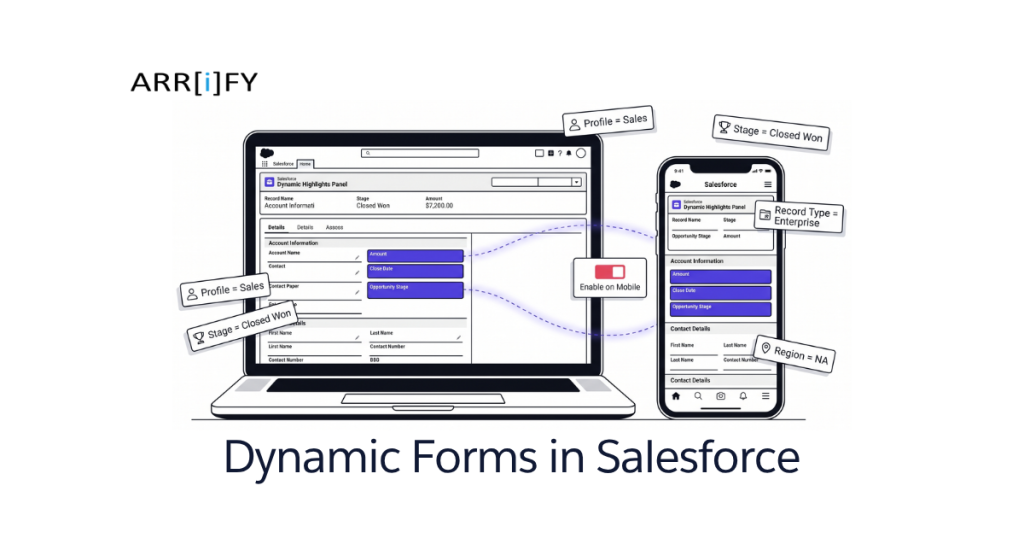
What Are Dynamic Forms in Salesforce?
Dynamic forms in Salesforce let you break free from traditional page layouts. Instead of one monolithic layout that shows every field to every user, you pull individual fields and sections into the Lightning App Builder and control exactly what shows up — and when.
Here’s the short version: fields become drag-and-drop components. You place them wherever you want on the record page, group them into sections, and set visibility rules so the right people see the right data. No more maintaining five different page layouts because Sales needs different fields than Support.
The feature shipped for custom objects first, then expanded to standard objects over several releases. As of 2026, it works on hundreds of LWC-enabled objects, including Account, Contact, Lead, Case, and Opportunity.
Key Takeaway: Dynamic forms turn your record page into a flexible canvas instead of a static list of fields. One page, visibility rules, done.
Why Teams Switch From Page Layouts
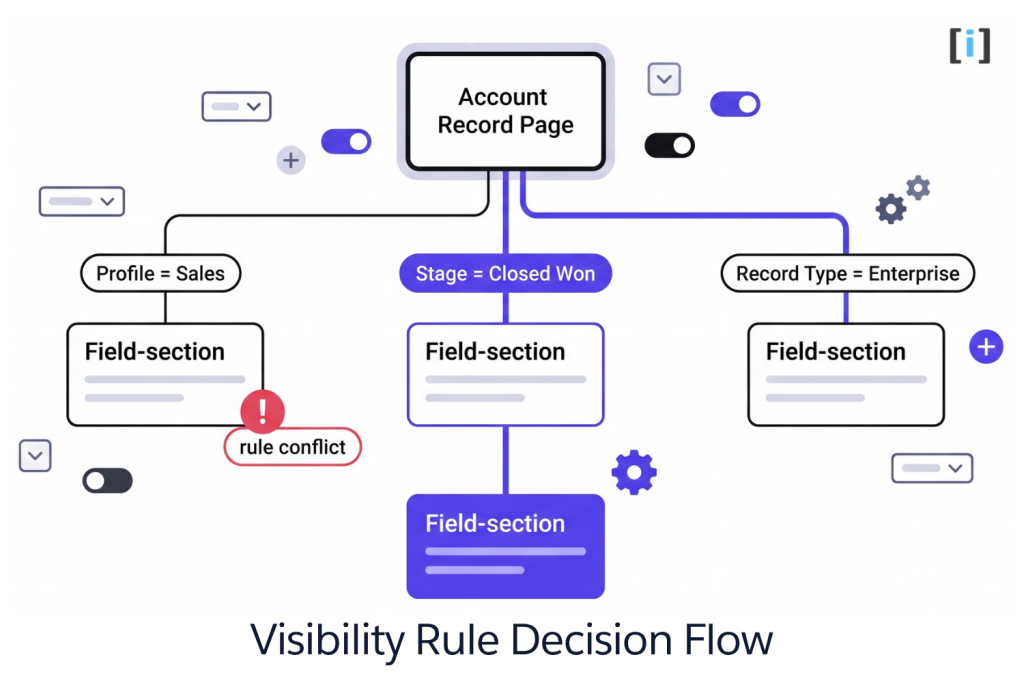
Traditional page layouts have been around since classic Salesforce. They work, but they come with baggage:
- Layout sprawl — You need separate layouts per profile, record type, or business unit. Five record types × three profiles = fifteen layouts to maintain.
- No conditional logic — Every field on the layout shows for every user assigned to it. Want to hide a field when the Stage is “Prospecting”? You can’t — you need another layout.
- Dual assignment headaches — You assign a Lightning page and a page layout. They can conflict. Dynamic forms collapse this into a single assignment.
- Slow iterations — Changing a layout means editing in Setup, then checking it doesn’t break another profile’s view.
Dynamic forms fix all of this. You build one Lightning record page, add field sections, and use visibility rules to control what each user sees based on field values, profile, record type, or device. Fewer layouts, less maintenance, faster changes.
The Litmus Test: If you’re maintaining more than three page layouts for the same object, dynamic forms will save you real time.
Dynamic Forms Salesforce Release Notes
Salesforce has rolled out dynamic forms features across multiple releases. Here’s the full timeline.
Winter ’23
The three core standard objects got dynamic forms support:
- Accounts (both Business and Person)
- Contacts
- Opportunities
You could now migrate fields and sections from page layouts into individual Lightning App Builder components on these objects.
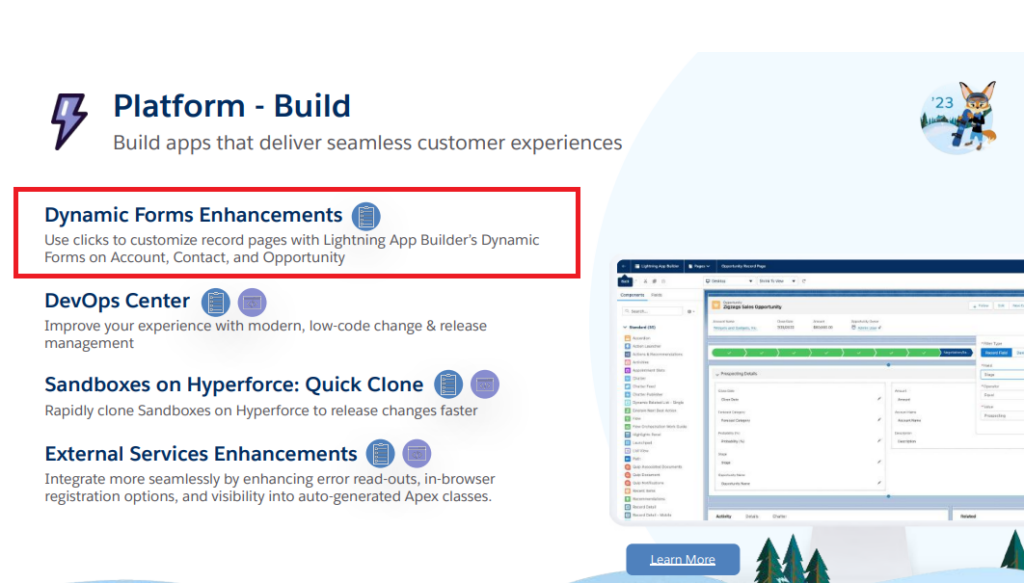
You can see these enhancements in October 2022.
Spring ’23
A new save option was added for create, edit, and clone actions on Cases, Leads, and Accounts. This lets you trigger territory assignment rules when saving a new lead, for example — something that was previously only available through page layouts.

Available in Lightning Experience across Group, Professional, Enterprise, Performance, Unlimited, and Developer editions. The save option appears in the footer of the create/edit/clone dialog. Spring ’23 release notes.
Winter ’24
Dynamic Forms on Mobile
Previously desktop-only, dynamic forms became available on mobile starting Winter ’24. Same capabilities — add/remove fields, create sections, set visibility rules — all in the Lightning App Builder.

LWC-Enabled Standard Objects
The big expansion. Salesforce opened dynamic forms to hundreds of LWC-enabled standard objects — not just the original three. This dramatically expanded the feature’s reach for admins. Winter ’24 release notes.
Spring ’24
Pinned Region Page Support
Dynamic forms now work on Lightning pages that use pinned region templates. Create a page with a pinned region template, add a Field Section component, drag fields in. Same workflow as non-pinned pages. Spring ’24 release notes.
Summer ’24
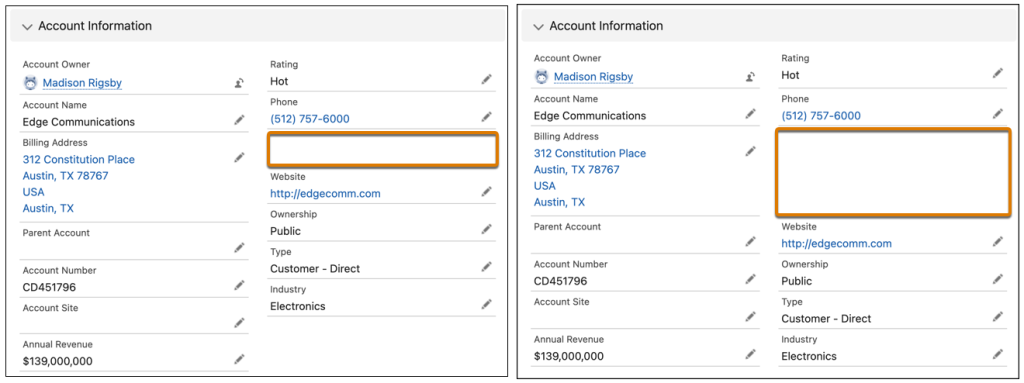
Blank Spaces for Field Alignment
You can now add blank spaces to separate fields vertically within a field section. Small feature, big impact on layout cleanliness. Summer ’24 release notes.
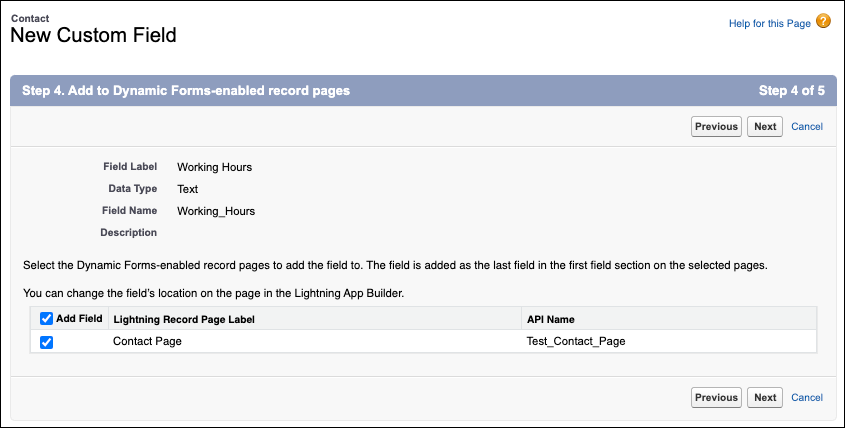
Add Custom Fields Directly to Dynamic Forms Pages
New step in the custom field creation wizard lets you add a field directly to a dynamic forms-enabled page as you create it. No more “create the field, then go find it in the App Builder.” Summer ’24 release notes.
Winter ’25
Dynamic Highlights Panel on Mobile
One-click enablement of Dynamic Forms fields and the Dynamic Highlights Panel for mobile users. Desktop and mobile now show the same record page — no separate mobile configuration needed. Winter ’25 release notes.

Pro Tip: If you haven’t enabled dynamic forms on mobile yet, this is the release to do it. One toggle gives mobile users the same field visibility rules and highlights panel that desktop users already have.
Spring ’25
Work Orders Get Dynamic Forms
Work Orders and Work Order Line Items migrated to LWC in Spring ’25, which unlocked Dynamic Forms, Dynamic Actions, Dynamic Related Lists, and the Dynamic Highlights Panel on those objects. If your team uses Field Service, this is a significant upgrade.
Summer ’25 / Winter ’26
No headline Dynamic Forms features in these releases. The feature has reached maturity for record page customization — Salesforce is now focused on extending related capabilities (Dynamic Related Lists, Dynamic Actions) rather than adding new Dynamic Forms functionality.
Spring ’26
Apex Picklist Helper
New Apex method ConnectApi.RecordUi.getPicklistValuesByRecordType() makes it easier to work with dependent picklist hierarchies in Flow-based dynamic forms. This isn’t a Lightning App Builder change, but it’s useful if you’re building custom record page components that need picklist context.
Real Talk: Dynamic Forms on record pages is effectively feature-complete as of 2025. If you’re waiting for a major new capability, it’s probably not coming — what’s here already covers the vast majority of admin use cases. The investment now is in related features like Dynamic Related Lists and Dynamic Actions.
How to Create Dynamic Form in Salesforce
Here’s the step-by-step process to create dynamic forms from scratch in the Lightning App Builder.
Total Time: 10 minutes
-
Navigate to Setup

Go to Setup in Salesforce.
-
Create a New Lightning Record Page

1. In Setup, search for Lightning App Builder in the Quick Find box.
2. Click New → select Record Page → click Next.
3. Choose the object you want (e.g., Account, Contact, Opportunity).
4. Pick a page template that fits your needs and click Finish. -
Add Fields and Set Visibility Rules
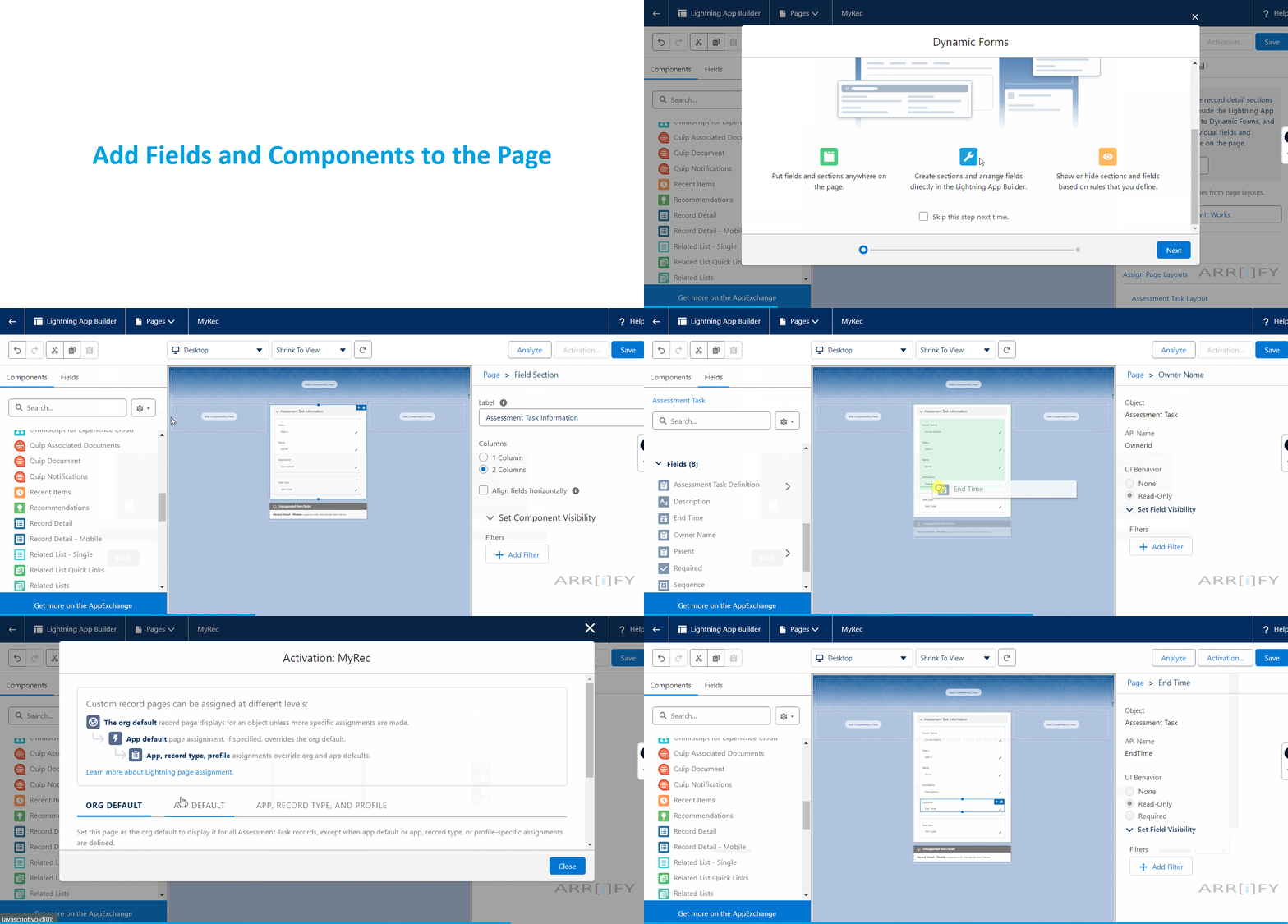
1. In the Lightning App Builder, go to the Fields tab on the left.
2. Drag fields onto the page layout into Field Section components.
3. Add other components (related lists, custom components) as needed.
4. Click any field → on the right panel, go to Set Field Visibility → add filter conditions to show or hide the field based on criteria like other field values, profile, or record type. -
Save and Activate

1. Click Save when you’re happy with the layout.
2. Click Activate to make the page live.
3. Set activation scope: entire org, specific apps, record types, or profiles.
Before activating, you can also add Quick Actions, Standard Actions, and Custom Actions, and set component-level visibility filters. -
Test Your Dynamic Form

1. Navigate to the object and open a record.
2. Verify fields show/hide based on the visibility rules you set.
3. Check both desktop and mobile if you’ve enabled mobile dynamic forms.
Pro Tip: Test with multiple user profiles to make sure visibility rules work as intended. A field that’s supposed to hide for Service users but show for Sales reps needs to be checked from both perspectives.
How to Migrate Page Layouts to Dynamic Forms
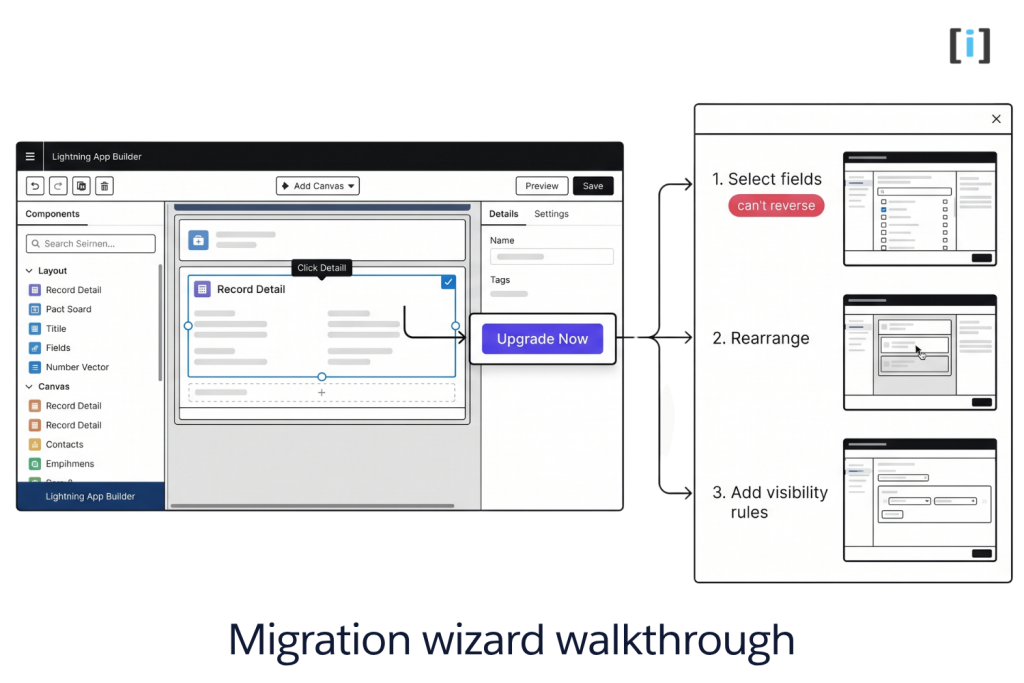
Already have a working page layout? You don’t need to start from scratch. The migration wizard converts your existing layout into dynamic form components.
- Open Lightning App Builder — Go to Setup → Lightning App Builder.
- Edit the record page you want to migrate (e.g., Account Record Page).
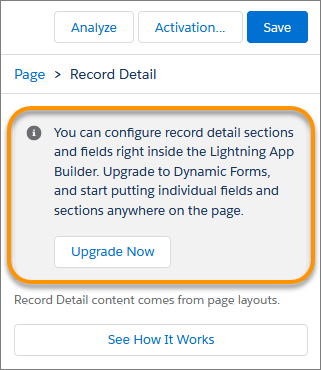
- Click “Upgrade Now” on the Record Detail component, or use the migration wizard.
- Select fields and sections — the wizard shows which fields and sections from your page layout will be migrated.
- Rearrange and customize — once migrated, drag fields around and add visibility rules.
- Save and activate — click Save, then Activate.
Key Takeaway: The migration wizard is a one-way operation. Once you upgrade to dynamic forms, you can’t revert to the old Record Detail component on that page. Make sure you’re ready before clicking Upgrade.
Making Fields Required or Read-Only
In dynamic forms, you can set fields as required or read-only at two levels:
At the Field Definition Level (Object Manager)
- Go to Setup → Object Manager.
- Select the object → Fields & Relationships tab.
- Click the field → under General Settings, set Required or Read-Only to “Yes.”
Note: Once a field is required at the definition level, you can’t override it in the Lightning App Builder. Some standard fields (Created By, Last Modified By, Owner, Record Type) can’t have their read-only status changed in the App Builder either.
At the Page Layout Level (Lightning App Builder)
- Go to Setup → Lightning App Builder.
- Open the page → select the field → open the property panel.
- Under Field Settings, set Required or Read-Only to “Yes.”
This gives you per-page control. A field can be required on one record page but optional on another — something traditional page layouts can’t do cleanly.
Dynamic Forms Salesforce Limitations
Dynamic forms are powerful, but they’re not without constraints. Here’s what to watch for:
- Field section limits — Up to 100 fields per column in a field section component. If you hit this, split into multiple sections.
- Migration drops — When migrating from page layouts, only fields and sections containing fields are included. If a layout has too many fields, some may be dropped. Check after migration.
- Record details in certain actions — For creating, editing, or cloning Opportunities (and Clone with Related), the system still pulls record details from the page layout, even if the page uses dynamic forms.
- Automated Account Fields — If you have the Automated Account Fields setting enabled, account create/edit/clone windows use record details from the page layout.
- Territory rules on save — The “Evaluate this account against territory rules on save” option isn’t supported in dynamic forms.
- Field section expand/collapse — Users can only expand or collapse field sections in view or inline edit mode.
- Performance on complex pages — Pages with many field sections and visibility rules can slow down. Keep the total number of visibility rules reasonable and test load times if you go above 15-20 rules on a single page.
For the full, up-to-date list, see Salesforce’s official Dynamic Forms limitations documentation.
Real Talk: The biggest practical limitation isn’t technical — it’s the one-way migration. Once you upgrade a page to dynamic forms, there’s no undo button. Test in a sandbox first.
Dynamic Forms Salesforce Standard Objects
Dynamic forms started with custom objects only. Over time, Salesforce expanded support to standard objects:
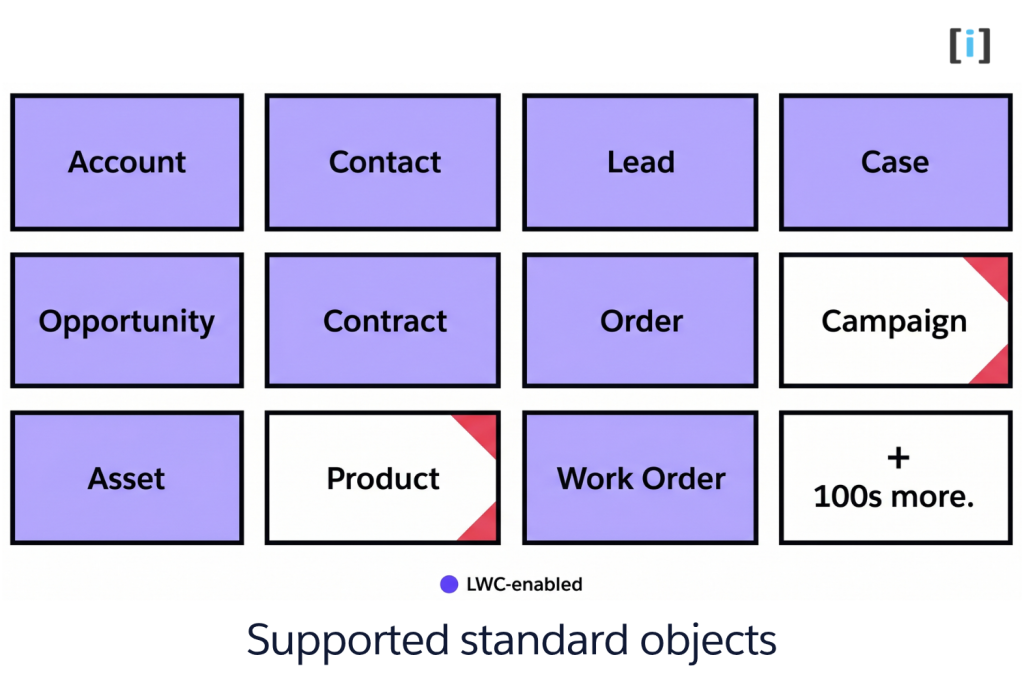
Core objects (Winter ’23 onward):
- Account (Business and Person)
- Contact
- Opportunity
Expanded support (Winter ’24 onward):
- Lead
- Case
- Contract
- Order
- Campaign
- Asset
- Product
- Hundreds of other LWC-enabled standard objects
Spring ’25 additions:
- Work Order
- Work Order Line Item
To check if a specific object supports dynamic forms, open it in the Lightning App Builder. If you see the option to add Field Section components, it’s supported.
Pro Tip: Not sure which objects in your org are LWC-enabled? Go to Setup → Object Manager, open any object, and check if Lightning Record Pages are available. If yes, dynamic forms should work.
Use Cases for Dynamic Forms
Sales teams — Cleaner opportunity pages
Show different fields based on the opportunity stage. Prospecting records show lead source and qualification fields. Closed Won records show contract terms and revenue fields. One page, zero layout switching.
Support teams — Faster case resolution
Hide internal-only fields (escalation notes, SLA tier) from the agent view when the case type is a simple inquiry. Show the full field set when the case escalates to Tier 2.
Onboarding new objects
Starting a new custom object? Skip page layouts entirely. Build the record page in the Lightning App Builder from day one with field sections and visibility rules. It’s faster and you won’t need to migrate later.
Multi-department orgs
Finance sees payment fields. Marketing sees campaign attribution fields. Operations sees fulfillment fields. All on the same Account record page, controlled by profile-based visibility rules. No more per-department layouts.
When Dynamic Forms Isn’t Enough
Dynamic forms handle internal record page customization — fields, sections, and visibility rules inside Salesforce. But they don’t cover every form scenario. Here’s where to go instead:
- Public-facing web forms — Need to collect data from website visitors? Dynamic forms won’t help. See our Salesforce web forms guide for Web-to-Lead, Web-to-Case, and custom Visualforce/LWC forms.
- Third-party form builders — Tools like FormAssembly, JotForm, and Formstack handle complex external forms with conditional logic, multi-step flows, and payment processing. See our 10 forms that integrate with Salesforce roundup.
- FormAssembly specifically — If you need external dynamic forms with Salesforce prefill and conditional sections, see our FormAssembly for Salesforce tutorial.
- Gravity Forms (WordPress) — Running a WordPress site? See our Gravity Forms + Salesforce guide or the broader WordPress form to Salesforce comparison.
- Not sure which form type you need? Start with our Salesforce form options overview — it maps every form method to the right use case.
FAQs
What is a dynamic form in Salesforce?
A dynamic form lets you place individual fields and sections anywhere on a Lightning record page using the Lightning App Builder. Instead of a fixed page layout, you get drag-and-drop control over field placement and visibility rules that show or hide fields based on conditions like record type, profile, or field values.
How do I enable dynamic forms in Salesforce?
Two ways: build a new Lightning record page from scratch (add Field Section components and drag fields in), or migrate an existing page layout using the “Upgrade Now” button on the Record Detail component in the Lightning App Builder.
What are the benefits of using dynamic forms?
Fewer page layouts to maintain, per-field visibility rules, drag-and-drop field placement, a single Lightning page assignment (no dual page layout + Lightning page model), and the same experience on desktop and mobile.
Which Salesforce editions support dynamic forms?
Lightning Experience in Group, Professional, Enterprise, Performance, Unlimited, and Developer editions.
Can I use dynamic forms for all Salesforce objects?
Not all, but most. Custom objects are fully supported. For standard objects, dynamic forms work on LWC-enabled objects — which includes Account, Contact, Lead, Case, Opportunity, Contract, Order, Campaign, Work Order, and hundreds more as of 2026.
What’s the difference between dynamic forms and page layouts?
Page layouts are fixed — one layout per profile/record type combination, no conditional logic. Dynamic forms are flexible — one Lightning page with per-field visibility rules based on any criteria you define. Dynamic forms also let you place fields in any column or section, while page layouts lock you into a fixed structure.
Can I revert from dynamic forms back to page layouts?
No. The migration is one-way. Once you upgrade a record page to use dynamic forms, you can’t go back to the Record Detail component. Always test in a sandbox first.
Do dynamic forms work on mobile?
Yes, since Winter ’24. And with Winter ’25, you can enable both dynamic forms and the Dynamic Highlights Panel on mobile with a single toggle.
Where can I learn more about dynamic forms?
Salesforce’s official Dynamic Forms documentation and the Trailhead Dynamic Forms module are the best starting points.
Still not sure if dynamic forms is the right approach for your record pages? Download our Salesforce form decision checklist — it maps every form method (native, AppExchange, third-party) to the right use case so you pick the right tool the first time.
Implementation, customization, and integrations from a team that actually writes the code. Explore Salesforce Services →