What Are Salesforce Web Forms?
Salesforce web forms let you collect data from website visitors and push it directly into your CRM — no manual entry, no copy-paste, no spreadsheets in between.
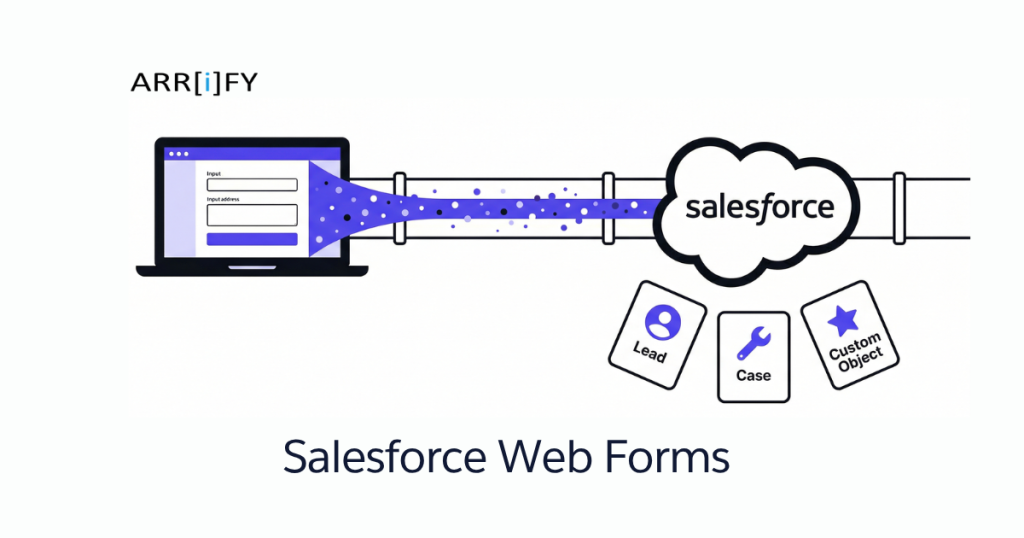
A visitor fills out a form on your site. That submission creates a record in Salesforce automatically. Could be a Lead for your sales team, a Case for support, or a record on any custom object you’ve built.
The result: faster response times, cleaner data, and a direct pipeline from your website to your Salesforce org.
Common use cases for Salesforce web forms:
- Lead generation — Contact forms, free trial sign-ups, ebook downloads, consultation requests
- Support intake — Bug reports, help requests, technical issue submissions
- Event registration — Webinar sign-ups, conference RSVPs synced to Salesforce campaigns
- Onboarding — Client intake forms that populate custom objects with project details
- Surveys and feedback — Post-purchase or post-service forms tied to Contact or Account records
Key Takeaway: If you’re collecting information on your website and using Salesforce, a web form integration eliminates the gap between “visitor submits data” and “your team acts on it.”
Types of Salesforce Web Forms
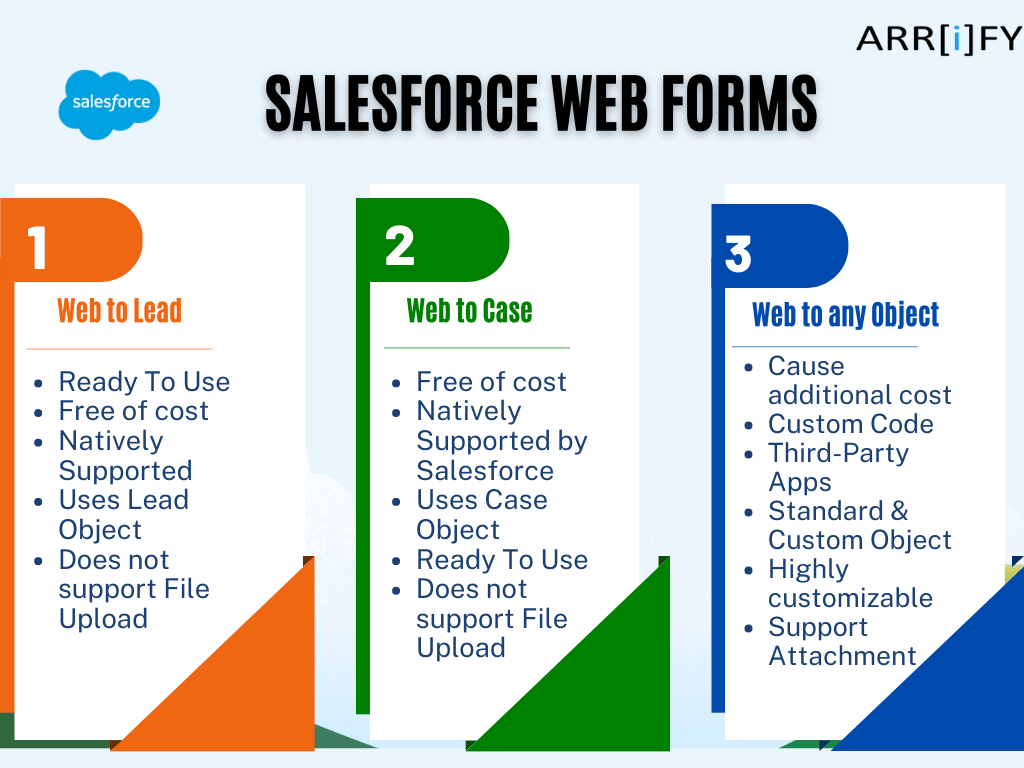
Salesforce gives you three categories of web forms, each serving a different purpose:
1. Web-to-Lead Forms
Capture prospect information and create Lead records automatically. Built for sales teams that need a steady flow of inbound leads from their website.
Best for: Contact forms, demo requests, gated content downloads, free trial sign-ups.
2. Web-to-Case Forms
Let customers submit support requests that create Case records in Salesforce. Built for service teams that need organized ticket intake.
Best for: Help desk forms, bug reports, return requests, technical support submissions.
3. Web-to-Any-Object Forms (Custom Object Forms)
Create records on any Salesforce object — standard or custom. This is where things get flexible. Unlike Web-to-Lead and Web-to-Case, there’s no built-in generator for this. You’ll need custom code or a third-party form builder.
Best for: Client onboarding forms, job applications, partner registrations, project intake — anything that doesn’t fit neatly into a Lead or Case.
Pro Tip: Start with the question “Where does this data need to live in Salesforce?” If the answer is Leads, use Web-to-Lead. Cases? Web-to-Case. Anything else? You’re in custom object territory.
Web-to-Lead Forms: Capture Prospects From Your Website
What Is Web-to-Lead?
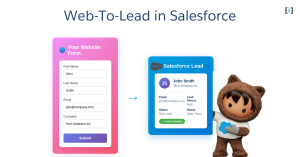
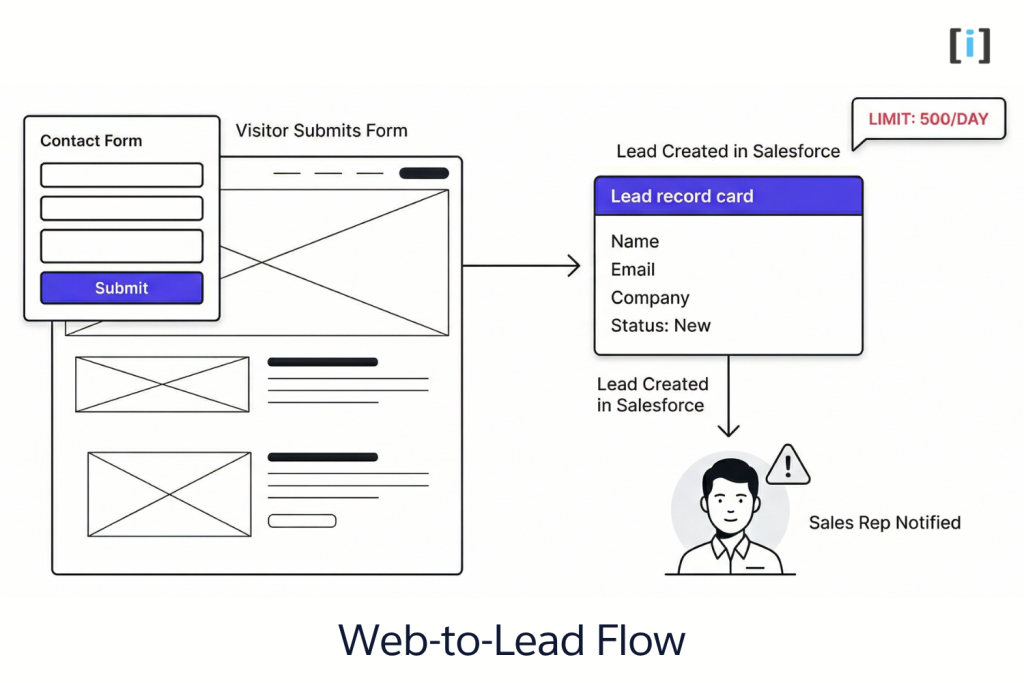
Web-to-Lead is Salesforce’s built-in feature for turning website form submissions into Lead records. A visitor fills out your form, hits submit, and a new Lead appears in Salesforce — ready for assignment, nurturing, or immediate follow-up.
It’s the simplest way to connect your website to your sales pipeline without writing code or installing anything.
How to Create a Web-to-Lead Form
How to set up web to lead form in Salesforce?
Total Time: 10 minutes
-
Open the Web-to-Lead setup
Click on the “Setup” gear icon in the top right corner of your Salesforce dashboard. In the setup menu, type “web-to-lead” in the Quick Find search bar. Click on the “Web-to-Lead” option in the search results.
This will take you to the web-to-lead setup page, where you can configure and customize your web-to-lead forms. -
Generate your form

Click on the “Create Web-to-Lead Form” button.
Follow the prompts to customize your form, including adding or removing form fields, changing the order of form fields, or changing the content of form fields.
Provide a return URL.
Once you have finished customizing your form, click on the “Generate” button to generate the HTML code for the web form. -
Copy the HTML code
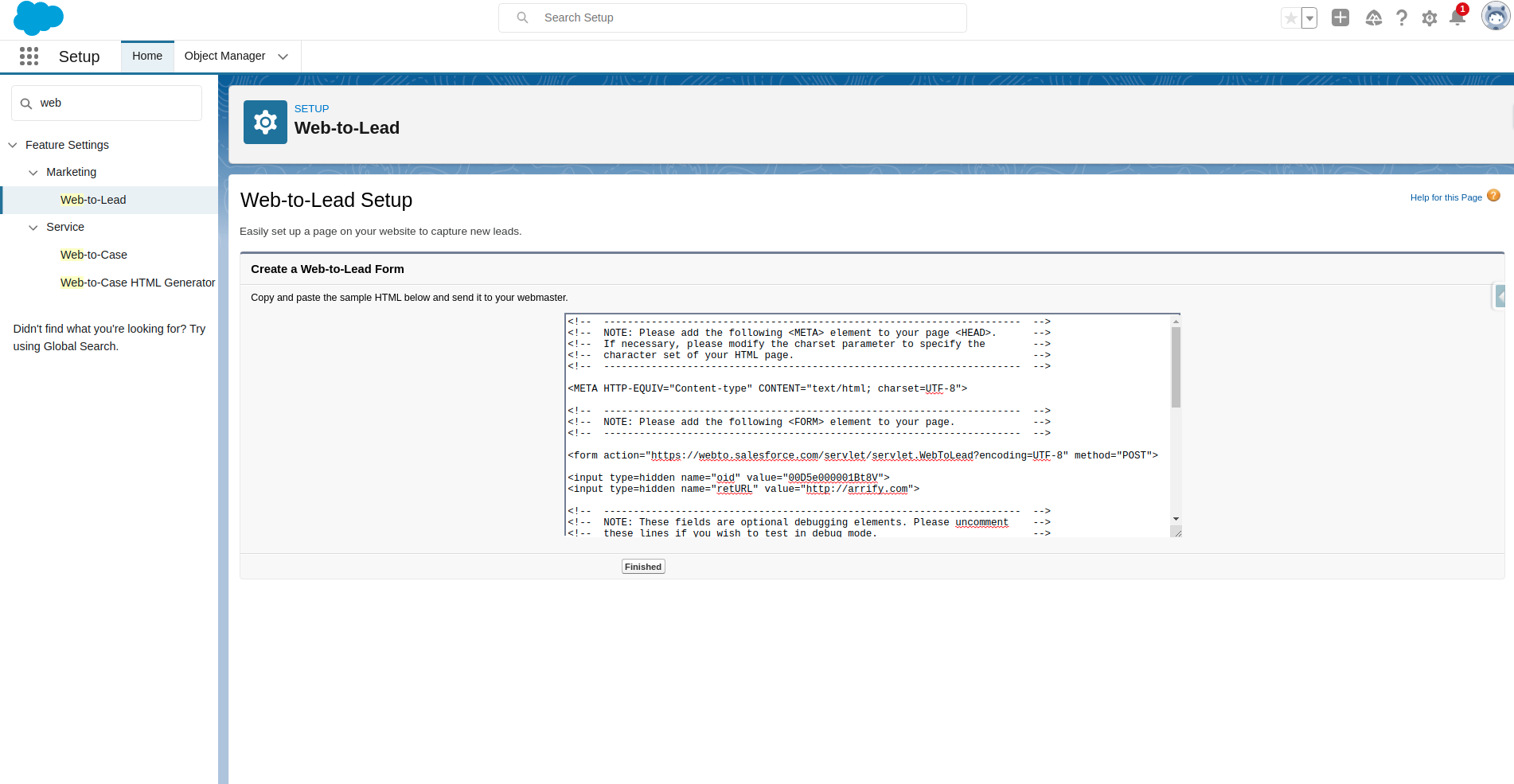
Salesforce generates an HTML snippet with your form fields and the Salesforce endpoint baked in. Copy the entire block.
-
Embed it on your website
Paste the HTML into your site — WordPress page, custom HTML site, landing page builder, wherever you need it. Style it with CSS to match your brand.
-
Test and verify
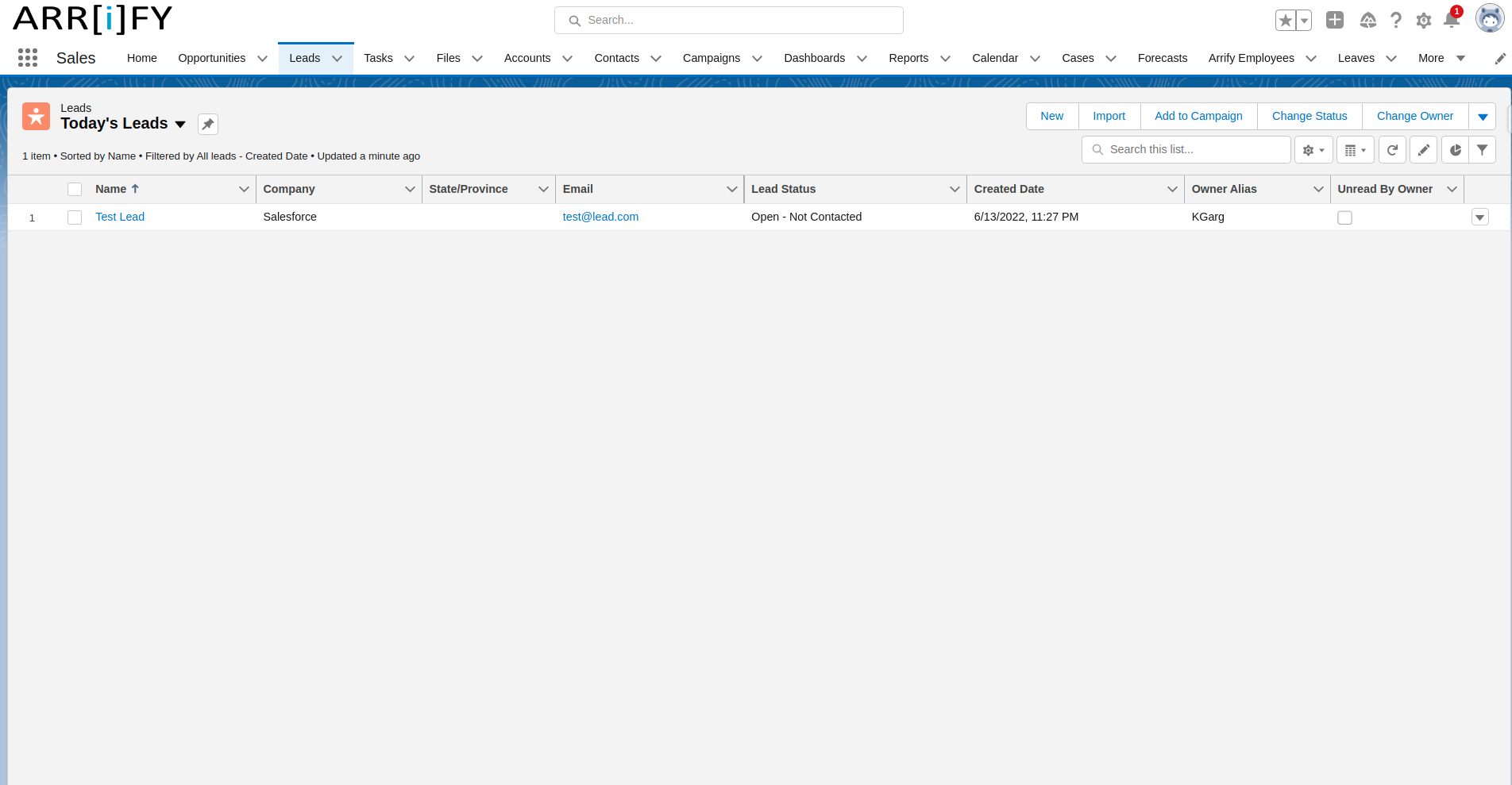
To verify that a record has been successfully created through a web form, you can check the relevant database or system where the record is stored. In the case you can check the “Leads” tab to see if the new record has been created.
Web-to-Lead Limits and Gotchas
Before you go all-in on Web-to-Lead, know the boundaries:
- Daily limit: 500 leads. Salesforce caps Web-to-Lead at 500 submissions per 24-hour period. High-traffic sites will hit this fast.
- No file attachments. The native form doesn’t support file uploads.
- One-way data flow. Data goes from the form into Salesforce. There’s no way to prefill fields or pull data back.
- Basic styling. The generated HTML is bare-bones. You’ll need CSS work to make it look decent.
- No conditional logic. Every visitor sees the same fields. No show/hide based on selections.
- Duplicate risk. Web-to-Lead creates a new Lead every time — it won’t check if the person already exists.
Real Talk: Web-to-Lead works great for low-to-medium volume sites with simple forms. If you need file uploads, conditional fields, duplicate prevention, or you’re getting more than 500 submissions/day — skip ahead to the custom code or third-party sections.
Using WordPress? Check out our detailed guide on creating a Salesforce Web-to-Lead form in WordPress for platform-specific steps.
Want to dive deeper into Web-to-Lead? Our complete Web-to-Lead guide covers advanced configuration, troubleshooting, and best practices.
Trailhead Resources
- Lead Generation for Marketers — Grow your business with lead generation.
- Leads & Opportunities for Lightning Experience — Power your sales process with leads and opportunities.
Web-to-Case Forms: Turn Support Requests Into Cases
What Is Web-to-Case?
Web-to-Case works like Web-to-Lead, but for your support team. Customers submit a form on your website and a Case record is created in Salesforce — complete with assignment rules, auto-response emails, and escalation logic.
It’s the fastest way to set up a customer-facing support intake form without building a full help desk portal.
How to Create a Web-to-Case Form
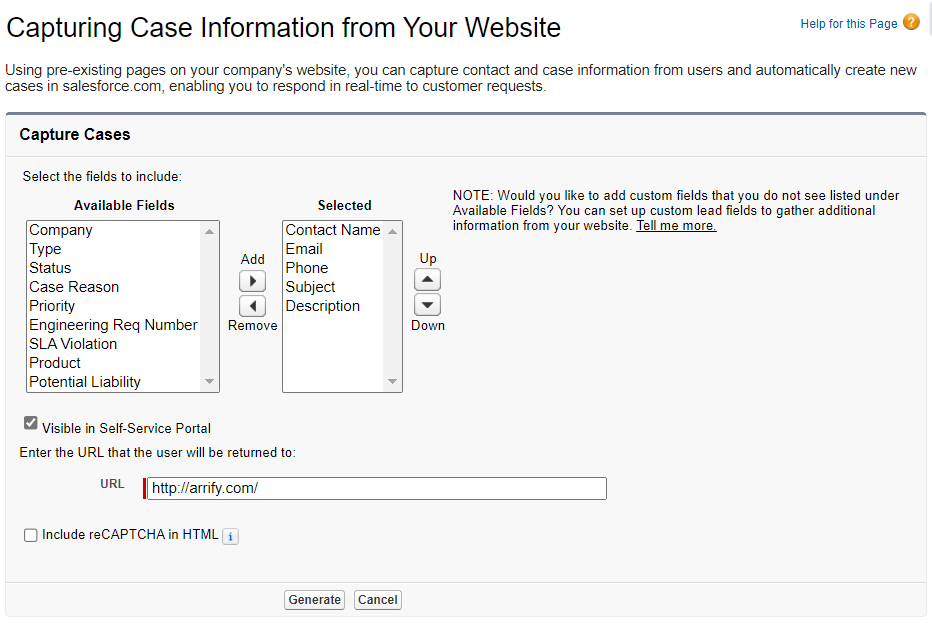
To set up a web-to-case form in Salesforce, follow these steps:
- Go to Setup > Customize > Cases > Web-to-Case.
- Click the “New” button to create a new web-to-case form.
- Enter a name and description for the form.
- Select a record type for the cases that will be created from the form submissions.
- Choose whether to enable rich text formatting for the form.
- Select the fields you want to include on the form, and drag and drop them to rearrange the order.
- Customize the form layout using the options provided.
- Set the form behavior, such as whether to send an email notification when a case is created from the form submission.
- Click the “Save” button to save the form.
- Click the “Get HTML” button to get the HTML code for the web form.
- Copy and paste the HTML code into the HTML of your website to embed the form.
Web-to-Case daily limit: 5,000 cases per day (more generous than Web-to-Lead’s 500).
Handling File Attachments With Web-to-Case
Native Web-to-Case doesn’t support file uploads. Three workarounds:
- Visualforce page with iframe — Build a custom Visualforce page that handles the form submission and file upload. Embed it in a Salesforce Site. More control, but requires Apex/Visualforce skills.
- Platform API — Use the Salesforce REST or SOAP API to create Cases with attachments programmatically. The most flexible option, but also the most development effort.
- Third-party form builders — Tools like FormAssembly or Titan handle file uploads out of the box and map them to Case attachments.
The Litmus Test: If your support form needs file uploads (screenshots, documents, logs), don’t try to force native Web-to-Case to do it. Use a third-party tool or build a custom solution — you’ll save hours of frustration.
Want the full Web-to-Case deep dive? See our Salesforce Web-to-Case guide for advanced configuration, email templates, and assignment rules.
Web Forms for Custom Objects in Salesforce
Here’s where Salesforce’s built-in form generators stop. If you need a web form that creates records on a custom object — say, a Job Application, Project Request, or Partner Registration — you’re building it yourself or using a third-party tool.
Why Custom Object Forms Matter
Most real Salesforce orgs don’t just use Leads and Cases. You’ve got custom objects for your specific business processes. A staffing agency needs an Applicant object. A construction company needs a Project Intake object. A law firm needs a Client Matter object.
Web-to-Lead and Web-to-Case can’t touch these. Custom object forms bridge that gap.
Your Options for Building Custom Object Web Forms
Option 1: Visualforce Pages Build a Visualforce page with an Apex controller. Host it on a Salesforce Site (Force.com Site) to make it publicly accessible. Full control over fields, validation, and post-submission logic.
Option 2: Lightning Web Components (LWC) Build a modern LWC form and expose it via an Experience Cloud site. Better performance than Visualforce, component-based architecture, and access to Lightning Design System styling.
Option 3: External Form + Salesforce API Build your form in any frontend framework (React, Vue, plain HTML) and connect it to Salesforce via the REST API. The form lives on your website; Salesforce just receives the data.
Option 4: Third-Party Form Builders Tools like FormAssembly, Titan, or Gravity Forms (for WordPress) can map form fields to any Salesforce object — custom or standard — without code.
Pro Tip: If you need just one or two custom object forms and have a developer available, go with the API approach. If you need dozens of forms that non-technical users can edit, a third-party builder pays for itself fast.
For a broader look at all your Salesforce form options — including Dynamic Forms, Screen Flows, and OmniScripts — see our Salesforce form options guide.
How to Build Salesforce Web Forms: 3 Approaches
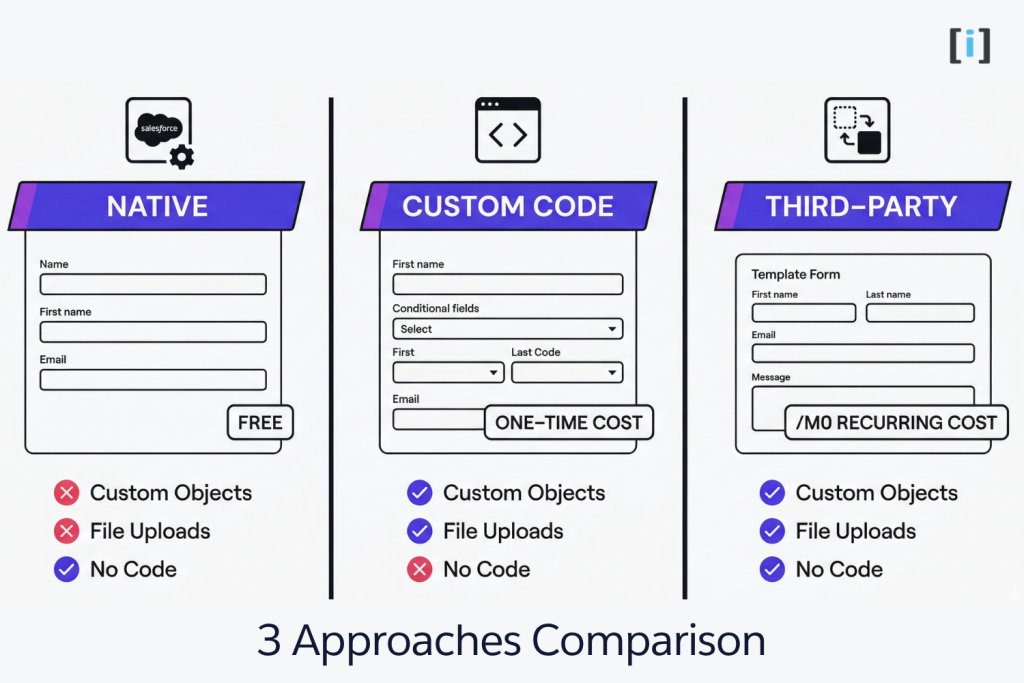
Not all Salesforce web forms are built the same way. Here’s a breakdown of your three main paths.
1. Native Salesforce Form Generators (Free)
Use Salesforce’s built-in Web-to-Lead and Web-to-Case generators. Zero cost, minimal setup.
Pros:
- Free and built into every Salesforce org
- No installation or third-party dependencies
- Simple setup (under 10 minutes)
Cons:
- Limited to Lead and Case objects only
- No conditional logic, multi-step forms, or file uploads
- Basic HTML output — needs CSS work
- Daily submission limits (500 leads, 5,000 cases)
- No duplicate detection
Best for: Small teams with simple lead capture or support intake needs and low-to-medium form volume.
2. Custom Code (One-Time Cost)
Build forms using Visualforce, Lightning Web Components, or an external frontend connected via the Salesforce API.
Pros:
- Works with any Salesforce object (standard or custom)
- Full control over design, validation, and UX
- No recurring subscription fees
- Most secure — no third-party data handling
- Supports file uploads, e-signatures, reCAPTCHA, conditional logic
- Mobile-responsive when built correctly
Cons:
- Requires a developer to build and maintain
- Changes need developer involvement
- Higher upfront cost ($250–$500+ per form depending on complexity)
Best for: Businesses with specific requirements, security concerns, or forms that need deep Salesforce integration.
3. Third-Party Form Builders (Subscription)
If native generators and custom code don’t fit your needs, third-party form builders offer drag-and-drop form creation with Salesforce integration — no code required.
We cover this in detail in a separate post: 10 web forms that integrate with Salesforce — a full comparison of tools like FormAssembly, Gravity Forms, JotForm, Titan, and more.
Best for: Teams that need many forms, frequent changes, and don’t have developer resources for ongoing maintenance.
Key Takeaway: There’s no universal “best” approach. Match the method to your volume, budget, security requirements, and how often you need to change forms.
Salesforce Web Form Builder Comparison
| Feature | Native (Web-to-Lead/Case) | Custom Code |
|---|---|---|
| Setup Cost | Free | $250–$500+ per form |
| Ongoing Cost | $0 | $0 |
| Custom Objects | No | Yes |
| File Uploads | No | Yes |
| Conditional Logic | No | Yes |
| Duplicate Prevention | No | Yes |
| Mobile Responsive | Manual CSS | Yes (if built right) |
| reCAPTCHA | No | Yes |
| Security | Salesforce-hosted | Most secure |
| Speed | Depends on styling | Fastest |
| Maintenance | None | Developer needed |
For a comparison that includes third-party tools, see our forms that integrate with Salesforce roundup.
How to Embed a Salesforce Web Form on Your Website
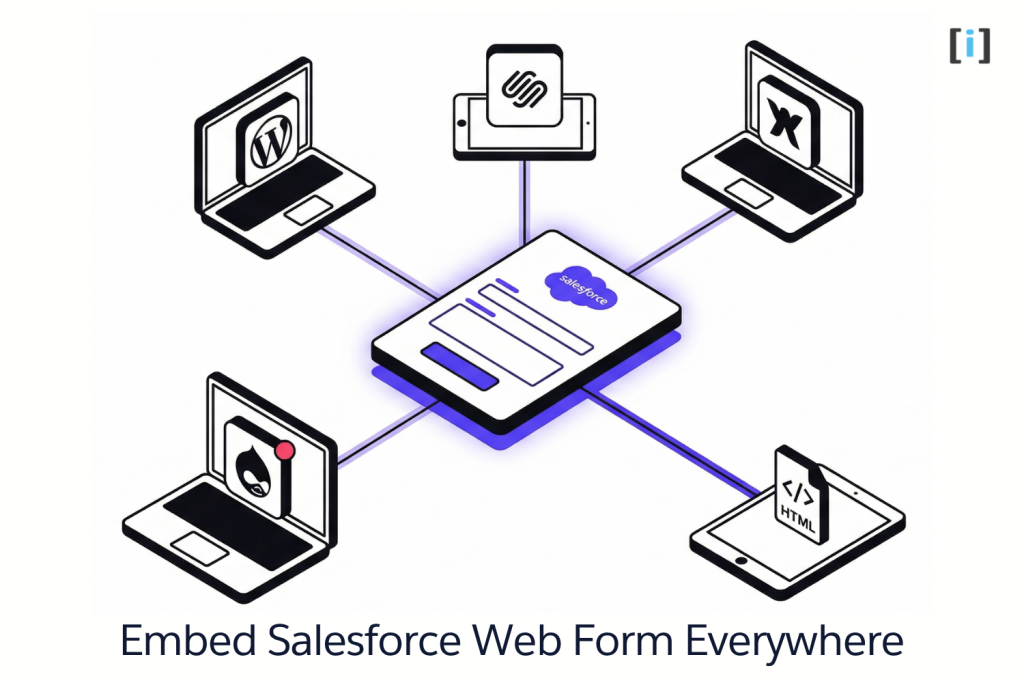
Once you’ve generated or built your Salesforce web form, you need to get it onto your site. Here’s how for the most common platforms:
WordPress
Two options:
- HTML block — In the block editor, add a Custom HTML block and paste your form code. Publish.
- Plugin-based — If you’re using Gravity Forms or another plugin, use the plugin’s shortcode or block to place the form.
For the full walkthrough: How to connect Gravity Forms to Salesforce in 8 steps
Squarespace
Add a Code Block to your page (click Add Block → Code). Paste the form HTML into the code editor.
Wix
Add an HTML element (click Add → Embed → HTML Code). Paste the form’s HTML into the element’s code editor.
Drupal
Install a form builder module or paste the HTML directly into a text block with “Full HTML” input format enabled.
Custom HTML Site
Paste the form code directly into your page’s HTML. Add custom CSS and JavaScript for styling and validation.
Pro Tip: After embedding, always test the form on both desktop and mobile. Check that the submit action hits the correct Salesforce endpoint and that the return URL works.
Salesforce Web Form Best Practices
Building the form is step one. Making it work well is what actually matters.
Design for Conversion
- Keep it short. Only ask for fields you’ll actually use. Every extra field drops your completion rate.
- Group related fields with clear section headings. Contact info in one group, request details in another.
- Use specific labels. “Your Work Email” beats “Email.” “Company Size” beats “Size.”
- Make required fields obvious with an asterisk or “(required)” label.
- Write action-driven button text. “Get My Free Consultation” converts better than “Submit.”
- Put the form above the fold when possible. If it’s long, at least show the first section.
Protect Data Quality
Bad data in Salesforce is worse than no data. It clogs your pipeline, breaks automations, and wastes your team’s time.
- Set field validation rules. Email format, phone number format, required fields — catch errors before submission.
- Use picklists instead of free text where you can. If the answer is one of 5 options, don’t let people type freely.
- Add reCAPTCHA to block spam bots. Custom code and most third-party tools support this.
- Build deduplication logic. Use Salesforce duplicate rules or post-submission Flows to catch repeat submissions before they create junk records.
- Standardize data on entry. Use Flows or Apex triggers to format phone numbers, capitalize names, and normalize company names after submission.
Security and Compliance
- Use HTTPS on every page with a form. Non-negotiable.
- If handling healthcare data, ensure your form solution is HIPAA-compliant. FormAssembly and Titan both offer this. Native Web-to-Lead/Case doesn’t.
- For EU visitors, add GDPR consent checkboxes and link to your privacy policy.
- Audit your third-party tools. Know where form data is stored and processed before it reaches Salesforce.
The Litmus Test: Before launching any web form, ask: “If a customer’s competitor filled this out with garbage data, would we catch it?” If the answer is no, add validation.
Native Forms vs Custom Code: Which One Do You Need?
Still not sure which route to take? Here’s the decision framework:
Choose native Web-to-Lead/Case if:
- You only need Lead or Case intake
- Volume is under 500 leads/day (or 5,000 cases/day)
- You don’t need file uploads or conditional logic
- Budget is zero
Choose custom code if:
- You need forms for custom objects
- Security is a top concern (no third-party data handling)
- You have a developer on staff or retainer
- Forms rarely change once built
- You need deep integration (e-signatures, PDF generation, complex validation)
Need a no-code option? Third-party form builders (FormAssembly, JotForm, Gravity Forms, etc.) offer drag-and-drop form creation with Salesforce mapping. See our full comparison of 10 form tools that integrate with Salesforce.
Real Talk: For most small-to-mid teams, the sweet spot is native forms for simple lead capture + custom code for anything more complex. If you don’t have developer resources, third-party tools fill that gap.
FAQ
Do I need a developer to create Salesforce web forms?
Not necessarily. Web-to-Lead and Web-to-Case are point-and-click. Third-party tools like FormAssembly and Titan are drag-and-drop. You only need a developer for custom object forms or advanced requirements like API integrations, e-signatures, or complex validation logic.
What’s the daily limit for Salesforce web form submissions?
Web-to-Lead: 500 leads per day. Web-to-Case: 5,000 cases per day. If you exceed these limits, submissions are queued (not lost) and processed over the following days. For higher volumes, use a third-party tool or the Salesforce API.
Can Salesforce web forms accept file uploads?
Not natively. Web-to-Lead and Web-to-Case don’t support attachments. To accept files, use a Visualforce page, the Salesforce API, or a third-party tool like FormAssembly or Titan that handles file uploads and maps them to Salesforce attachments.
Can Salesforce web forms accept payments?
Not out of the box. Third-party form tools (FormAssembly, JotForm, Gravity Forms) can integrate with payment gateways like Stripe or PayPal, letting you collect payments alongside form data.
How do I prevent spam on Salesforce web forms?
Add reCAPTCHA to your form. Custom code forms and most third-party tools support Google reCAPTCHA. For native Web-to-Lead, you can add reCAPTCHA manually to the HTML before embedding, though it requires some JavaScript work. Also set up Salesforce duplicate rules to catch repeat/junk submissions.
Can I create a Salesforce web form for any object?
Yes, but not with the native generators. Web-to-Lead only creates Leads. Web-to-Case only creates Cases. For any other object (standard or custom), use custom code (Visualforce, LWC, or Salesforce API) or a third-party form builder that supports custom object mapping.
Need a Salesforce web form that actually works for your business? Whether it’s a custom-coded form for a complex workflow or a simple lead capture setup, we build Salesforce forms that fit — no generic tools, no workarounds.