If you are a Salesforce Admin, there is nothing quite as panic-inducing as staring at a login screen and realizing you are locked out of your own org.
With Salesforce’s Phishing-Resistant MFA Enforcement, that nightmare is becoming a reality for IT teams who aren’t prepared. The rules for how privileged users log in have officially changed. The old, reliable methods we’ve used for years—like typing a six-digit code from a text message or a standard authenticator app—are no longer considered secure enough for users with the keys to the kingdom.
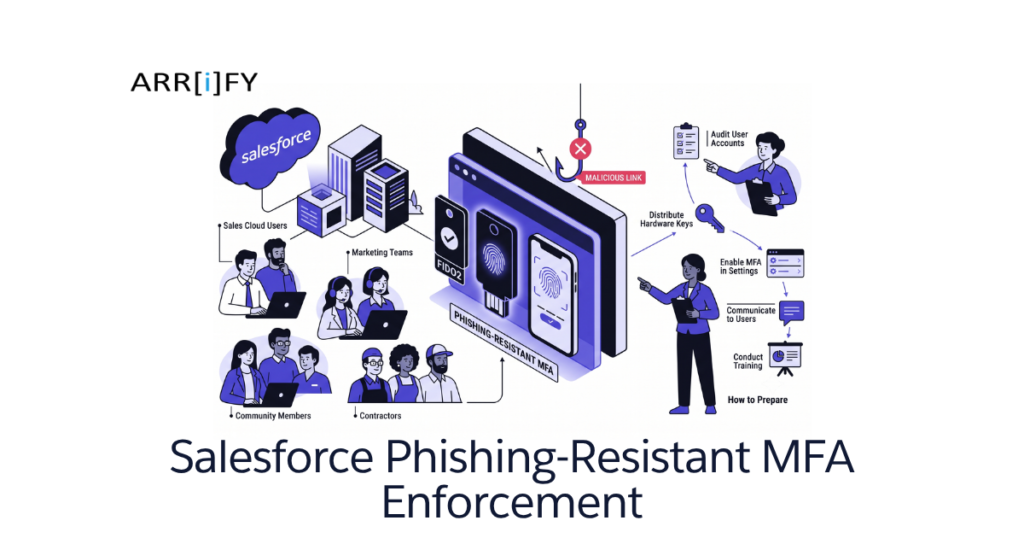
Salesforce is mandating phishing-resistant MFA (FIDO2 / WebAuthn) for all highly privileged users in both Production and Sandbox environments (enforced starting July 10, 2026 for Sandboxes and July 20, 2026 for Production). Traditional MFA methods like SMS, email codes, and Google Authenticator no longer satisfy the requirement for these accounts. If you hold permissions like Modify All Data or Author Apex, you must register a passkey, physical security key (like a YubiKey), or built-in authenticator (Touch ID/Windows Hello) to maintain access.
If you use SSO or automated CI/CD pipelines, you must update your configurations immediately to prevent complete service disruptions. Here is a clear, actionable guide on who this mandate impacts, what counts as “phishing-resistant,” and the exact steps to keep your access secure.
Why Is Salesforce Doing This?
Attackers have increasingly bypassed standard MFA using Adversary-in-the-Middle (AitM) phishing kits and session hijacking. If a bad actor intercepts a session cookie for a standard user, the scope is limited. But if they intercept credentials for a privileged user, they can modify permissions, export entire databases, and deploy malicious code.
Phishing-resistant authentication protocols (FIDO2/WebAuthn) cryptographically bind the login challenge to the specific domain (.salesforce.com), making AitM relay attacks impossible.
Who Exactly Is Affected?
This enforcement isn’t for your average sales rep or customer support agent. It specifically targets users holding highly privileged administrative permissions.
According to Salesforce’s official guidance (“Prepare for Phishing-Resistant MFA Enforcement for Privileged Users including Admins“), this mandate applies to you if your profile, a permission set, or a permission set group grants you any of the following:
Users with the following user permissions are required to use phishing-resistant MFA:
- System Administrator (The default profile)
- Customize Application
- Modify All Data
- View All Data
- Author Apex
The Sandbox Impact: Warning for QA and Offshore Teams
This rule is strictly enforced in Sandbox environments as well as Production.
Many organizations have a bad habit of sharing a single System Administrator login among QA testers or offshore development teams in lower environments. This mandate will forcefully break that workflow. Because phishing-resistant MFA relies on physical hardware keys or local device biometrics, you can no longer easily pass a login code around a Slack channel. Every user testing or developing in a sandbox with privileged permissions must now have their own dedicated user account and their own registered FIDO2 credential.
What Counts as “Phishing-Resistant” MFA?
To meet this new security baseline, your MFA method must be built on the FIDO2 / WebAuthn standard. This protocol uses public-key cryptography, which means the authentication is tied directly to the specific website you are logging into, making credential interception virtually impossible.
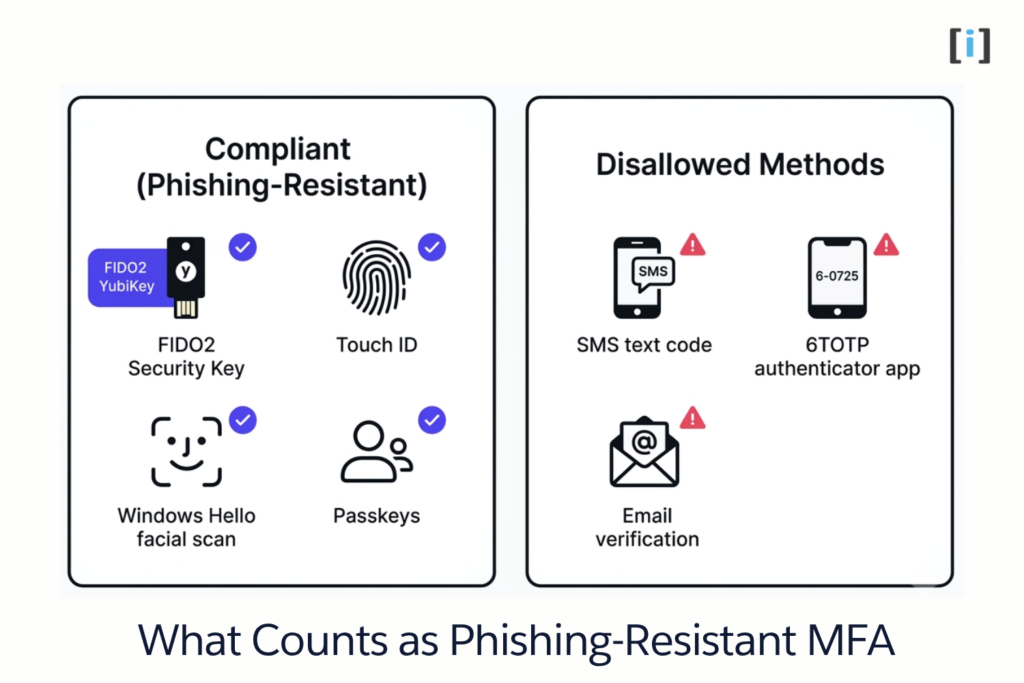
However, not all FIDO2 methods are created equal. Security teams need to understand the trade-off between Device-Bound and Cloud-Synced passkeys when making procurement decisions.
1. Device-Bound Authenticators (Highest Security)
- Hardware Security Keys: Physical devices like YubiKeys or Google Titan keys.
- Built-in Authenticators: Biometrics tied to a specific machine, like Windows Hello or a Mac’s Touch ID.
- The Trade-off: The cryptographic key never leaves the physical hardware. It cannot be copied, backed up, or exported. If you lose the YubiKey or your laptop dies, the credential is gone, and you must register a new one. This is the gold standard for security, but requires strict IT management.
2. Cloud-Synced Passkeys (Highest Convenience)
- Password Managers: Passkeys stored in Apple iCloud Keychain, Google Password Manager, or enterprise tools like 1Password and Dashlane.
- The Trade-off: The cryptographic key syncs across your devices via the cloud. If you lose your iPhone, your passkey is still safe in your iCloud account, meaning you won’t get locked out of Salesforce. While slightly less strict than a physical key, it is still fully FIDO2 compliant and vastly superior to SMS or standard authenticator apps.
Methods That Are NO LONGER Allowed for Admins
- Standard TOTP Authenticator Apps (Google Authenticator, Authy, Microsoft Authenticator)
- SMS Text Messages
- Email Verification Codes
- Push notifications that just ask you to tap “Approve”
For a deeper dive into how passkeys behave after enforcement kicks in, review Salesforce’s article on MFA and Phishing-Resistant MFA Post-Enforcement Passkey Prompts and Extension Behavior.
The SSO Catch: Okta, Azure AD, and Ping Identity (Watch Out for This)
If your company uses a Single Sign-On provider like Okta, Azure AD (Entra ID), or Ping Identity, you might think you are automatically covered. Unfortunately, it isn’t that simple.
When you log in via SSO, your Identity Provider (IdP) has to send a specific signal to Salesforce saying, “Hey, this user logged in using a phishing-resistant method.” In SAML/OIDC terms, these are called Authentication Method Reference (AMR) or Authentication Context Class Reference (ACR) claims.
If your IdP doesn’t send those exact signals even if you actually used a YubiKey to log into Okta Salesforce won’t know about it. As a result, Salesforce will hit you with its own native MFA prompt. You will need to work with your IAM engineering team to map those claims correctly.
How to Fix It
- Work with your IAM/Identity team to configure your IdP to send the correct Authentication Method Reference (AMR) or Authentication Context Class Reference (ACR) claims in the SAML assertion.
- For example, Entra ID needs to pass an
amrclaim containingfidoorhwk. - In Salesforce, go to Setup -> Single Sign-On Settings. Edit your configuration and ensure you map those incoming claims correctly so Salesforce recognizes the session as highly assured.
Will This Break Your CI/CD Pipelines? (Yes, Probably)
This is the biggest blind spot for most organizations. Automated deployment tools (like Copado, Gearset, Jenkins, or GitHub Actions) often use “headless” integration users to push code between environments.
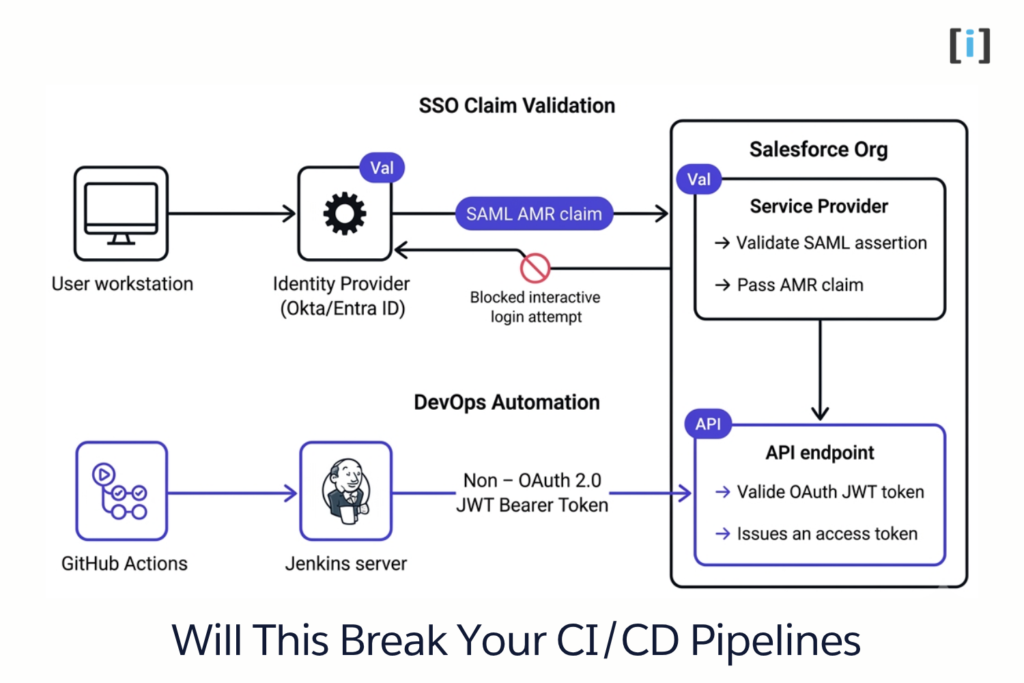
Because these integration users are pushing code, they almost always hold the Author Apex and Modify All Data permissions. If Salesforce prompts your automated Jenkins script to tap a YubiKey, your entire CI/CD pipeline will fail.
How to Fix It
You cannot use standard username/password logins for automated deployment users anymore. You must transition these integrations to use OAuth flows that bypass interactive MFA:
- OAuth 2.0 JWT Bearer Token Flow (Uses a digital certificate).
- OAuth 2.0 Client Credentials Flow (The modern, recommended server-to-server integration method).
Switching your deployment users to these Connected App flows ensures they stay secure without getting blocked by an MFA prompt.
Your Admin Preparation Checklist
Don’t wait until a production deployment day to find out you can’t log in. Follow these steps to get your org ready.
1. Audit Your Privileged Users
Run a quick review of your org. Find out exactly who holds the Modify All Data, View All Data, Customize Application, and Author Apex permissions.
Tip: Check your permission sets, not just base profiles. You might have developers or integration users holding these permissions unnecessarily. If they don’t absolutely need them, revoke them. The principle of least privilege is your best friend here.
2. Procure the Right Hardware (If Needed)
Decide on your company’s strategy. Are you allowing admins to use personal device biometrics (Touch ID)? Or does your security policy mandate hardware keys? If it’s the latter, buy YubiKeys for your admin team immediately so they have them in hand.
3. Register Your Phishing-Resistant Method
If you have a compliant method ready, register it in Salesforce right now. (For step-by-step administrative controls, consult Salesforce’s guide on how to Configure the MFA Verification Methods Available to Users).
- Click your profile avatar in the top right and go to Settings.
- Navigate to Advanced User Details.
- Scroll down to Built-in Authenticator or Security Key (U2F or WebAuthn) and click Register.
- Follow the on-screen prompts to register your device.
Tip: Need a more detailed visual walkthrough? Check out our complete step-by-step Salesforce MFA setup guide where we walk you through the entire registration process with screenshots.
4. Setup a Backup Recovery Plan
Hardware keys break, and laptops with Touch ID get lost. Have an emergency “break-glass” strategy. Ensure at least two administrators have multiple phishing-resistant methods registered so one admin can generate a temporary verification code for the other if disaster strikes.
The exact recovery steps for a locked admin
- The secondary (active) Admin logs into Salesforce.
- Go to Setup -> Users and click on the locked Admin’s user record.
- Scroll down to the Temporary Verification Code related list.
- Click Generate.
- Communicate with Your Team Do not enforce this silently. Communicate with your QA testers, offshore developers, and internal admins immediately. Let them know that shared sandbox logins are dying and that they must have their own registered passkeys or hardware keys by a specific deadline.
Conclusion
Salesforce’s phishing-resistant MFA mandate is a massive step forward for data security. While the transition might feel like an operational headache, the protection it offers against modern credential theft is unmatched. Take an hour this week to audit your permissions, register your passkeys, and ensure your admin team is ready for the change.
Official Salesforce Help & Documentation References
If you want to read more directly from the source or keep track of upcoming platform changes, check out these official Salesforce Help documentation resources:
- Security-Related Product Updates to the Salesforce Platform.
- Prepare Your Org for Salesforce MFA Enforcement.
- Prepare for the upcoming Step-up Authentication requirements on Report Actions.
- Identity Verification Is Required to Register New MFA Verification Methods.
FAQs
Does this phishing-resistant MFA mandate apply to all Salesforce users or only Admins?
The phishing-resistant MFA enforcement specifically applies to highly privileged users—anyone assigned the System Administrator profile or users holding permissions such as Modify All Data, View All Data, Customize Application, or Author Apex (via profiles, permission sets, or permission set groups). Standard users (like Sales or Service Cloud reps) can continue using traditional MFA methods (such as Google Authenticator, Authy, or Salesforce Authenticator) unless your organization’s security policy decides to enforce WebAuthn company-wide.
How do we prevent our automated CI/CD tools (Gearset, Copado, Jenkins) from failing due to MFA prompts?
Automated deployment pipelines fail when they use standard interactive UI username/password logins for accounts holding Author Apex or Modify All Data permissions. To fix this, transition all automated pipelines to non-interactive OAuth flows such as the OAuth 2.0 JWT Bearer Token Flow or OAuth 2.0 Client Credentials Flow. Additionally, consider assigning these accounts dedicated Salesforce Integration User Licenses, which restrict logins strictly to APIs and bypass interactive WebAuthn prompts.
What happens if an admin loses their physical security key or device and gets locked out?
Organizations should establish a “break-glass” recovery plan by ensuring at least two system administrators have multiple WebAuthn credentials registered (e.g., both a YubiKey and Touch ID). If an admin is locked out, a secondary admin can log into Salesforce, navigate to Setup → Users, select the locked admin’s record, and click Generate under the Temporary Verification Code related list. This provides a temporary code allowing the locked admin to log in and register a new security key.