Why Connect JotForm to Salesforce?
Every form submission that doesn’t land in your CRM is a lead you might lose. Someone fills out a contact form, and then what — you manually copy their name, email, and company into Salesforce? That works when you get five submissions a week. It falls apart at fifty.
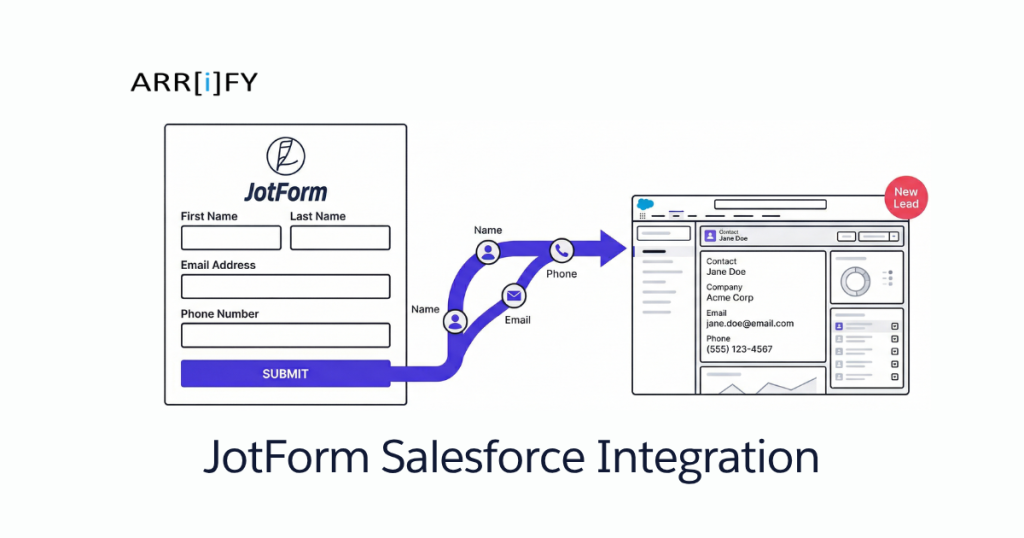
A JotForm Salesforce integration eliminates that gap. Form submissions create Salesforce records automatically — Leads, Contacts, Cases, or custom objects. No copy-pasting, no CSV imports, no “I forgot to add that one.”
Here’s what that actually gets you:
- Faster response times. Leads hit Salesforce the moment they submit. Your sales team gets notified immediately instead of waiting for someone to transfer the data.
- Cleaner data. Manual entry means typos, missing fields, and duplicates. Automated field mapping means the data arrives exactly as the submitter entered it.
- Better reporting. When every lead flows through Salesforce from day one, your pipeline reports actually reflect reality.
- Workflow triggers. A new Lead in Salesforce can kick off assignment rules, email alerts, and automation flows — but only if the record exists in the first place.
The Litmus Test: If you’re spending more than 10 minutes a day moving form data into Salesforce, you need this integration. If you’re spending zero minutes because nobody’s doing it — you really need it.
3 Ways to Set Up a JotForm Salesforce Integration
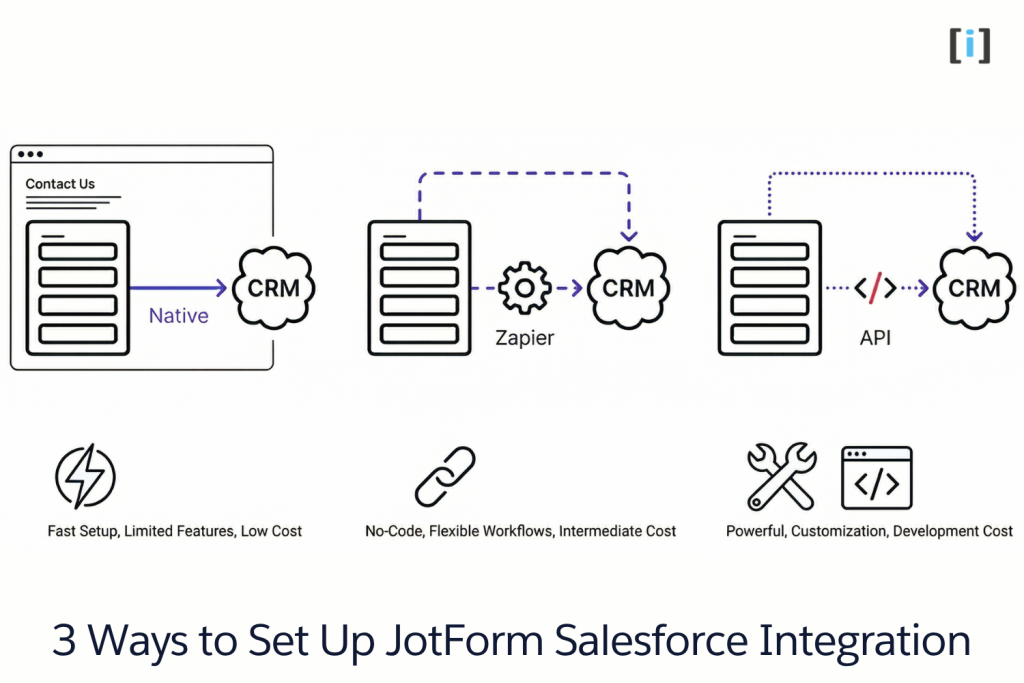
Not every integration method fits every team. Here’s the quick comparison:
| Method | Best For | Cost | Setup Time | Flexibility |
|---|---|---|---|---|
| Native Integration | Most teams | Free (included with JotForm) | 10–15 min | Moderate — standard objects + fields |
| Zapier | Multi-step workflows | $20+/mo (Zapier plan) | 15–20 min | High — chain multiple actions |
| Custom API | Complex or high-volume | Developer time | Hours–days | Full control |
Pro Tip: Start with the native integration. It covers 80% of use cases. Only reach for Zapier or custom API when you hit a wall — like needing to create records across multiple objects in a single submission or running conditional logic that JotForm’s built-in options can’t handle.
Method 1: Native JotForm Salesforce Integration (Step-by-Step)
JotForm has a built-in Salesforce connector. No third-party tools, no AppExchange install (though JotForm is available on AppExchange if you prefer that route). Here’s how to set it up:
Step 1: Open Your Form Settings
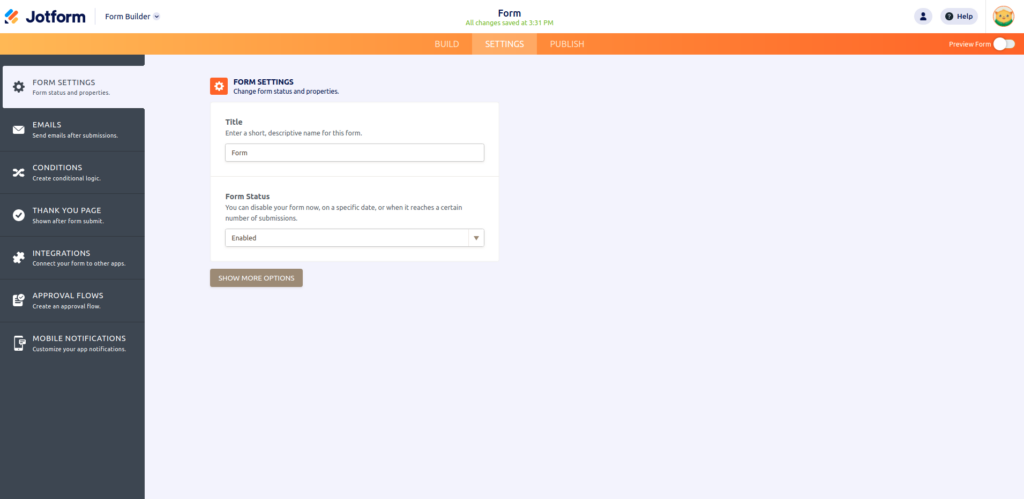
Log into JotForm and open the form you want to connect. In the top navigation bar, click Settings, then select Integrations from the left sidebar.
Step 2: Search for Salesforce
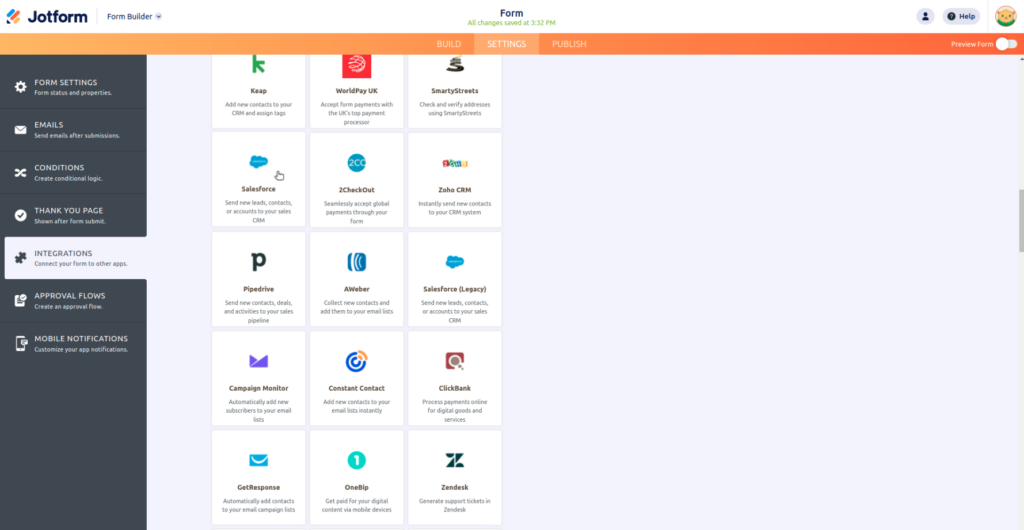
Type “Salesforce” in the integration search bar and click the Salesforce card.
Step 3: Authenticate with Salesforce
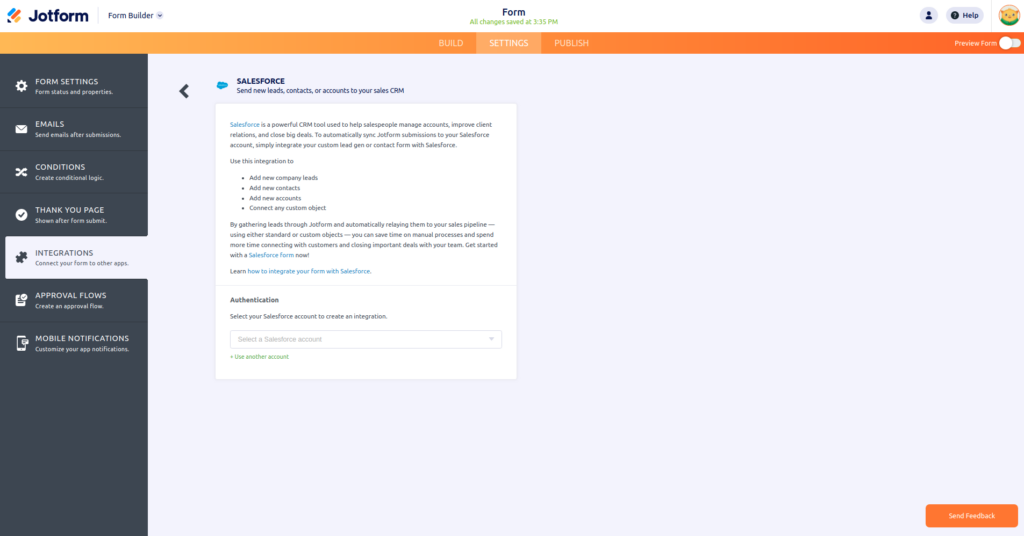
You’ll see two environment options:
- Production — Your live Salesforce org. Use this for real data.
- Sandbox — Your test environment. Use this first if you want to verify the mapping before going live.
Click Continue and log in with your Salesforce credentials.
Step 4: Select Your Action Type
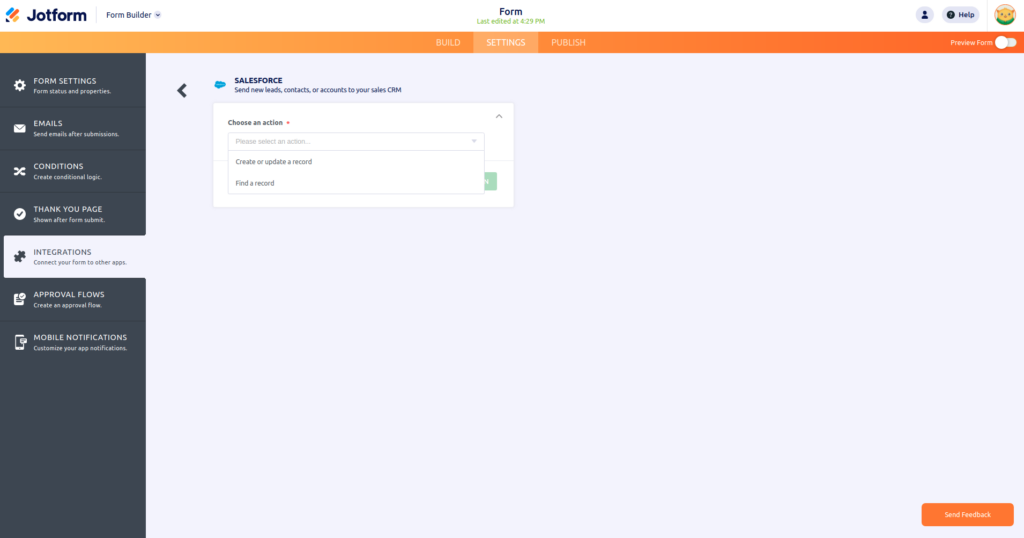
JotForm gives you two core actions:
- Create or Update a Record — Creates a new record in Salesforce, or updates an existing one if a match is found. This is the most common choice for lead capture forms.
- Find Existing Record — Searches for an existing record first. You can optionally create a new one if no match exists.
Pick your action and click Next.
Step 5: Map Your Fields
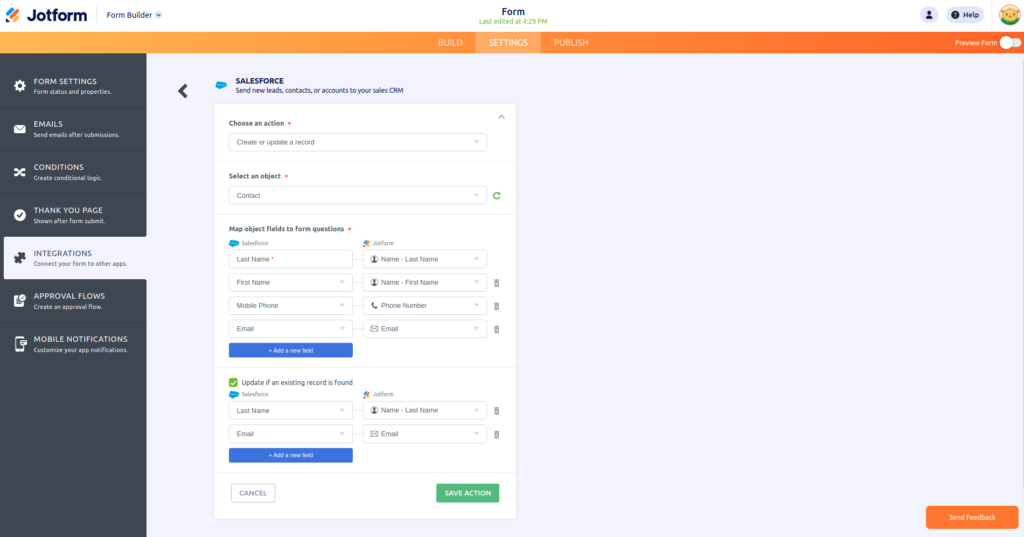
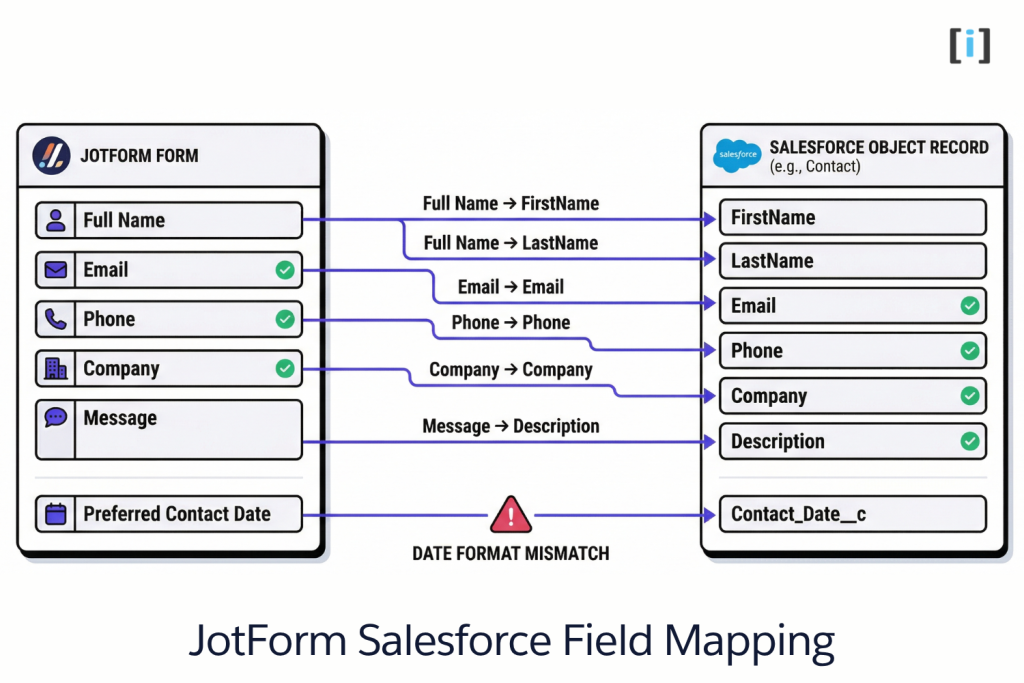
This is where the integration lives or dies. You’ll select a Salesforce Object (Lead, Contact, Account, Case, or any custom object) and then map each Salesforce field to the corresponding JotForm form field.
For a basic lead capture form, your mapping might look like:
| JotForm Field | Salesforce Field | Object |
|---|---|---|
| Full Name | FirstName + LastName | Lead |
| Lead | ||
| Phone | Phone | Lead |
| Company | Company | Lead |
| Message | Description | Lead |
Click Add Field at the bottom if you need more mappings. You can also toggle on:
- Update an Existing Record — Checks for duplicates based on fields you specify (like email) and updates instead of creating a new record.
- Attachments — Sends uploaded files and a PDF of the submission to Salesforce.
Step 6: Save and Test
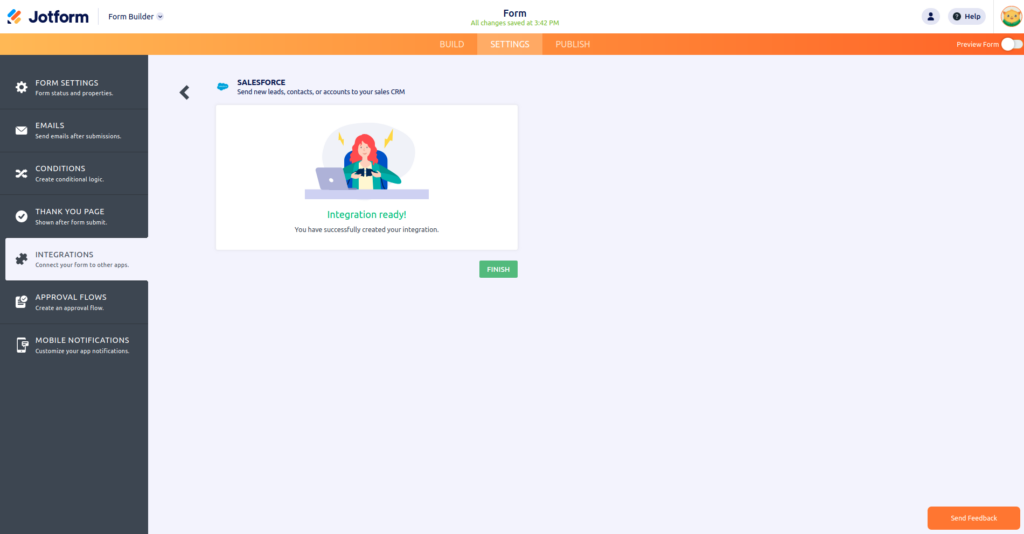
Click Save, then submit a test entry through your form. Check Salesforce to confirm the record was created with the right data in the right fields.
Key Takeaway: The native integration handles Lead, Contact, Account, Case, and custom object creation out of the box. For most form-to-CRM workflows, this is all you need.
Method 2: JotForm to Salesforce via Zapier
Zapier sits between JotForm and Salesforce, letting you build multi-step workflows that the native integration can’t handle.
When Zapier Makes Sense
- You need to create records in multiple Salesforce objects from one form (e.g., a Lead and a Task).
- You want to run conditional logic — like routing submissions to different objects based on a form field value.
- You need to chain actions — create a Salesforce record, then send a Slack notification, then add a row to Google Sheets.
How to Set It Up
- Create a Zap in Zapier with JotForm as the trigger (“New Submission”).
- Connect your JotForm account and select the form.
- Add Salesforce as the action — choose “Create Record,” “Update Record,” or “Find Record.”
- Map fields from the JotForm submission to Salesforce object fields.
- Test the Zap and turn it on.
The downside? Zapier adds a monthly cost, and you’re limited by your Zap plan’s task volume. For simple lead capture, it’s overkill. For complex multi-step workflows, it’s worth it.
Real Talk: Zapier is great for prototyping integrations. But if you’re running thousands of submissions per month, the per-task pricing adds up fast. At that volume, consider the native integration or a custom integration build.
Method 3: Custom API Integration
For teams that need full control — custom validation, conditional object routing, or high-volume processing — a custom API integration is the way to go.
The basic architecture:
- JotForm Webhook sends form data as an HTTP POST to your endpoint.
- Your middleware (Node.js, Python, whatever your stack uses) receives the payload, transforms it, and applies business logic.
- Salesforce REST API receives the processed data and creates/updates records.
This approach gives you:
- Custom field transformations before data hits Salesforce
- Conditional routing to different objects based on submission content
- Error handling and retry logic
- Integration with other systems in the same pipeline
The tradeoff is development time and maintenance. You need someone who knows both the Salesforce REST API and JotForm’s webhook system.
Pro Tip: JotForm webhooks fire on every submission automatically. Set one up under Settings → Integrations → Webhooks. The payload includes all form fields as key-value pairs — straightforward to parse.
JotForm Salesforce Field Mapping: Getting It Right
Field mapping is where most integration issues start. A few things to keep in mind:
Required Fields
Salesforce objects have required fields. For Leads, that’s always LastName and Company. If your form doesn’t collect Company name, the integration will fail silently or throw an error on every submission.
Check your Salesforce object’s required fields before you build the form — not after.
Data Type Mismatches
JotForm collects everything as text. Salesforce has typed fields — dates, numbers, picklists, booleans. Common issues:
| Problem | Cause | Fix |
|---|---|---|
| Date field rejected | JotForm sends “06/15/2026,” Salesforce expects “2026-06-15” | Use JotForm’s date format settings to match Salesforce’s ISO format |
| Picklist value rejected | Form value doesn’t match Salesforce picklist options exactly | Make form dropdown values match Salesforce picklist values character-for-character |
| Number field rejected | Form sends “1,500” with comma | Use a number field type in JotForm, not a text field |
Name Field Splitting
JotForm has a “Full Name” field that combines first and last name. Salesforce has separate FirstName and LastName fields. The native integration handles this automatically — it splits the Full Name field into its components. But if you’re using Zapier or a custom integration, you’ll need to handle the split yourself.
Key Takeaway: Map your fields before you build the form. Knowing which Salesforce fields you’re targeting shapes which JotForm elements you need.
Production vs. Sandbox: Which Environment to Connect
JotForm’s native integration lets you connect to either your Production or Sandbox Salesforce org. Here’s when to use each:
Start in Sandbox if:
- You’re setting up the integration for the first time
- You have custom objects or validation rules that might reject incoming data
- Your Salesforce org has complex duplicate rules or triggers
- You want to test without polluting your real data
Go straight to Production if:
- You’re connecting a simple lead capture form with standard fields
- You’ve already tested the mapping logic
- You need the integration live immediately
One thing to note: standard JotForm accounts only connect to one Salesforce production org. If you manage multiple orgs, you’ll need a JotForm Enterprise plan for multiple production connections.
Common Use Cases for JotForm and Salesforce
Lead Capture
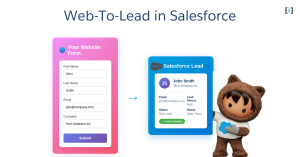
The classic use case. Embed a JotForm form on your website, map it to the Lead object, and let Web-to-Lead happen without Salesforce’s native (and limited) Web-to-Lead forms. JotForm gives you conditional logic, multi-page forms, and better design control.
Customer Support Cases
Map form submissions to Salesforce Cases. Include fields for issue type, priority, and description. Pair it with Salesforce assignment rules to auto-route cases to the right team.
Event Registration
Collect registrations through JotForm and create Salesforce Campaign Members automatically. This keeps your event tracking inside Salesforce where your marketing team already works.
Partner or Vendor Onboarding
Use JotForm’s file upload fields to collect documents (W-9s, contracts, certifications) and push them to Salesforce as attachments on Account or custom object records.
Internal Data Collection
Not every form is external. Internal teams use JotForm for employee requests, IT tickets, or project intake — all feeding into Salesforce for tracking and reporting.
The Litmus Test: If the data ends up in Salesforce eventually, it should start there. Every manual step between form submission and CRM entry is a chance for data to get lost, delayed, or entered wrong.
Troubleshooting Your JotForm Salesforce Integration
Submissions Aren’t Creating Records
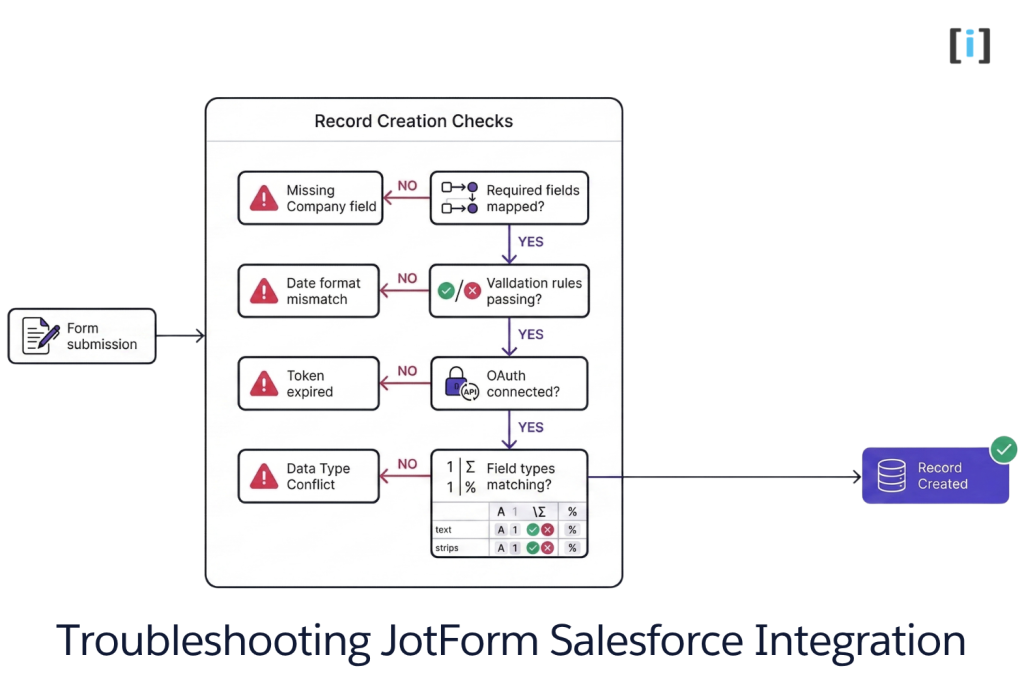
Check these first:
- Required fields. Is your form mapping to all required Salesforce fields? Missing a required field = silent failure.
- Validation rules. Salesforce validation rules can reject records that don’t meet criteria your form doesn’t enforce.
- Integration status. Go to Settings → Integrations in JotForm. Make sure the Salesforce connection shows as active (not disconnected).
- Action logs. JotForm provides integration action logs — check them for specific error messages.
Duplicate Records Being Created
If you’re getting duplicate Leads or Contacts:
- Enable the Update an Existing Record toggle in the native integration setup.
- Set a match field (usually Email) so JotForm checks for existing records before creating new ones.
- Review your Salesforce duplicate rules — they might not cover the object you’re creating.
Connection Keeps Disconnecting
Salesforce OAuth tokens expire. If your integration stops working after a few months:
- Re-authenticate by going to Settings → Integrations → Salesforce and reconnecting.
- Check if your Salesforce admin revoked the connected app’s access.
- Verify your Salesforce user account is still active.
Data Arriving in Wrong Fields
Re-check your field mapping. A common mistake: mapping JotForm’s “Address” (which is a composite field) to Salesforce’s “MailingStreet” without accounting for city, state, and zip as separate fields.
JotForm Salesforce Integration Pricing
The native JotForm Salesforce integration is included in all plans — including the free Starter plan. But your JotForm plan determines submission limits:
| Plan | Monthly Submissions | Forms | Price |
|---|---|---|---|
| Starter | 100 | 5 | Free |
| Bronze | 1,000 | 25 | $39/mo |
| Silver | 10,000 | 100 | $49/mo |
| Gold | Unlimited | Unlimited | $129/mo |
The Salesforce integration itself doesn’t cost extra. The limit is how many submissions JotForm allows per month on your plan.
If you’re using the Zapier method, add Zapier’s pricing on top — starting at $20/mo for 750 tasks.
Real Talk: For most small-to-mid teams doing lead capture, the Bronze plan is enough. You only need Gold if you’re running high-traffic forms or dozens of different forms across your site.
JotForm vs. Other Salesforce Form Options
JotForm isn’t the only way to get form data into Salesforce. Here’s how it compares:
| Option | Pros | Cons |
|---|---|---|
| JotForm | Easy setup, 150+ integrations, good design tools, free tier | Limited Salesforce-specific features |
| Salesforce Web-to-Lead | Free, native, no third party | Ugly forms, limited to 500 submissions/day, minimal customization |
| Gravity Forms + Salesforce | Deep WordPress integration | Requires WordPress, plugin cost, more complex setup |
| Formstack | Built for Salesforce, advanced routing | Expensive, steeper learning curve |
| Custom Web-to-Lead | Full control, no vendor lock-in | Requires development, ongoing maintenance |
JotForm hits a sweet spot: easier than building custom forms, more flexible than Salesforce’s native Web-to-Lead, and cheaper than Salesforce-specific tools like Formstack.
JotForm hits a sweet spot: easier than building custom forms, more flexible than Salesforce’s native Web-to-Lead, and cheaper than Salesforce-specific tools like Formstack. For a side-by-side comparison of JotForm against 9 other form tools, see our 10 forms that integrate with Salesforce roundup. For the broadest view of every Salesforce form method, see our Salesforce Form Options overview.
For teams already on WordPress, Gravity Forms with Salesforce is worth considering since it keeps everything in your CMS. But if you want a standalone form builder that works anywhere — embedded on any site, shared via link, or used on mobile — JotForm is the simpler path.
FAQs
Does JotForm integrate with Salesforce for free?
Yes. The native Salesforce integration is available on all JotForm plans, including the free Starter plan. The only limit is JotForm’s submission cap per plan (100/month on Starter).
Can I map JotForm fields to custom Salesforce objects?
Yes. The native integration supports standard objects (Lead, Contact, Account, Case) and custom objects. Select your custom object from the dropdown during field mapping.
What happens if a JotForm submission fails to create a Salesforce record?
JotForm logs integration events in the Action Logs (Settings → Integrations → Salesforce → Action Logs). Check there for error messages. Common causes: missing required fields, validation rule failures, or an expired OAuth connection.
Can I update existing Salesforce records instead of creating new ones?
Yes. In the native integration setup, toggle on “Update an Existing Record” and specify which field to match on (typically Email). If a match is found, the existing record gets updated instead of creating a duplicate.
Is there a limit to how many Salesforce objects I can create per form?
With the native integration, you can add multiple actions per form — each creating records in different objects. So a single form submission could create both a Lead and a Case. Add actions using the “Add New Action” button after saving your first action.
Can I connect JotForm to multiple Salesforce orgs?
Standard JotForm plans support one Salesforce production connection. For multiple production org connections, you need a JotForm Enterprise plan.