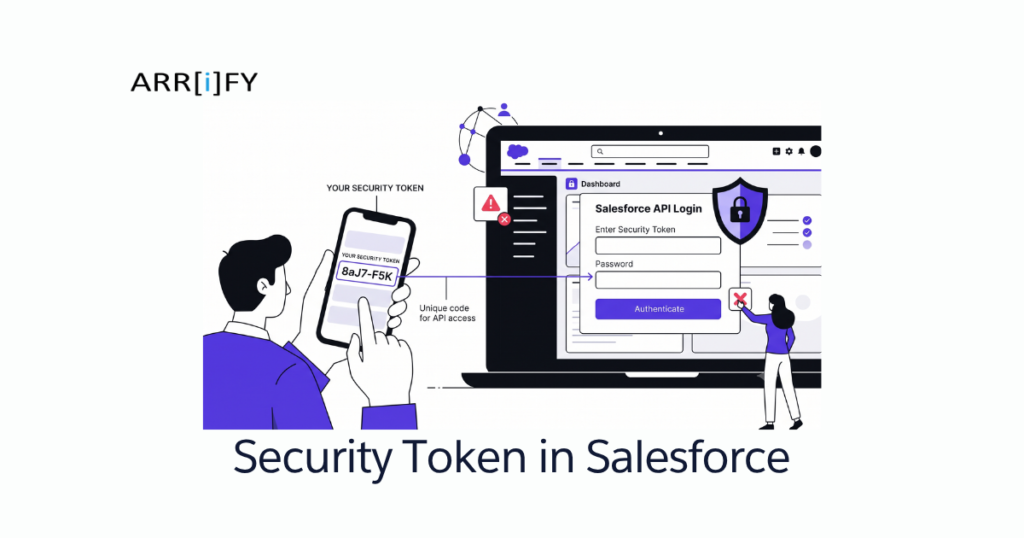
Salesforce is one of the most popular used CRM platforms in the world, and with its wide use, strong security is very important. One key part of Salesforce security is the security token.
When accessing Salesforce via third-party applications or tools, just a username and password might not be enough. This is where security tokens helps. They provide extra protection to make sure only the right people and systems can access your data.
In this guide, we’ll cover everything you need to know about security token in Salesforce, why they matter, and how to manage them effectively.
What is a Security Token in Salesforce?
A security token is a unique, 24-character string that includes letters (A-Z) and numbers (0-9) which is created by Salesforce. It is case-sensitive, so you must enter it exactly as it appears.
Each token is specific to your Salesforce account and adds extra protection to keep your data safe. When logging in from a new location, device, or third-party app, you will need both your regular password and the security token to log in.
This process is a form of two-factor authentication, adding an extra security measure to protect your data.
How Security Tokens Work?
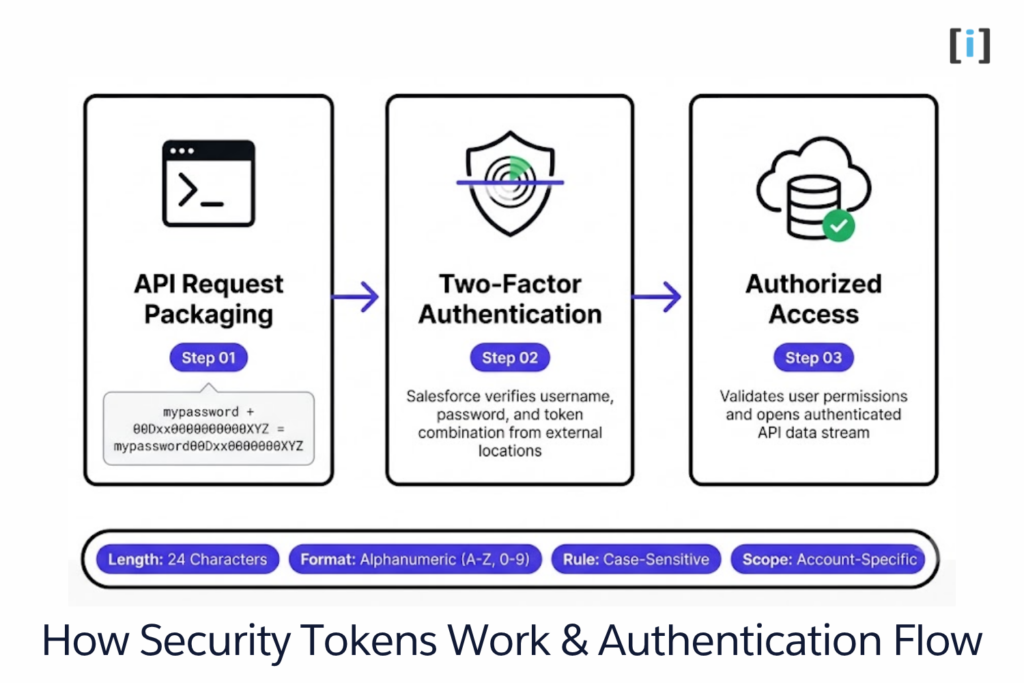
A Security Token is used along with your Salesforce username and password to log in from external apps (like third-party tools or mobile apps). Here’s how it works:
Login Process
When you try to authenticate via the Salesforce API, you send your username and password along with your Security Token. The Security Token is appended to your password in the API request.
Example : If your Salesforce password is mypassword and your Security Token is 00Dxx0000000000XYZ, you will send the following combination in your API request:
mypassword00Dxx0000000000XYZAuthentication
Salesforce verifies this combination of username, password, and token. If the combination is correct and the user has the necessary permissions, access is granted.
How to Find & Reset Security Token in Salesforce?
To reset your security token in Salesforce, follow these steps:
Total Time: 5 minutes
Go to Profile Settings
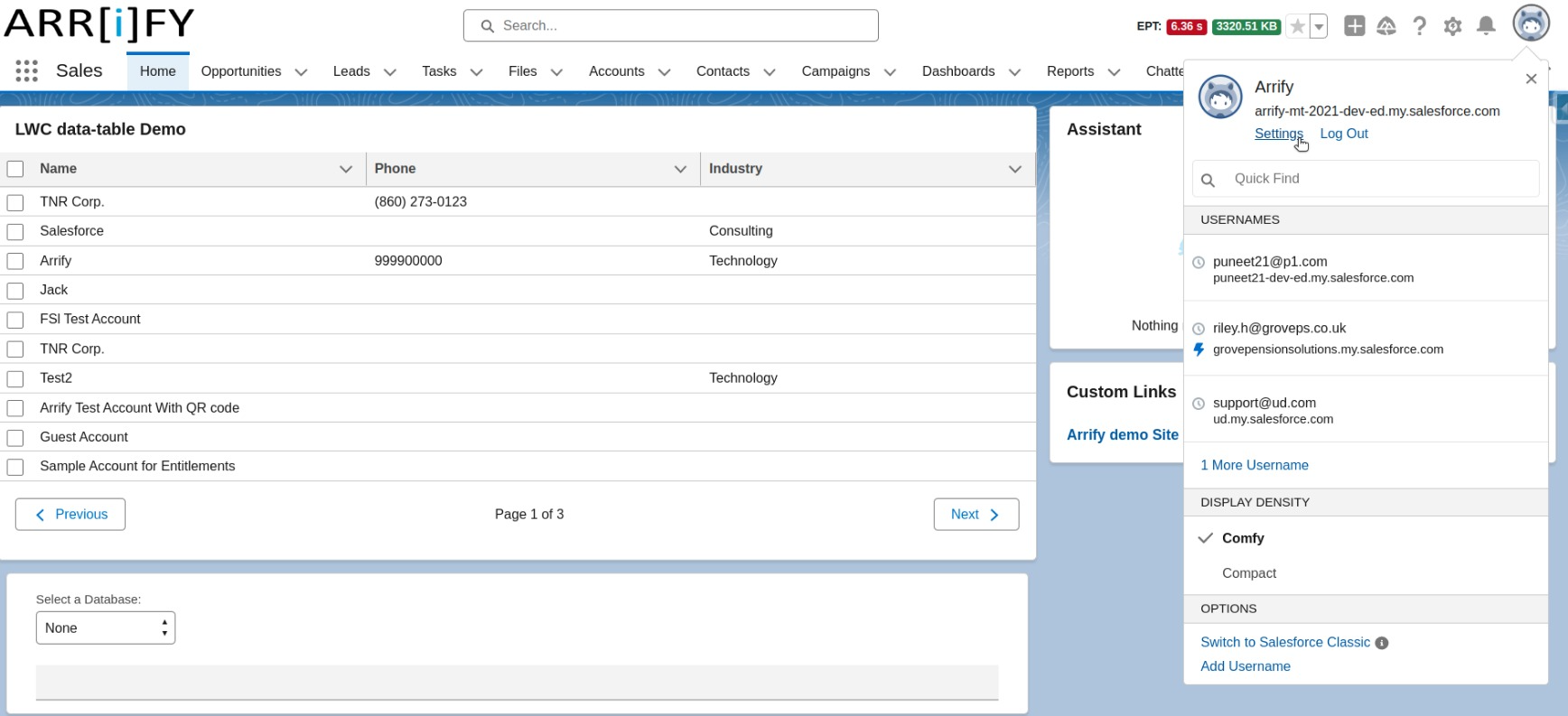
Log in to Salesforce.
Click on your profile avatar or icon in the top right and select Settings.
Reset My Security Token
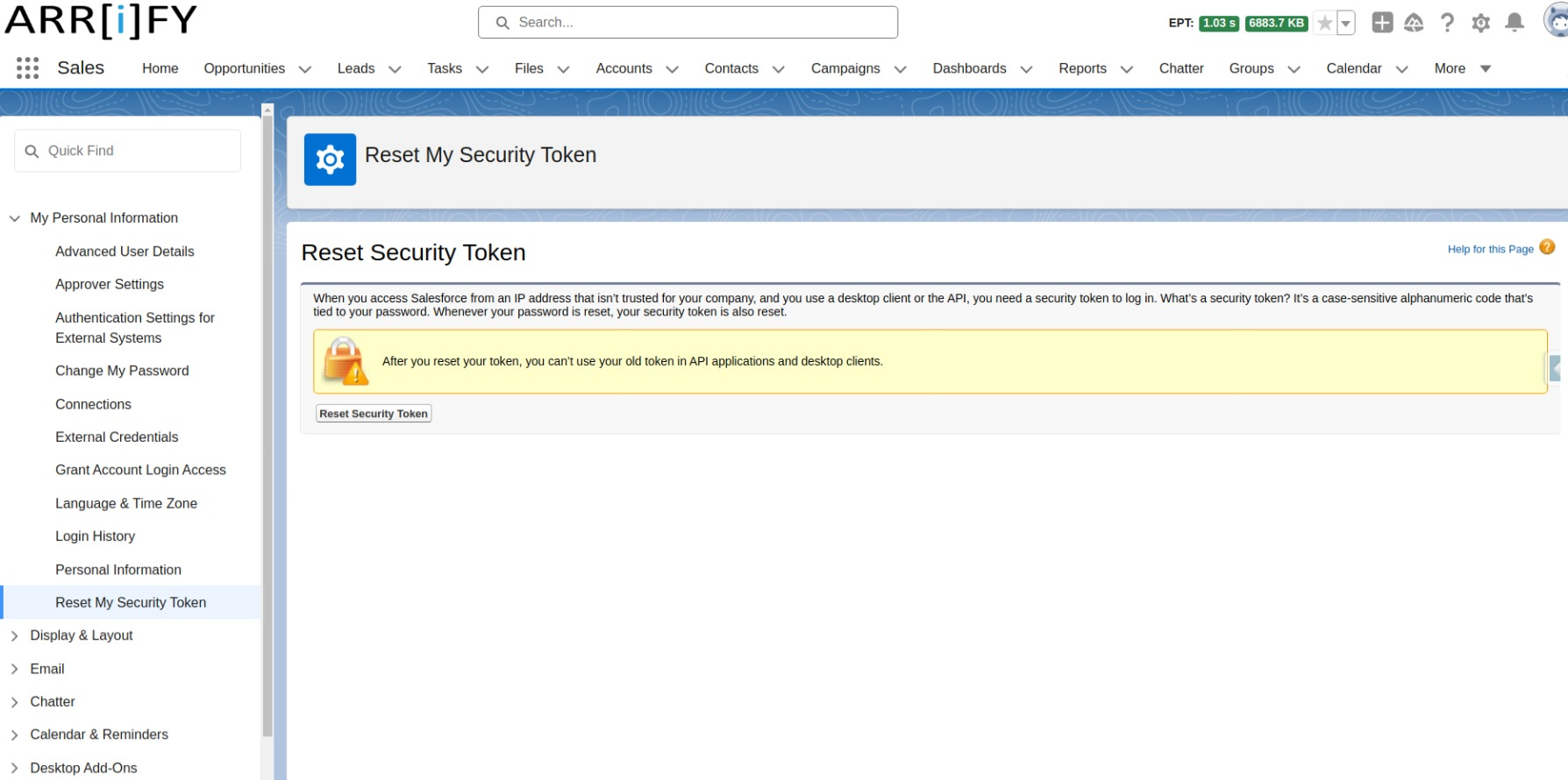
Under the My Personal Information section, click on Reset My Security Token.
You can generate a new security token by clicking on “Reset Security Token.”
Check Registered Email
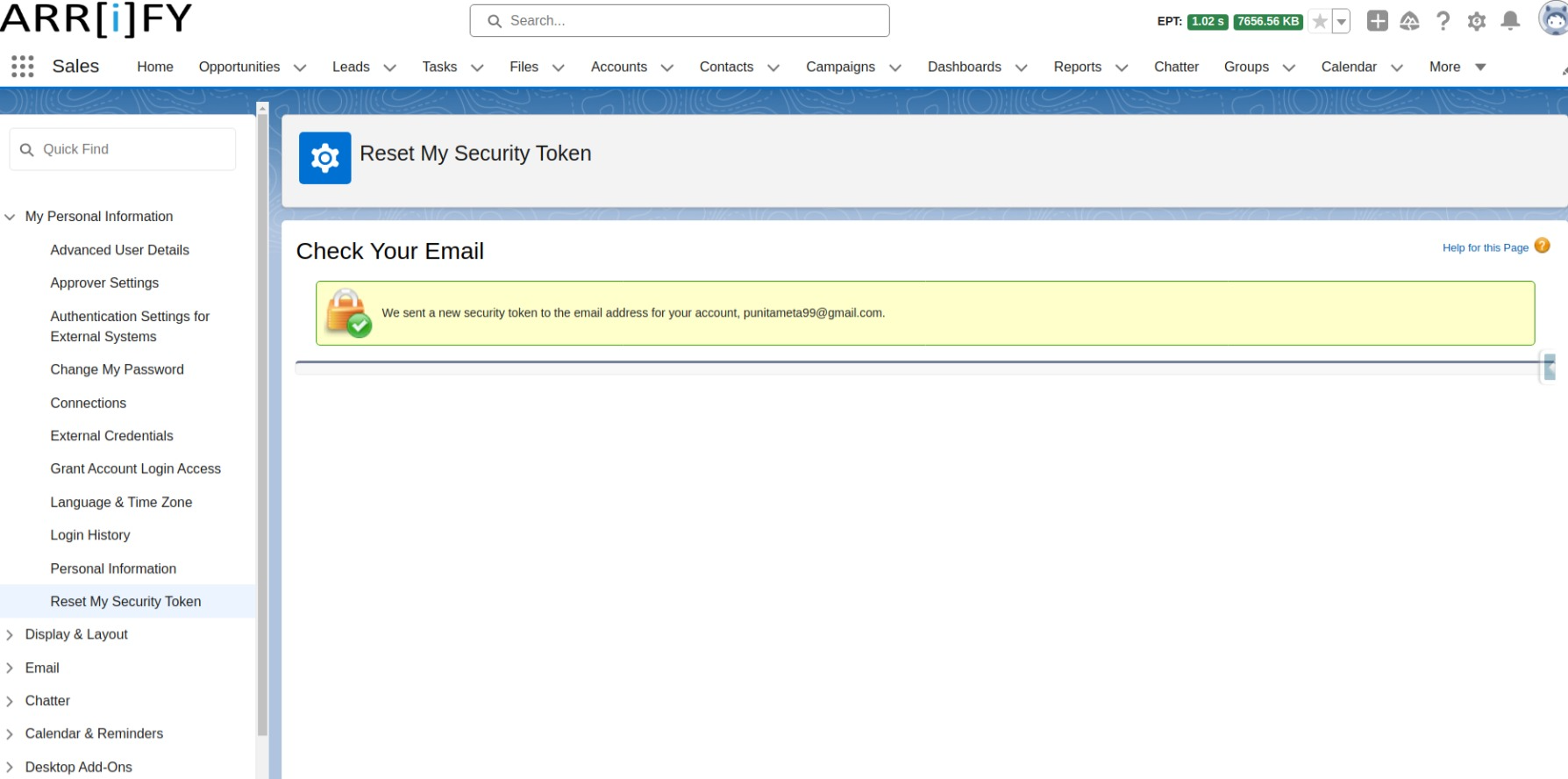
After Clicking the “Reset Security Token” button, The new token will be sent to your registered email address.
Token Expiry : Typically, Security Tokens don’t expire unless you reset your password or manually reset the Security token. However, if a user resets their password, a new Security Token is generated.
Troubleshooting: Why Can’t I Find the “Reset My Security Token” Option?
It is incredibly common for Salesforce users or administrators to navigate to their personal settings and find that the Reset My Security Token link is completely missing. If you run into this issue, it is usually caused by one of three configuration settings:
Single Sign-On (SSO) is Enabled
If your organization uses an identity provider (like Okta, Ping, or Azure Active Directory) to log in, you do not use a standard Salesforce password. Because there is no local password to append the token to, Salesforce hides the reset option.
Profile-Level IP Restrictions
If your administrator has restricted your Profile to only allow logins from specific IP addresses (such as your corporate network), Salesforce automatically trusts those locations. In this scenario, a security token is never required, so the system removes the reset option.
Your Local Password is Not Set
If you are a brand-new user and have only logged in via SSO or a temporary link without setting up a permanent local password, the token option will not show up until a password is created.
Use Cases for Security Tokens
API Integrations
When connecting Salesforce to external systems, like a marketing tool or CRM platform, you’ll need a security token to authenticate the integration via APIs.
Checkout how to Integrate Salesforce to WordPress.
Third-Party Applications
If you use third-party tools (like Tableau, DocuSign, or data loaders) that access Salesforce data through the API, you’ll need a security token for authentication.
Checkout to enhance your document signing process in Salesforce with DocuSign.
Web Services and Custom Integrations
For custom integrations using Salesforce’s REST or SOAP APIs, the security token ensures secure authentication.
Learn more about Salesforce’s REST or SOAP APIs.
Bypassing Two-Factor Authentication
In some cases, you may use the security token instead of the usual two-factor authentication (like the one-time password sent to your phone).
Sharing Access
If you need someone else to access your Salesforce account temporarily, you can share your security token with them, providing secure access without compromising your account.
Authenticating IDEs with Salesforce
When using an Integrated Development Environment (IDE) such as Visual Studio Code with Salesforce extensions, the security token is required to authenticate the IDE to Salesforce. This ensures that developers have a secure and authorized connection when deploying or retrieving metadata and data from Salesforce.
When to Share and When Not to Share Your Salesforce Security Token
Salesforce Security Tokens are important for securing your account when using external apps or devices. While sharing your security token might be necessary in some cases, it should be done with caution. Here’s when it’s okay to share and when you should keep it private:
When to Share Your Security Token
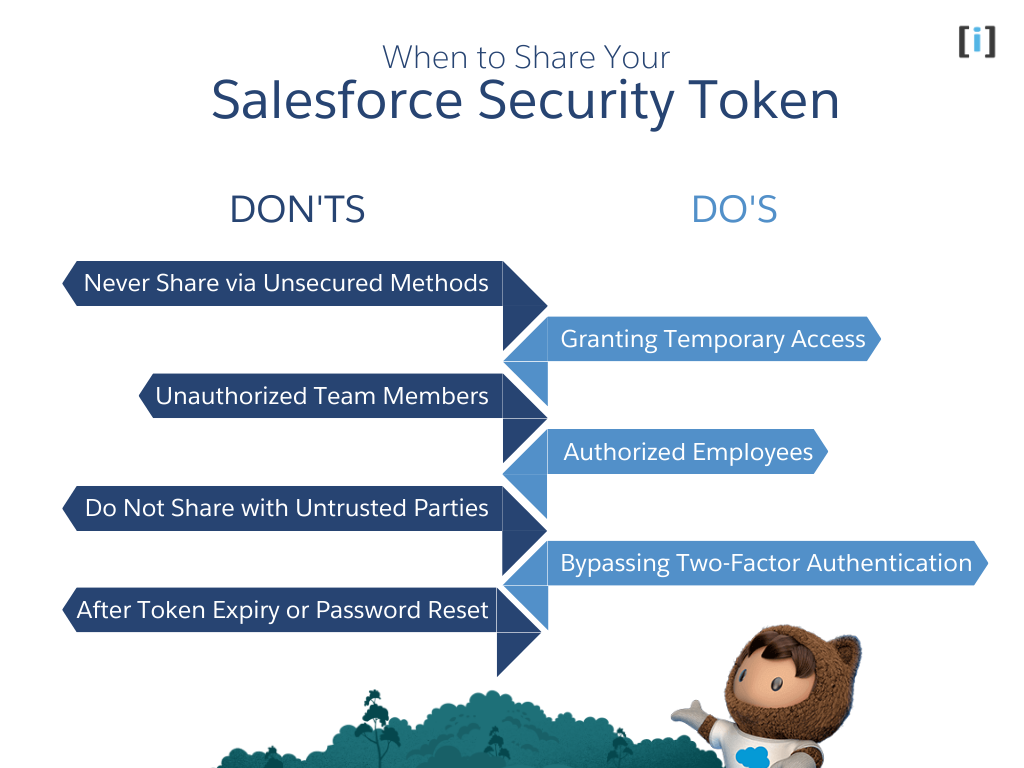
Granting Temporary Access
Temporary Access to Integrators
If you’re working with external consultants or third-party vendors who need temporary access to your Salesforce data via APIs, you may need to share the token. Always monitor their activities and revoke accessonce they’re done.
API Integrations
When integrating Salesforce with third-party apps (e.g., marketing tools or accounting software), you’ll need to share the token for authentication.
Internal Use
Authorized Employees
If someone within your organization requires access to Salesforce data via external tools, you can share the security token with them, but only if they are authorized and trustworthy.
Special Cases (Bypassing Two-Factor Authentication)
Automated Systems
In some scenarios where two-factor authentication is difficult to complete (e.g., when using automated scripts or services), you might need to share the token to authenticate those processes. Always do this in a secure environment.
When NOT to Share Your Security Token
Never Share via Unsecured Methods
Avoid Email or Text
Don’t send your token through email, text, or other unencrypted channels, as they can be intercepted. Use secure methods like encrypted messaging or a password manager.
Do Not Share with Untrusted Parties
Unknown Vendors or Services
Don’t share your token with third parties you don’t fully trust. Verify the legitimacy of any service requesting it.
Phishing Attempts
If someone asks for your token by email or phone, verify their identity through official Salesforce channels before sharing.
Internal Security
Unauthorized Team Members
Only share your token with employees who need it for work. Avoid sharing it widely within your organization to reduce security risks.
After Token Expiry or Password Reset
Expired Tokens
If you reset your password or token, the old token is no longer valid. Never share or use an expired token.
Considerations
IP Restrictions
If your organization uses IP Whitelisting (only allowing access from specific IP addresses), you might not need a Security Token if the request is from a trusted IP. But if it’s from a new, untrusted IP, you’ll need the token.
Changing Password
If you change your password, your Security Token will be reset, and you’ll need to generate a new one.
Deactivated Users
When a user is deactivated in Salesforce, their security token is no longer valid, which may cause API calls that rely on that token to fail.
Integration Best Practice: Move Away from Tokens with OAuth 2.0
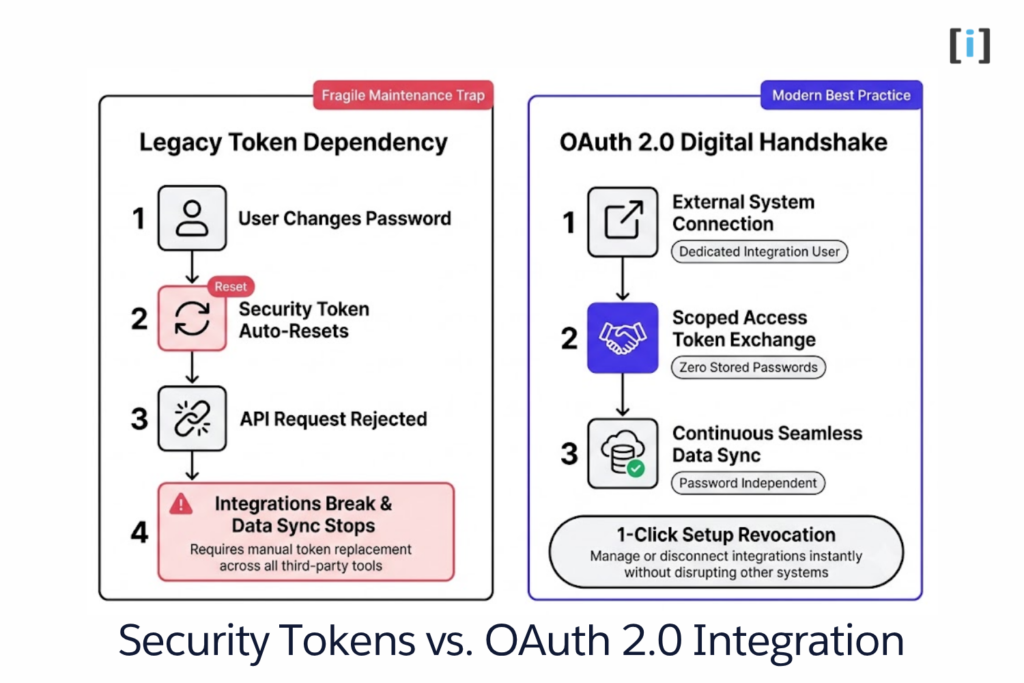
Using the traditional username + password + security token method is a quick way to get an integration up and running, but it creates a major maintenance headache.
Every time you change your Salesforce password, your security token is automatically reset. This means any third-party tools or integrations using that token will instantly break, leading to unexpected data syncing issues and downtime.
To build secure and stable connections, it is best to use OAuth 2.0 instead. OAuth allows systems to communicate via a secure digital handshake. Once authorized, the external system uses an access token, which offers several key benefits:
Password Independence
Integrations will not break when users change their passwords.
No Stored Credentials
You do not need to store sensitive usernames and passwords inside third-party tools.
Easy Revocation
You can revoke access for a specific integration instantly from the Salesforce Setup menu without affecting other systems.
If you must use username-password authentication, always set up a dedicated Integration User rather than using a personal administrator account. This limits security exposure and ensures that changes to individual user accounts do not disrupt business-critical integrations.
Conclusion
The security token are an important security feature that helps protect data and restricts unauthorized access when integrating Salesforce with external applications or systems. They ensure that external requests to the API are authenticated and authorized securely, providing an extra layer of defense beyond just a username and password.
FAQ’s
What is a Salesforce Security Token?
A Security Token is a unique 24-character alphanumeric string generated by Salesforce to be used with your password for extra security. It’s required when logging into Salesforce from untrusted devices or apps.
What happens if I change my password?
If you change your Salesforce password, your Security Token will be reset, and you will need to generate a new one.
Why do I need a Security Token?
You need a Security Token to securely log into Salesforce through APIs or third-party apps.
How do I get my Security Token?
1. Log in to Salesforce.
2. Go to Settings > My Personal Information > Reset My Security Token.
3. You’ll receive the token via email.
What if my Security Token is compromised?
If you believe your Security Token is compromised, reset it immediately through your Salesforce settings to ensure your account remains secure.
Do I need a Security Token if I use IP Whitelisting?
If your organization uses IP Whitelisting, you might not need a Security Token when accessing Salesforce from trusted IP addresses. However, if you access Salesforce from an untrusted IP, you’ll still need the token.