
Imagine working on an important deal, trying to create a new opportunity in Salesforce, and suddenly hitting a wall. Salesforce throws an error saying “Data Storage Limits Exceeded”.
This isn’t just a minor hiccup. It’s one of the most frustrating issues Salesforce users face. It doesn’t just affect one person; it can bring an entire sales team to a halt. New records can’t be created, files can’t be uploaded, and data imports fail. Everything stops.
Fortunately, this error is fixable. By understanding what causes it and how Salesforce counts storage, it’s possible to resolve the issue and get the org back on track.
Quick Fix: Find the Problem in 30 Seconds
If you’re blocked right now, here’s the fastest way to identify what’s eating your storage:
- Go to Setup → type “Storage Usage” in the Quick Find box
- Click Storage Usage — you’ll instantly see your Data Storage and File Storage breakdown
- Scroll down to the “Top Users by Data Storage” and “Storage Usage by Record Type” sections
This tells you exactly which object types (Accounts, Contacts, Email Messages, etc.) are consuming the most space and that’s where you start deleting.
In this guide, we’ll walk through why this happens, how to fix it fast, and how to prevent it in the future.
What exactly is “Data Storage Limits Exceeded”?
Think of a Salesforce org like a warehouse with a fixed amount of space. Every time you create a record, upload a document, or attach a file, you’re using some of that space.
The “Data Storage Limits Exceeded” error appears when your Salesforce organization runs out of space for storing data records. Each Salesforce edition comes with a fixed amount of storage, and once you reach that limit, Salesforce blocks new data creation.
When this happens, Salesforce effectively puts up a “No Entry” sign. Existing records can still be viewed and edited, but creating anything new is blocked.
The error message typically appears like this:
“Your company currently exceeded its data storage including an extra overflow buffer. We cannot permit additional data creation within our system until your company first reduces its data storage.”
Data Storage vs. File Storage in Salesforce
To understand why the “Data Storage Limits Exceeded” error occurs, it’s important to know how data storage works in Salesforce.
One of the most common mistakes admins make is confusing Data Storage with File Storage. Salesforce doesn’t have just one storage bucket, it actually has two separate types of storage, each measured differently and with its own limits.
Data Storage (Record-Based)
Data storage counts every record in your org. Think of it as rows in a database, each record takes up approximately 2 KB of space, regardless of how many fields are filled in.
What counts toward Data Storage:
- Accounts, Contacts, Leads, Opportunities
- Cases and Solutions
- Tasks, Events, and Activities
- Email Messages
- Custom Object records
- Campaign Members
- Field History Tracking records
- Notes (classic)
Quick math: 1 GB of data storage ≈ 500,000 records. If the org has 2 million Email Messages logged over 5 years, that alone is ~4 GB.
File Storage (Document-Based)
File storage is entirely separate from data storage and is used for documents, images, and attachments. File storage is measured by actual file size, a 5 MB PDF takes up 5 MB of file storage.
What counts toward File Storage:
- Attachments on records
- Salesforce Files (ContentDocument/ContentVersion)
- Documents tab uploads
- Chatter files and photos
- Profile photos
- Salesforce CMS content
- Email attachments logged via Email-to-Salesforce
Why This Distinction Matters
The key point is that these two storage types have separate limits. A Salesforce org could be fine on data storage but maxed out on file storage or vice versa.
When you see the “Data Storage Limits Exceeded” error, check your Storage Usage page first. If your File Storage bar is full but Data Storage is fine, you’re solving the wrong problem and vice versa.
Each Salesforce edition comes with a base amount of storage, and some editions also provide additional per-user allocations. The table below summarizes the data and file storage limits for each Salesforce edition:
| Salesforce Edition | Data Storage (Org) | Data Storage (Per User) | File Storage (Org) | File Storage (Per User) |
|---|---|---|---|---|
| Essentials | 10 GB | N/A | 1 GB | N/A |
| Professional | 10 GB | 20 MB | 10 GB | 612 MB |
| Enterprise | 10 GB | 20 MB | 10 GB | 2 GB |
| Unlimited | 10 GB | 120 MB | 10 GB | 2 GB |
| Developer | 5 MB | N/A | 20 MB | N/A |
Explore How to Find Your Salesforce Edition.
How to Check Data Storage in Salesforce?
Before fixing the problem, you need to see what’s actually going on.
Follow these steps to see how much data storage your organization is using:
Total Time: 5 minutes
Go to Setup
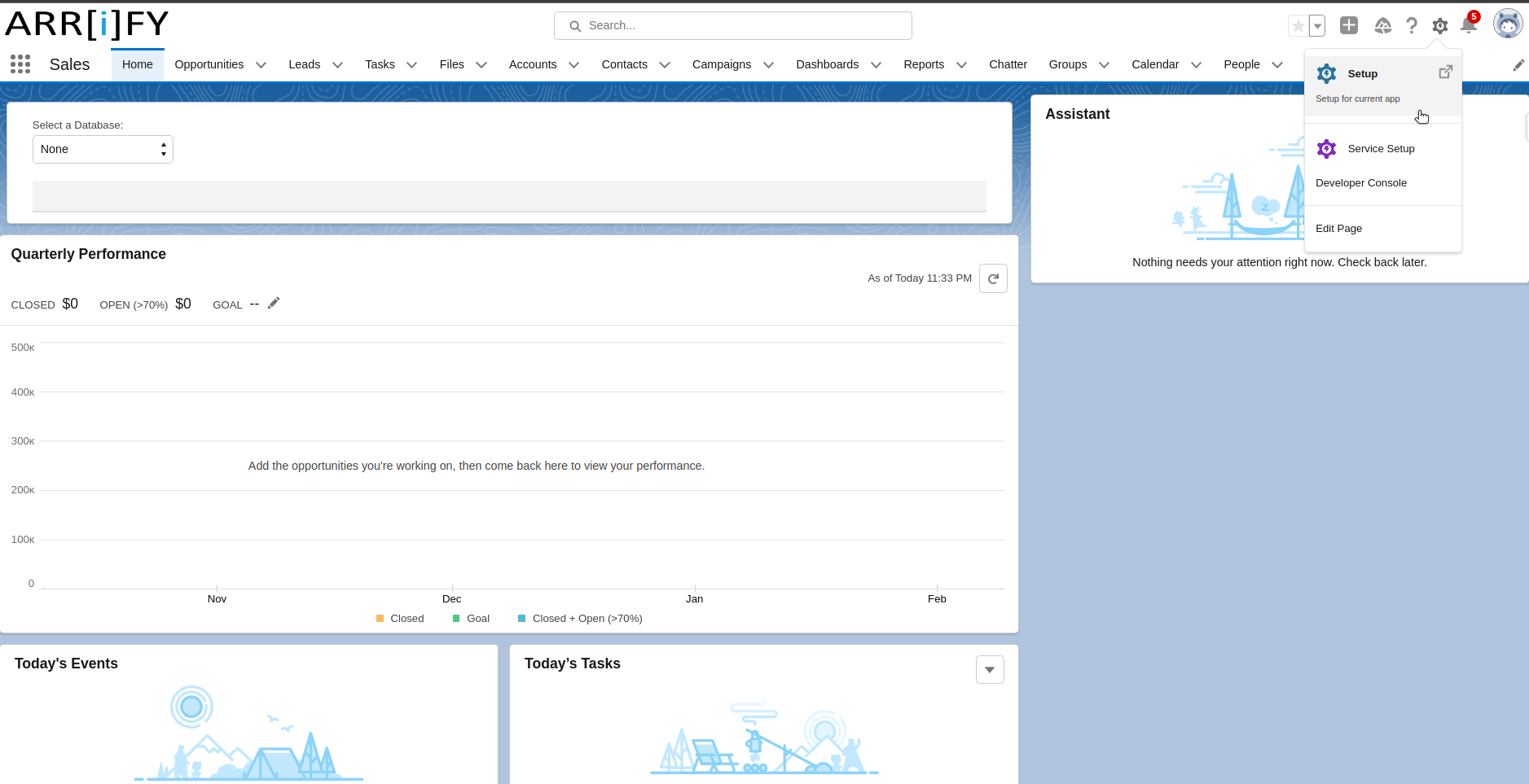
Log in to Salesforce.
Click the gear icon in the top-right corner and select Setup.
Search for Storage Usage
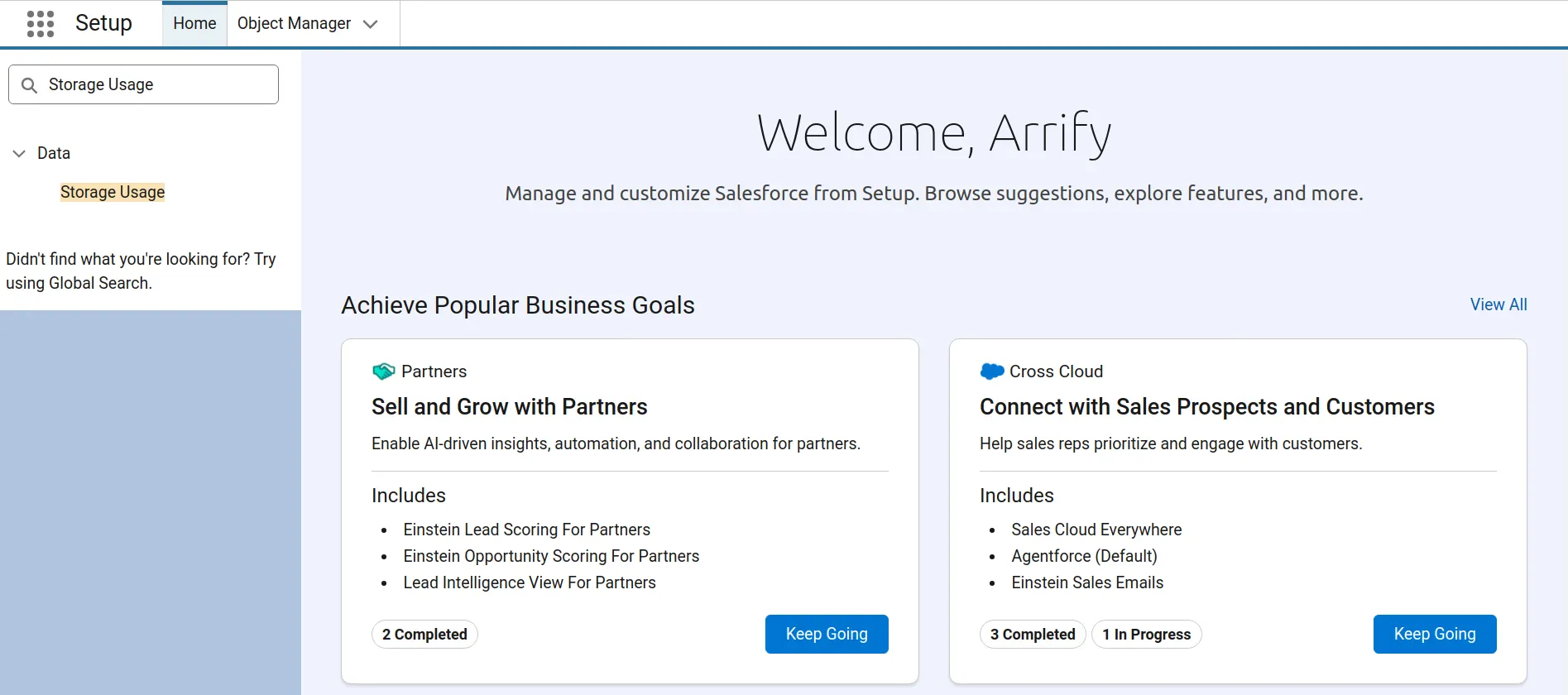
In the Quick Find box on the left, type Storage Usage and select it from the results.
View Data Storage and File Storage
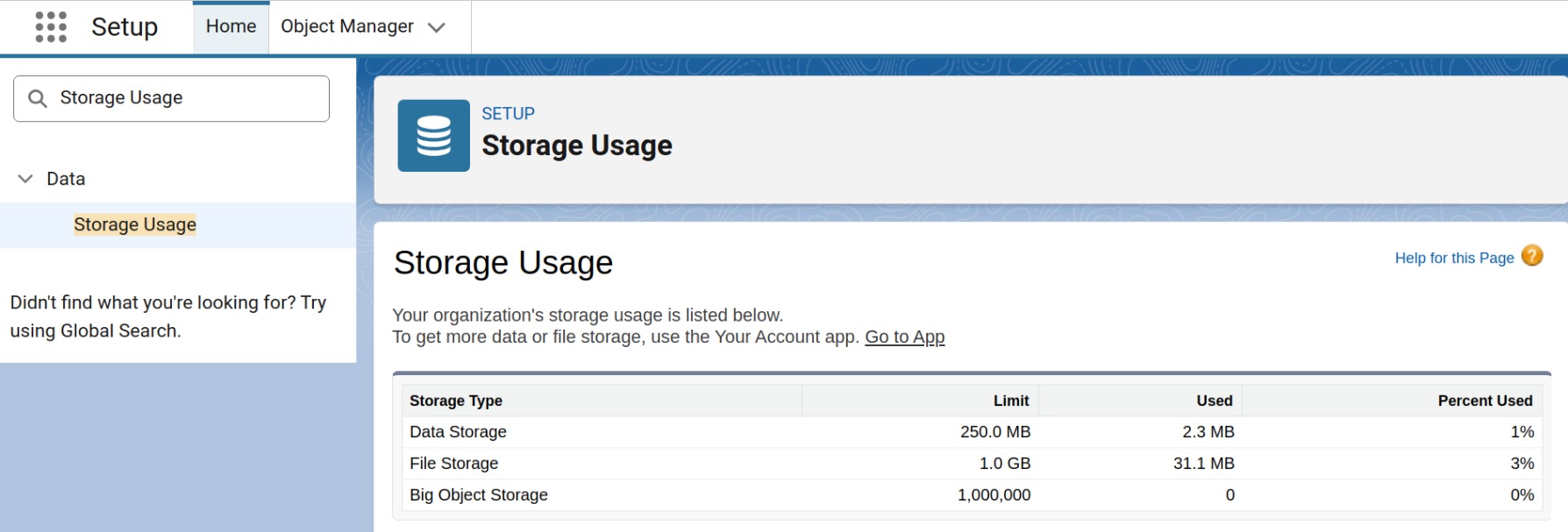
The page shows Data Storage and File Storage usage for your org.
You can see: Total storage available, Storage used and Storage remaining.
Common Reasons for Data Storage Limits Exceeded

Salesforce storage limits don’t get exceeded overnight. Usually, it’s a slow build-up over months or years. Storage issues can affect both data storage (records like Accounts, Contacts, Leads) and file storage (attachments, PDFs, images). Here’s a breakdown of the main reasons this happens:
Business Growth
More customers and opportunities mean more data and files. Every new account, contact, opportunity, or deal adds to storage. While it’s a positive sign for your business, it also increases storage usage steadily.
Old Data Not Being Cleaned Up
Test records, duplicate accounts, or closed cases from years ago still take up space. Many organizations are good at adding data but forget to delete old or unnecessary records. It’s like never cleaning out your email inbox, old items keep piling up.
Storing Too Much History
Field history tracking changes on multiple fields is useful but consumes storage quickly. Audit logs, activity logs, and historical data can multiply over time, especially on high-volume objects.
Email Integration Overload
Syncing every email to Salesforce can quickly consume storage. Long email threads, forwards, replies, and attachments all count toward your limits.
Integrations/Automation Creating Too Many Records
External systems or middleware may automatically insert records or logs. If not managed, these automated processes can fill up data storage rapidly.
Duplicate or Unused Files
The same file uploaded to multiple records multiplies storage usage. Old files from deals or campaigns that are no longer relevant still occupy space. Chatter files shared in conversations also count toward storage, even if forgotten.
Attachments and File Uploads
Users often treat Salesforce like a file repository, uploading presentations, contracts, proposals, and images. Even a single user uploading large files consistently can consume gigabytes.
Common file offenders include large PDFs such as proposals, contracts, and brochures, high-resolution images like product photos or service pictures, and PowerPoint or video files such as marketing presentations or demo videos.
Bulk Imports
Importing large datasets via Data Loader or other tools can push storage over the limit if old records are not cleaned first.
Lack of Monitoring
Many companies don’t track storage usage regularly. By the time storage limits are noticed, it’s already an emergency. Regular monitoring and alerts help prevent reaching limits unexpectedly.
What Happens When Data Storage Limits Exceeded?
When your Salesforce data storage is full, the system can no longer accept new data. it can significantly impact both users and automated processes. This has several impacts on users and processes:
Unable to Create New Records
Users trying to add new records will see the “Data Storage Limits Exceeded” error. This means no new data can be entered until space is cleared.
Failed Updates or Inserts from Integrations
External systems or middleware that send data into Salesforce will fail when trying to create or update records. For example, marketing automation tools pushing leads or ERP systems syncing client data will encounter errors. These failed updates can lead to incomplete data, gaps in reporting, or delayed business processes.
Workflow and Automation Interruptions
Processes that rely on creating new records, such as workflow rules, process builder actions, or Apex triggers, may stop functioning properly. Automations designed to update records or send notifications could fail silently or trigger errors, potentially disrupting business operations.
File Uploads Are Blocked
Uploading attachments, documents, images, or any other files may be blocked if the file storage limit is also reached. Users trying to attach contracts, proposals, or product images to records will not be able to complete their tasks until storage is freed.
Data Imports Fail
Bulk data operations, such as importing large datasets through Data Loader or Data Import Wizard, will fail when storage is full. This can delay major updates, hinder migrations, or disrupt onboarding of new customer data.
Email-to-Salesforce Stops Working
If your team uses Email-to-Salesforce to log emails to records, it may stop functioning. Incoming emails and their attachments may not be logged, causing important communication to be lost or untracked.
Sales Might Slow Down
Overall, your sales team may experience slower productivity. They won’t be able to add new leads, opportunities, or contacts, and automated workflows may not run as expected. Critical daily operations can come to a halt until storage is cleaned up or expanded.
How to Resolve the Data Storage Limits Exceeded in Salesforce?

When your Salesforce org hits the storage limit, it’s important to act quickly to free up space or expand capacity. Here are the main strategies to resolve the issue:
Fast Track to Clear Space
Identify What’s Using the Most Space
The first step is to find out which objects, records, or files are taking up the most storage. Go to Setup → Storage Usage to see a breakdown by object type and user. Knowing which areas are consuming the most space helps you target cleanup efforts efficiently.
Empty Your Recycle Bin
Deleted records don’t disappear immediately; they sit in the Recycle Bin for 15 days and still count toward storage. Go to Setup → Recycle Bin → Empty Recycle Bin. This simple step can instantly free up several gigabytes.
Clean Unnecessary Data
Delete or Archive Unnecessary Data
Remove old, test, or duplicate records that are no longer needed. Examples include outdated Leads, completed Cases, or test Accounts. Salesforce has a free, built-in bulk deletion tool that most admins don’t know about:
- Go to Setup → Quick Find → “Mass Delete Records“
- Select the object you want to clean up (e.g., Leads, Activities, Accounts)
- Set your filter criteria:
- For Leads: “Created Date less than 01/01/2021” AND “Converted = False”
- For Tasks: “Status = Completed” AND “Due Date less than 01/01/2024”
- For Email Messages: “Message Date less than 01/01/2024”
- Check “Permanently delete” if you want to skip the Recycle Bin (otherwise records still count toward storage for 15 days)
- Click Delete
If the data is needed for compliance or historical reference, archive it externally (like in a database, spreadsheet, or cloud storage) before deleting it from Salesforce. Don’t forget to empty the Recycle Bin, because deleted records still count toward storage until they are permanently removed.
Turn Off Unnecessary Field History Tracking
Tracking changes on fields that don’t really matter can consume a lot of storage. Review field history settings and turn off tracking for irrelevant fields.
Optimize File Storage
Use Salesforce Files Instead of Attachments
Salesforce Files are more efficient than attachments. They allow sharing one file across multiple records, reducing duplicates and saving storage.
Implement File Size Limits
Set a policy restricting uploads to files smaller than 5MB. If someone needs to share a larger file, they should use an external system.
Remove Duplicate Files
Check the file storage report to identify duplicates. If the same document is attached to 50 different records, keep one copy and delete the rest. Better yet, use Salesforce Files to share a single file across multiple records instead of uploading copies.
Set Up Ongoing Maintenance
Create a Data Retention Policy
Create a data retention policy by documenting how long your organization keeps different types of records. For example :
- Completed tasks: 6 months
- Closed cases: 2 years
- Closed/Lost opportunities: 3 years
- Email messages: 1 year
Automated Archiving with Salesforce Flow
Instead of manual cleanup every few months, automate it. Salesforce Flow can be configured to automatically delete or archive old records based on your data retention policy.
Example automated rules you can build
- Auto-delete completed Tasks older than 6 months
- Auto-delete Email Messages older than 1 year
- Auto-archive closed-lost Opportunities older than 2 years
- Send an alert to your admin when storage exceeds 80%
This is a one-time setup that keeps your org clean permanently. If you’re not sure how to build these flows, you can check out a detailed guide on Salesforce Flow to get started.
Monitor Storage Monthly
Add storage checks to your monthly admin tasks. Catching problems early is much easier than dealing with emergencies.
Train Your Users
Educate your team about storage best practices. Show them how to compress files, avoid duplicates, and think before uploading large documents.
Set Up Storage Alerts
Salesforce doesn’t have built-in alerts, but you can create a dashboard to monitor usage regularly. Some third-party tools can send email alerts when thresholds are reached.
Expand Your Storage When Cleanup Isn’t Enough
Cleanup is a band-aid. If you don’t address the root cause, you’ll hit this wall again in 6 months. Here are some long-term approaches, from simplest to most cost-effective:
Buy More Storage from Salesforce
You can purchase additional storage from Salesforce. It simplest (but most expensive) solution. Salesforce charges approximately $125 per GB per year and file storage priced similarly.
For fast-growing organizations, buying storage is like renting extra warehouse space when you could be throwing things away for free. It makes sense as a short-term bridge, but it shouldn’t be your only strategy.
Upgrade Your Salesforce Edition
Another option is to upgrade your Salesforce edition, as higher editions come with more base storage for example, moving from Professional to Enterprise Edition can provide enough additional capacity without having to buy extra storage.
Use External Storage for Large Files
Some companies try to store everything in Salesforce, even when certain files or records would be better managed outside the system. For large files, consider using a document management or cloud storage system such as
- AWS S3
- Microsoft Azure Blob Storage
- Google Drive
- SharePoint / OneDrive
Store the files externally and keep only links in Salesforce. This approach reduces storage usage, keeps Salesforce running smoothly, and makes large files easier to manage and share.
Conclusion
The “Data Storage Limits Exceeded” error can feel like a major disruption, but it’s manageable once you understand the cause.
Salesforce has two types of storage: data storage for records and file storage for documents and attachments. Each has separate limits, and hitting either one prevents the creation of new records or the upload of files, which can impact business operations. To resolve the error, it’s important to identify which storage type has reached its limit.
To stay ahead of storage issues, regularly monitoring storage usage, cleaning up old or unused data, and setting up automated cleanup processes or alerts.
If additional space is required, organizations can purchase extra storage from Salesforce or integrate with third-party platforms, such as AWS or Azure, to manage file storage more efficiently.
FAQs
What Exactly is “Data Storage Limits Exceeded”? Why does this Error Occurs?
This error appears when your Salesforce organization uses up all the space allowed for storing data records. Each Salesforce edition comes with a fixed amount of data storage, and once you reach that limit, Salesforce blocks new records from being added.
How much storage does Salesforce give me by default?
The amount of storage you get depends on your Salesforce edition and the number of user licenses. Most orgs start with 10GB of data storage and 10GB of file storage as a base. In addition, each user license typically adds 20MB of data storage and 2GB of file storage.
For example, an organization with 50 users would have roughly 11GB of data storage and 110GB of file storage in total.
Can I still access my existing data when I’m over the storage limit?
Yes! You can view, edit, and delete existing records without any problem. The only thing you can’t do is create new records or upload new files.
Does deleting users free up storage?
Not really. Deactivating or deleting users doesn’t free up any meaningful storage space. To actually free up space, you’ll need to delete or archive the records and files those users owned, not just deactivate them.
How much does additional storage cost?
Salesforce charges around $125 per GB per year for additional data storage, and a similar amount for file storage
Is there a way to see which users are using the most storage?
Yes! Go to Setup, search for “Storage Usage,” and you’ll see a section showing the top users by storage consumption.