Why This Gravity Forms Salesforce Integration Matters
Every form submission on your WordPress site is a potential deal. But if those submissions sit in a WordPress database while your sales team works out of Salesforce, you’ve got a gap that costs you leads and revenue.
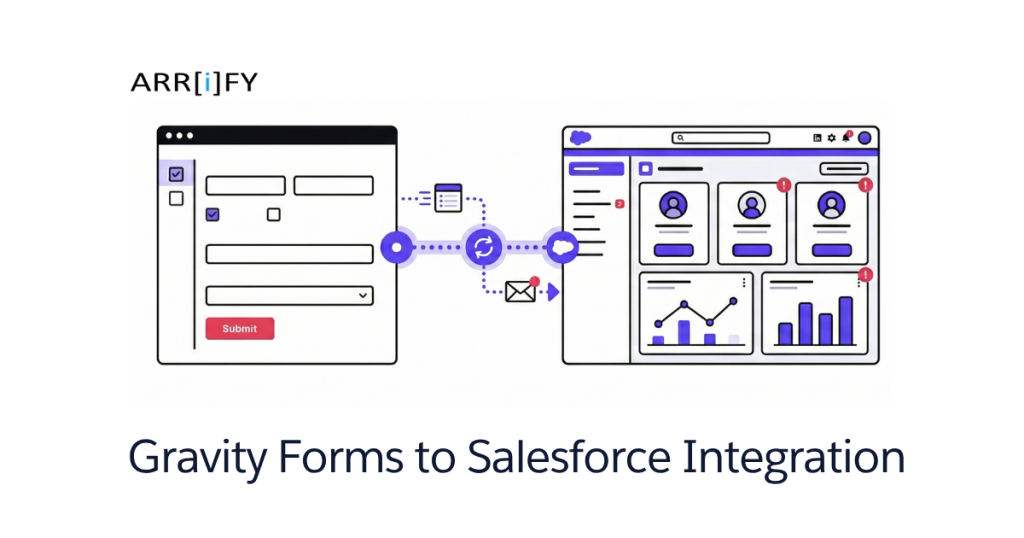
Gravity Forms is the go-to form plugin for WordPress. Salesforce is where your sales pipeline lives. Connecting them means form data flows straight into your CRM the moment someone hits submit — no copy-pasting, no CSV exports, no “I’ll get to it later.” (If you’re exploring the broader picture, see our guide on Salesforce to WordPress integration.)
Here’s what that gets you:
Automated Lead Capture
Form submissions create Leads, Contacts, or custom object records in Salesforce automatically. Your sales team sees new prospects instantly instead of waiting for someone to forward a spreadsheet.
Fewer Data Entry Errors
Manual entry introduces typos, missed fields, and duplicates. A direct Gravity Forms Salesforce integration eliminates that entirely — what the visitor types is exactly what lands in your CRM.
Faster Follow-Ups
Speed-to-lead matters. When a form submission hits Salesforce in real time, your reps can follow up while the prospect still has your site open. That alone can meaningfully improve conversion rates.
Better Reporting
With every form entry flowing into Salesforce, you can build reports showing which forms generate the most qualified leads, which campaigns drive submissions, and where your funnel leaks. No more guessing.
It Scales Without Extra Work
Ten submissions a week or ten thousand — the integration handles it the same way. You don’t need to hire someone to manage the data flow as you grow.
Key Takeaway: Connecting Gravity Forms to Salesforce isn’t a nice-to-have — it’s the difference between leads sitting in a database and leads entering your sales pipeline instantly.
Three Ways to Connect Gravity Forms to Salesforce
There are three primary methods. Each has different trade-offs in cost, flexibility, and technical complexity.
Method 1: Official Gravity Forms Salesforce Add-On (API-Based)
This is the recommended approach for most businesses. The official add-on connects to Salesforce via the REST API, giving you full control over which objects receive data, how fields map, and what happens when something fails.
Best for: Teams that need custom object support, field mapping flexibility, upsert (update-or-create) logic, conditional feeds, and error tracking.
Requires: Gravity Forms Elite license (or a third-party Salesforce add-on like CRM Perks). For a comparison of all available plugins, see our top WordPress to Salesforce integration plugins roundup.
Method 2: Salesforce Web-to-Lead (Free, Basic)
Salesforce includes a free Web-to-Lead feature that generates an HTML form endpoint. You can point Gravity Forms at this endpoint using a webhook or the Gravity Forms Web-to-Lead add-on.
Best for: Simple lead capture on a budget. No custom objects, no error tracking, no duplicate prevention — but it’s free and takes five minutes. We cover this method in detail in our Salesforce Web-to-Lead form on WordPress guide.
Real Talk: Web-to-Lead is fine for a “Contact Us” form on a small site. The moment you need to create anything other than a Lead, or you want to know when submissions fail, you’ve outgrown it.
Method 3: Zapier or Make (Third-Party Middleware)
Tools like Zapier or Make sit between Gravity Forms and Salesforce. They detect new submissions and push data into your CRM using pre-built connectors.
Best for: Non-technical teams who want a no-code solution, or teams that need to fan out data to multiple apps (e.g., Gravity Forms → Salesforce + Mailchimp + Slack).
Downside: Per-task pricing adds up fast at volume, and you’re adding a third dependency to your stack. Gravity Forms isn’t the only option either — check out our roundup of WordPress forms that integrate with Salesforce if you’re still evaluating form plugins.
Web-to-Lead vs API Integration: Side-by-Side
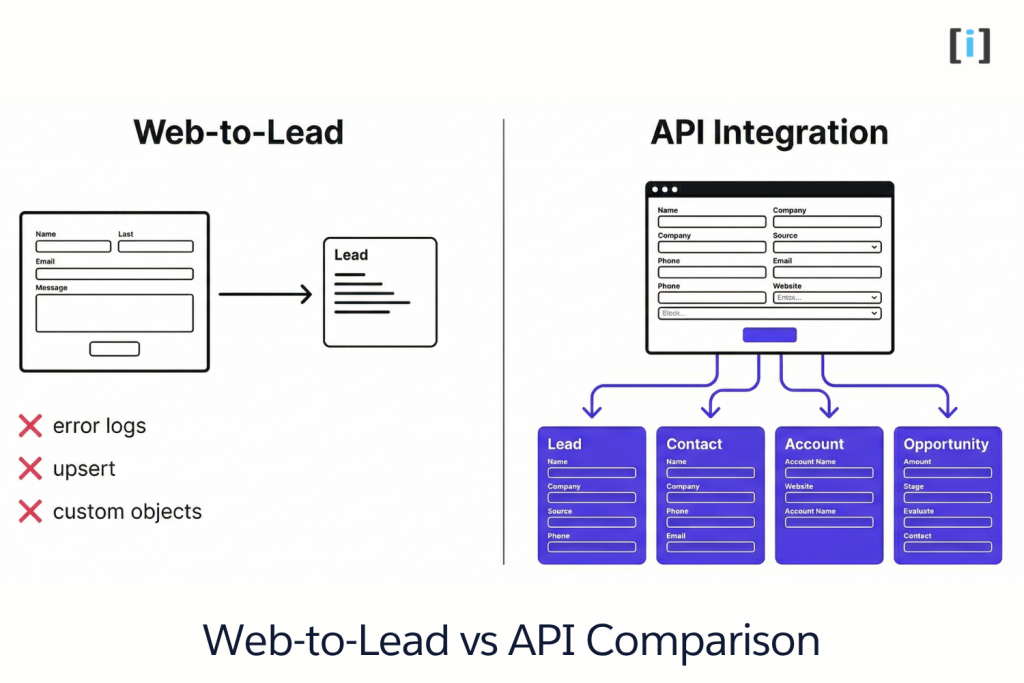
Before choosing your method, here’s how the two most common approaches compare:
| Feature | Web-to-Lead (Free) | API Integration (Plugin) |
|---|---|---|
| Cost | Free (built into Salesforce) | $59–$259/year (plugin license) |
| Setup Complexity | Simple | Moderate (OAuth setup, field mapping) |
| Salesforce Objects | Leads only | Leads, Contacts, Accounts, Custom Objects, Cases, Opportunities |
| Custom Field Mapping | Limited | Full mapping to any standard or custom field |
| Record Updating (Upsert) | No — always creates new records | Yes — update existing records by email, external ID, etc. |
| Duplicate Prevention | No built-in checking | Yes — upsert by email or external ID |
| Error Tracking | No visibility into failures | Detailed error logs per submission |
| File Upload Support | Not supported | Supported (plugin-dependent) |
| Conditional Logic | No | Yes — send data conditionally based on form answers |
| Multiple Objects per Form | One Lead per submission | Multiple feeds to multiple objects |
| Real-Time Sync | Yes (fire-and-forget POST) | Yes (API call on submission) |
| Bi-Directional Sync | No | No (one-way: Gravity Forms → Salesforce) |
Bottom line: Web-to-Lead works for basic lead capture. The moment you need custom objects, duplicate prevention, error handling, or any sophistication, an API-based plugin is the way to go.
The Litmus Test: Ask yourself — “Do I need to know when a submission fails to reach Salesforce?” If yes, you need the API integration.
Prerequisites Before You Start
Before connecting Gravity Forms to Salesforce, make sure you have these in place:
WordPress Side
- A WordPress site with administrator access
- Gravity Forms plugin installed and active (any license tier for Web-to-Lead; Elite or third-party add-on for API integration)
- A Gravity Forms Salesforce integration plugin installed (official Salesforce Add-On, or CRM Perks Salesforce Integration)
Salesforce Side
- A Salesforce org with System Administrator privileges
- API access enabled on your Salesforce edition (Professional Edition and above)
Check which Salesforce edition your org is running — API access isn’t available on all plans.
Pro Tip: Set up a Salesforce sandbox or developer org first. Test your integration there before pointing it at production. One misconfigured feed can create hundreds of junk records.
Note: The step-by-step tutorial below uses the API-based plugin method. If you’re using Web-to-Lead or Zapier, the connection steps differ — but the planning and field mapping principles still apply.
Step-by-Step: Connect Gravity Forms to Salesforce
Here’s the full walkthrough using a Gravity Forms Salesforce plugin (like the official Add-On or CRM Perks). Total time: about 10 minutes.
Total Time: 10 minutes
Step 1: Go to the WordPress Admin Dashboard
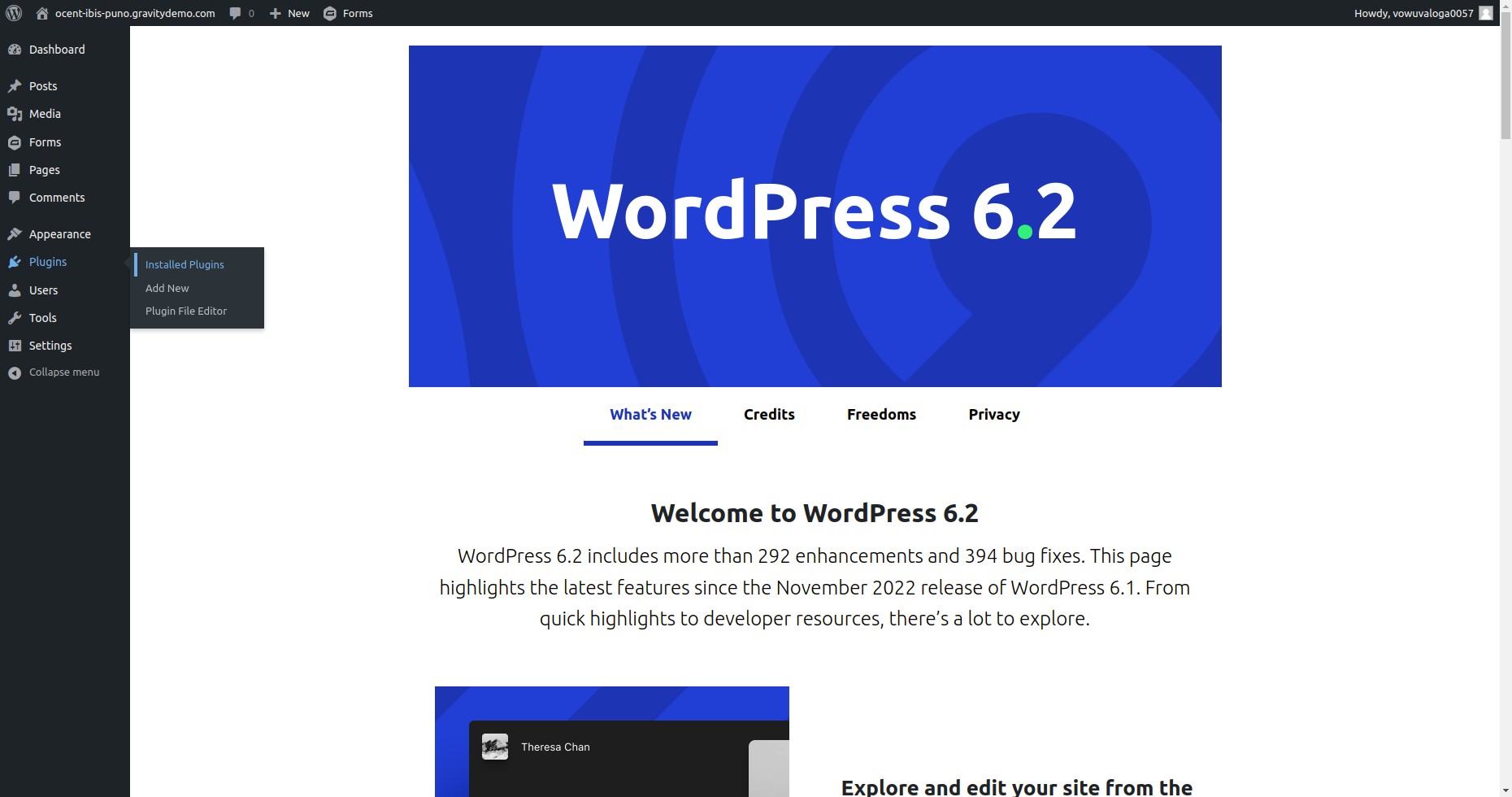
Log into your WordPress site and navigate to the admin dashboard. This is where all plugin management happens.
Step 2: Go to Installed Plugins
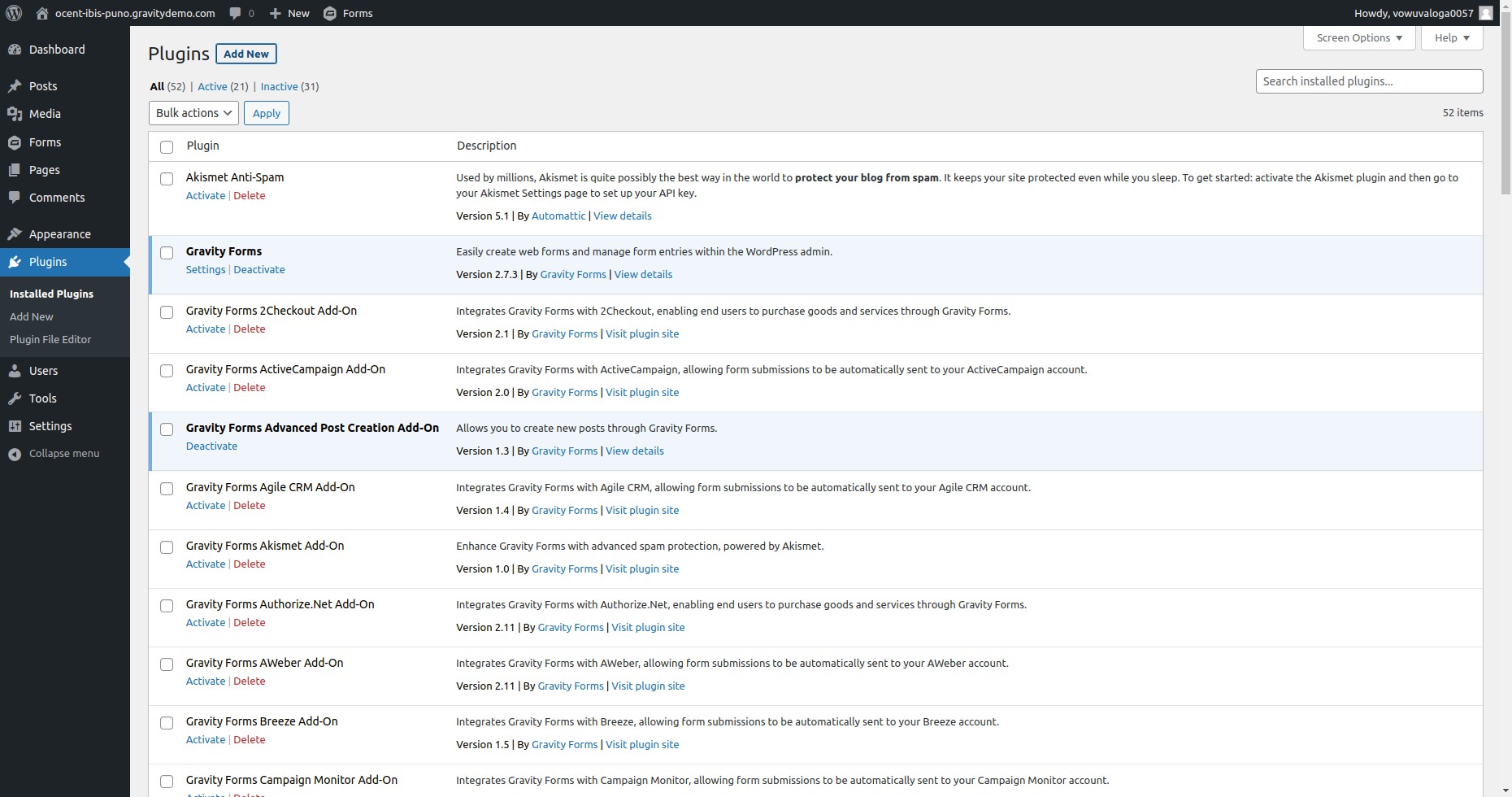
In the left sidebar, click Plugins → Installed Plugins. Confirm that Gravity Forms is active before proceeding.
Step 3: Add New Plugin
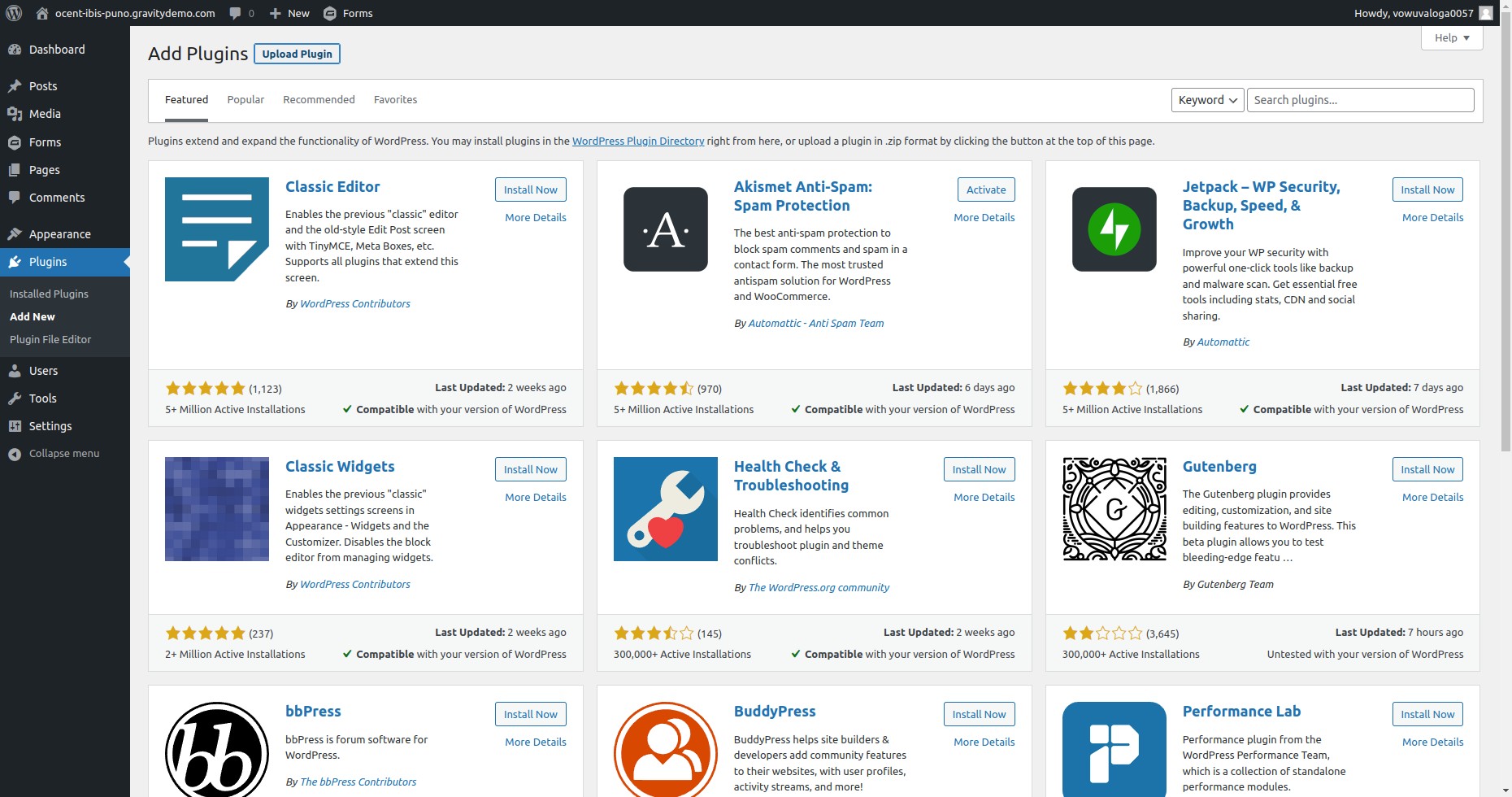
Click Add New at the top of the Plugins page. This opens the plugin installer.
Step 4: Upload the Salesforce Add-On
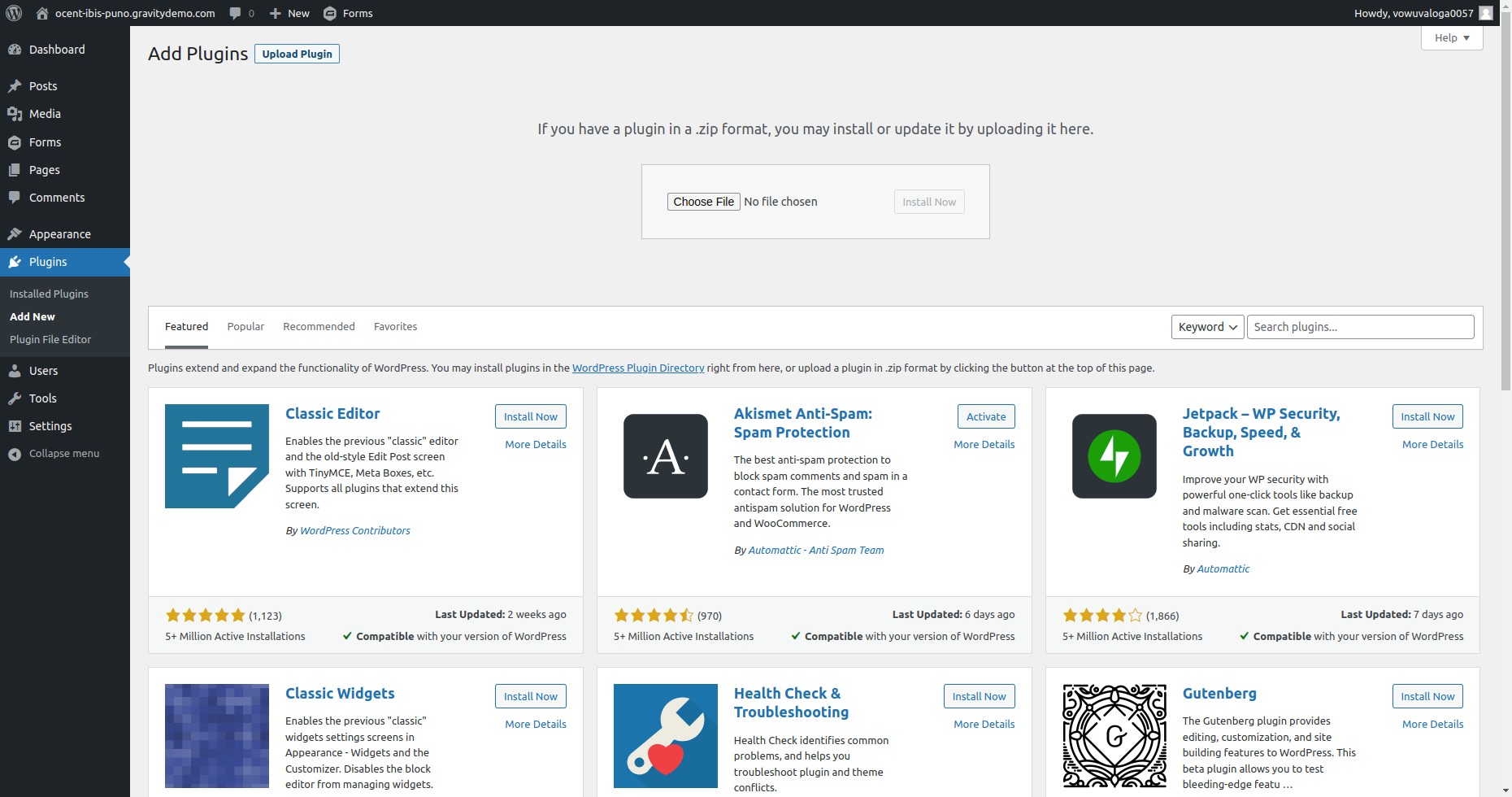
Click Upload Plugin, then choose the .zip file for your Gravity Forms Salesforce add-on. Click Install Now.
Step 5: Activate the Plugin
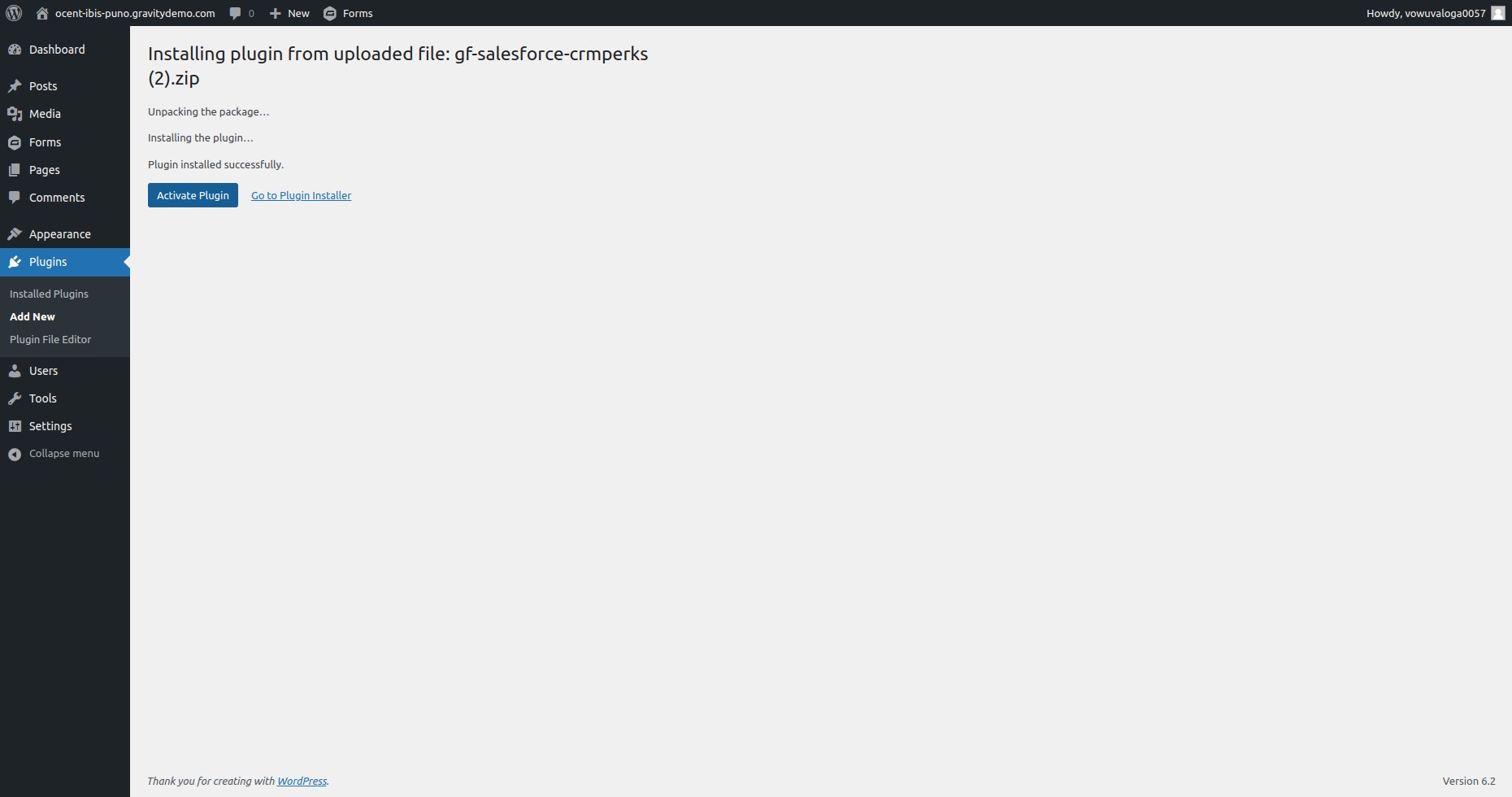
Once installed, click Activate. The add-on now appears in your Gravity Forms settings.
Step 6: Configure the Plugin Settings
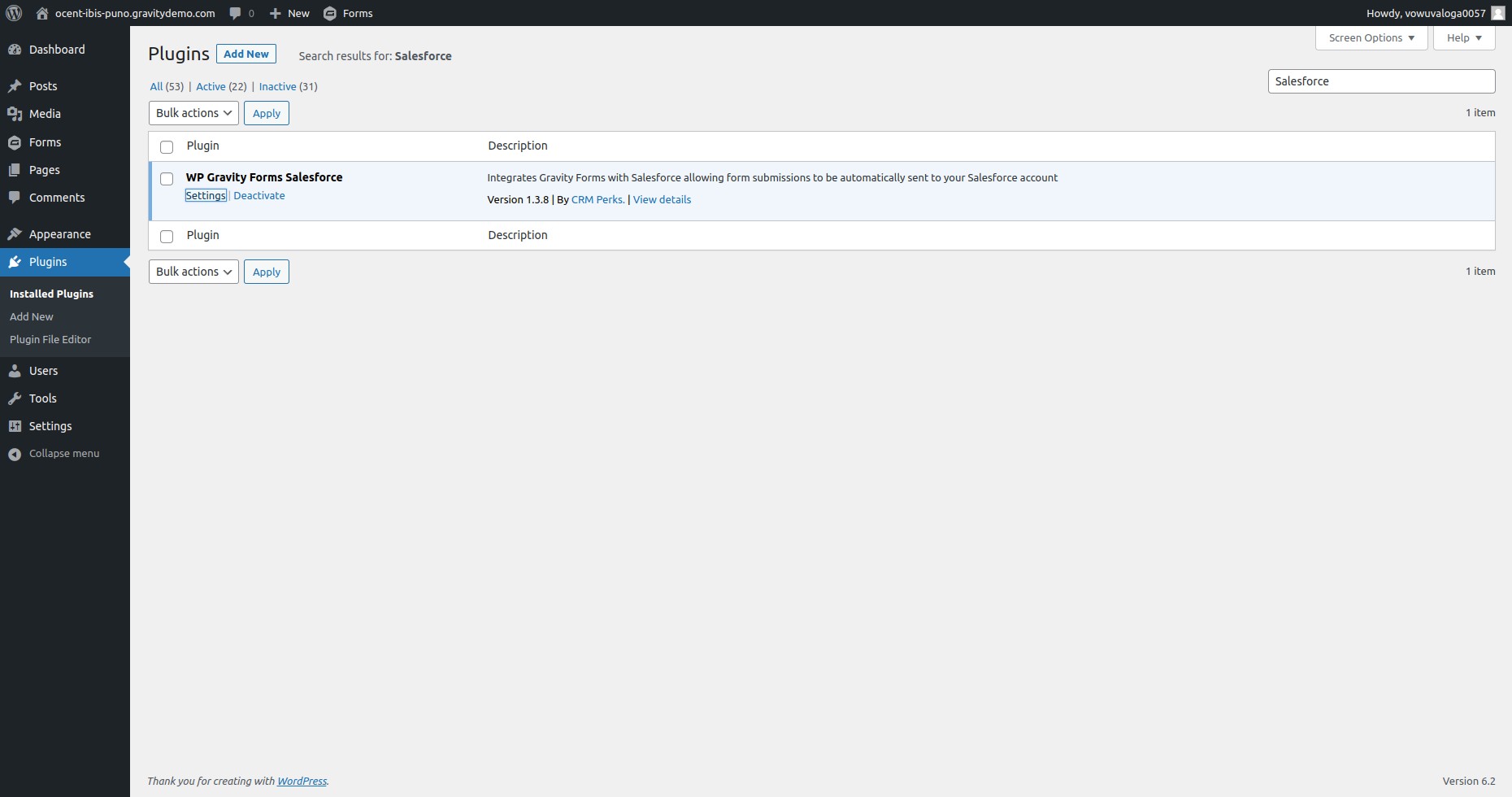
Navigate to Forms → Settings → Salesforce (or the equivalent menu for your add-on). This is where you’ll authenticate with Salesforce.
Step 7: Connect to Salesforce via OAuth
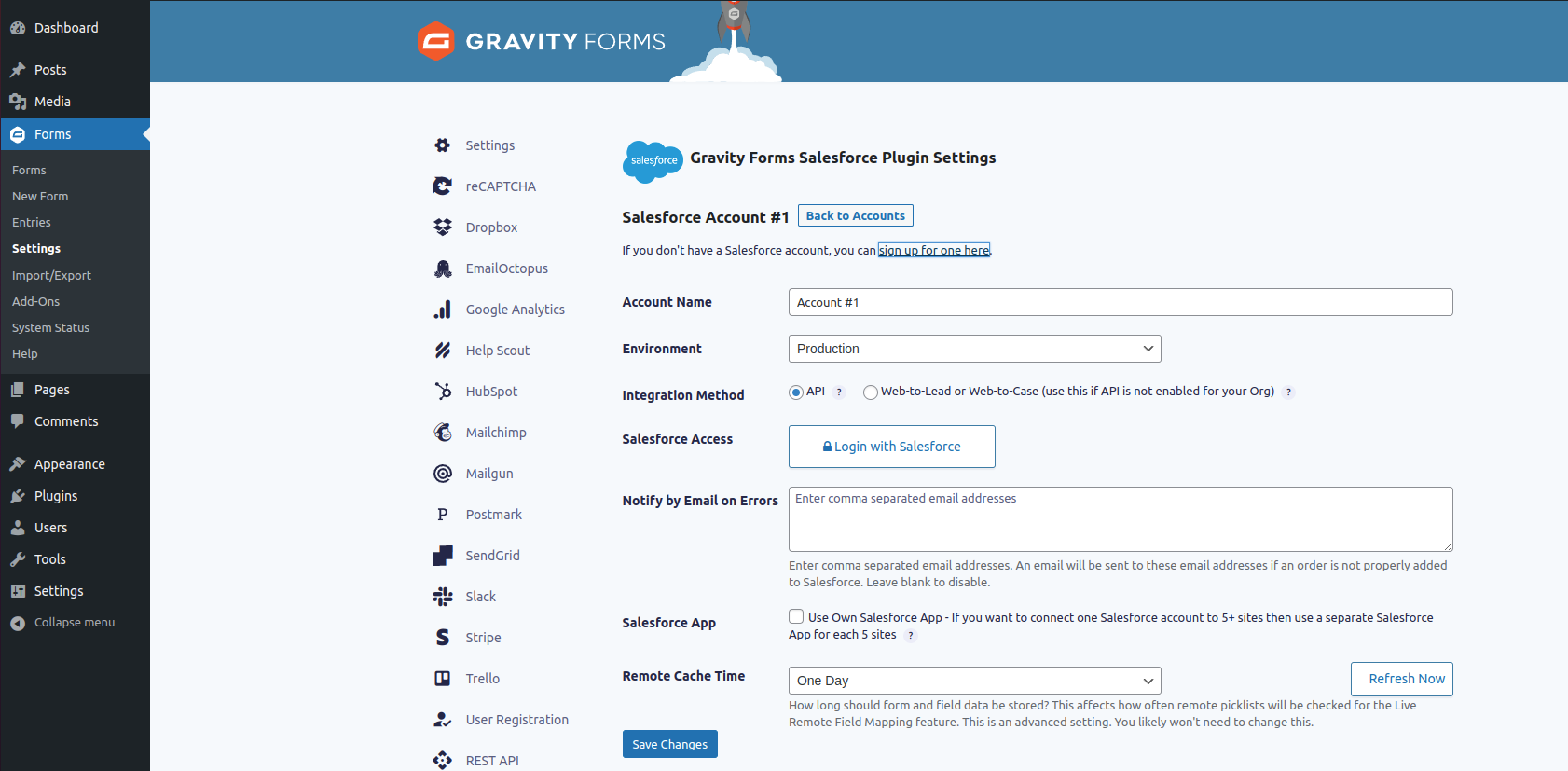
Click Login with Salesforce (or Connect to Salesforce). You’ll be redirected to the Salesforce login page. Enter your admin credentials. After authenticating, Salesforce grants the plugin API access via OAuth.
Step 8: Confirm the Connection
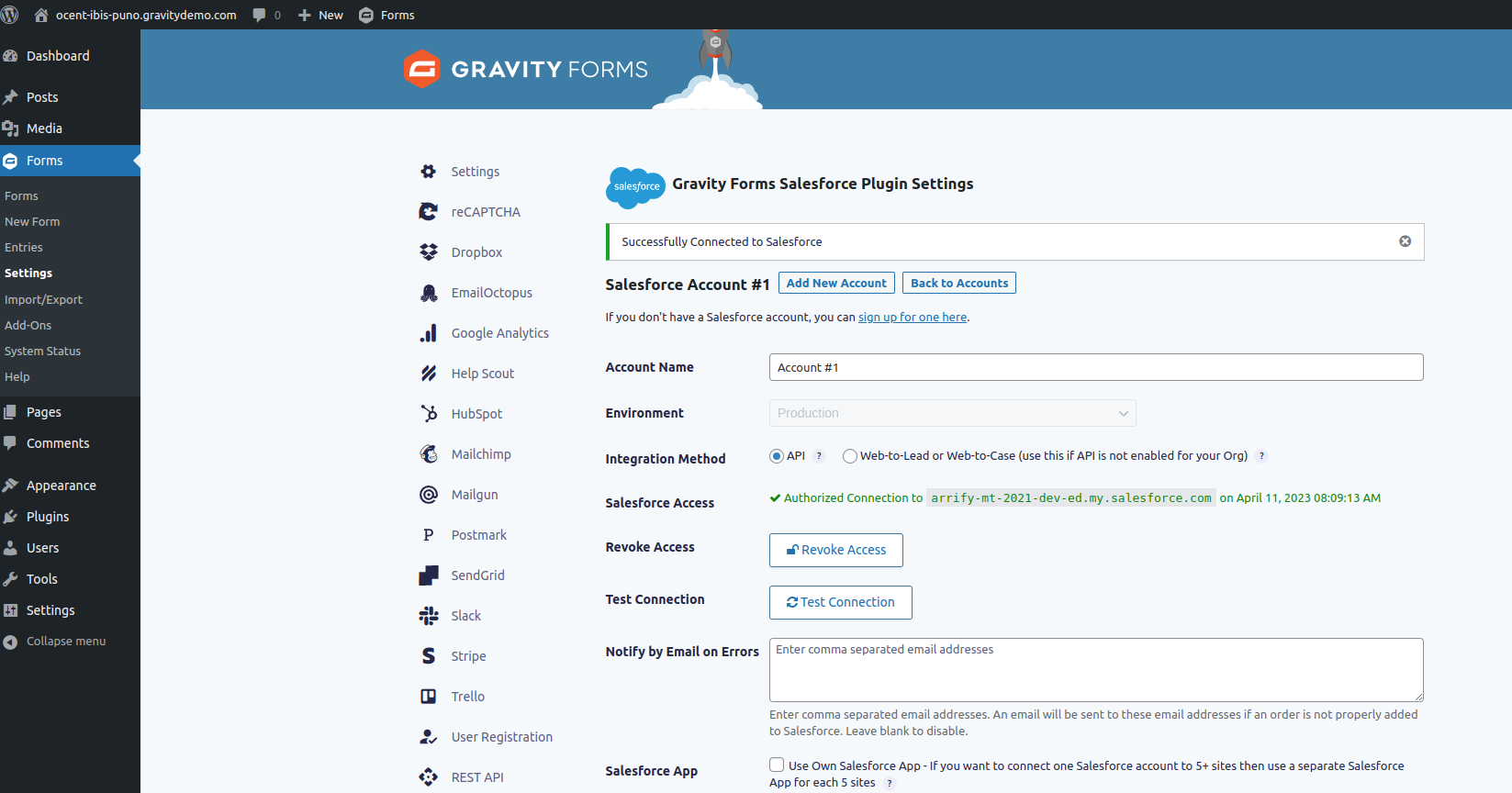
You should see a success message confirming that WordPress is now connected to Salesforce. The plugin can now access your Salesforce objects and fields.
Pro Tip: If the OAuth connection fails, check that your Salesforce user profile has “API Enabled” permission turned on. Also verify that your Salesforce edition supports API access — Group Edition and Essentials Edition have restrictions.
Configuring Gravity Forms Salesforce Field Mapping and Feeds
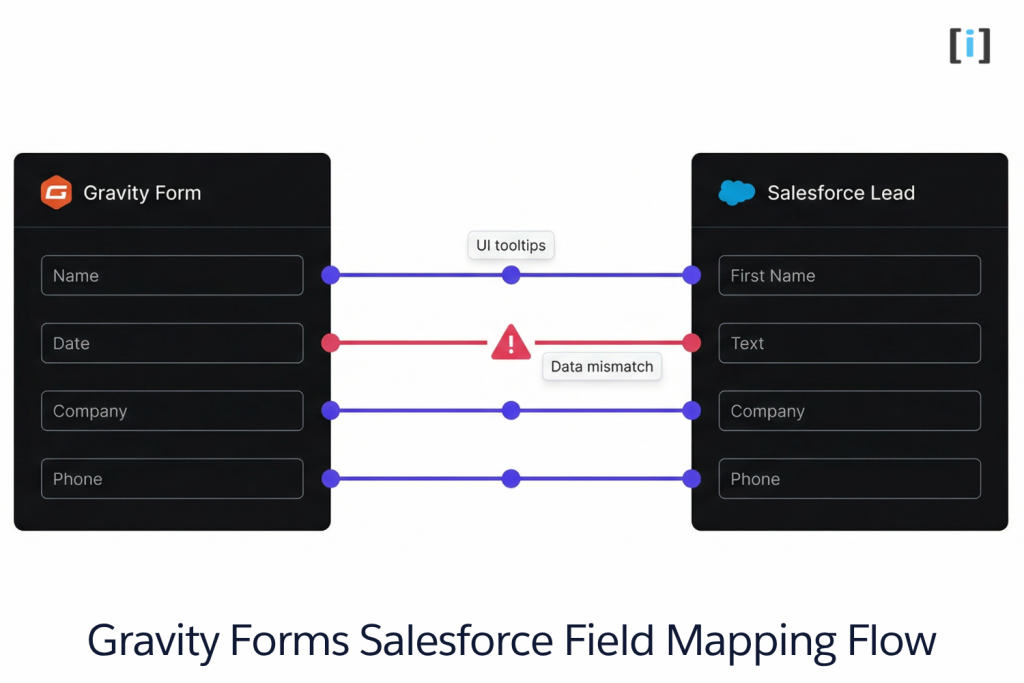
Connecting the plugin is just the first step. The real work is in field mapping — telling the plugin which Gravity Forms field goes to which Salesforce field.
Creating a Salesforce Feed
- Open any Gravity Form in the editor
- Go to Settings → Salesforce (within that form)
- Click Add New Feed
- Select the Salesforce object you want to create records in (Lead, Contact, Account, Custom Object, etc.)
- Map each form field to its corresponding Salesforce field
Field Mapping Tips
- Required fields first: Salesforce objects have required fields (like Last Name on Leads). Make sure those are mapped, or every submission will fail.
- Match data types: A Gravity Forms date field should map to a Salesforce Date field, not a Text field. Mismatches cause silent failures.
- Use picklist values carefully: If your Gravity Forms dropdown options don’t exactly match the Salesforce picklist values, the record creation will fail. Align them.
Setting Up Conditional Feed Logic
Not every form submission should go to Salesforce. Use conditional logic on your feeds to control what gets sent:
- Only create a Lead if the visitor selects “Request a Demo”
- Route to different Salesforce objects based on answers (e.g., “Existing customer” → Case, “New inquiry” → Lead)
- Skip the Salesforce sync entirely if a honeypot field is filled (spam filtering)
Multiple Feeds on a Single Form
For more advanced dynamic field configurations, see how to use Gravity Forms for dynamic Salesforce data collection.
One form can trigger multiple Salesforce feeds. A partnership inquiry form could:
- Create a new Lead record
- Create a related Opportunity
- Attach a Task for the assigned sales rep
This is one of the biggest advantages of the API-based approach over Web-to-Lead.
Key Takeaway: Field mapping is where integrations succeed or fail. Spend the time getting it right — test with a few submissions before going live.
Key Features of the Gravity Forms Salesforce Add-On
Here’s what a well-configured Gravity Forms Salesforce integration gives you:
Automatic Record Creation
Push form submissions into Salesforce as Leads, Contacts, Accounts, Opportunities, Cases, or custom objects. Not just Leads — any object your org uses.
Upsert (Update or Create)
Instead of always creating new records, the integration can check for an existing record by email, external ID, or another unique field. If a match is found, it updates the existing record. No more duplicates cluttering your CRM.
Custom Object Support
If your Salesforce org uses custom objects (and most do), the right plugin lets you map Gravity Forms fields directly to those objects. Critical for orgs with industry-specific data models.
File and Attachment Routing
Some plugins support routing file uploads from Gravity Forms directly into Salesforce as attachments or Salesforce Files linked to the newly created record.
Error Logging and Retry
Premium plugins log every sync attempt. If a submission fails (validation rule, API limit, network timeout), you get a detailed error log and the option to retry the sync without losing data.
Limitations of the Gravity Forms Salesforce Plugin
No plugin is perfect. Here’s what to watch for:
No Bi-Directional Sync
Data flows one way: Gravity Forms → Salesforce. Changes made in Salesforce won’t sync back to WordPress. If you need two-way sync, look at Object Sync for Salesforce or a custom middleware solution.
Field Type Quirks
Some Gravity Forms field types don’t map cleanly to Salesforce fields. Checkboxes, multi-select picklists, and date/time formats can cause issues. Test these mappings specifically before going live.
Learn more about Salesforce objects and field types in our guide.
No Native Multi-Step Form Support
Some plugins don’t fully support multi-page Gravity Forms. If your form spans multiple pages, test the Salesforce feed thoroughly — some add-ons only capture data from the final page.
API Rate Limits
Salesforce imposes daily API call limits based on your edition and license count. If you have high-traffic forms, monitor your API usage to avoid hitting the ceiling.
No Pardot Integration
The standard Gravity Forms Salesforce plugin doesn’t integrate with Salesforce Marketing Cloud Account Engagement (formerly Pardot). If you need form submissions to create Pardot prospects or trigger engagement campaigns, you’ll need additional configuration or a separate plugin.
Real Talk: These limitations matter for maybe 20% of use cases. For straightforward lead capture and CRM sync, the plugin handles it fine. But if you’re hitting any of these walls, it’s time to evaluate a custom build.
When to Go Custom: Beyond Out-of-the-Box Plugins
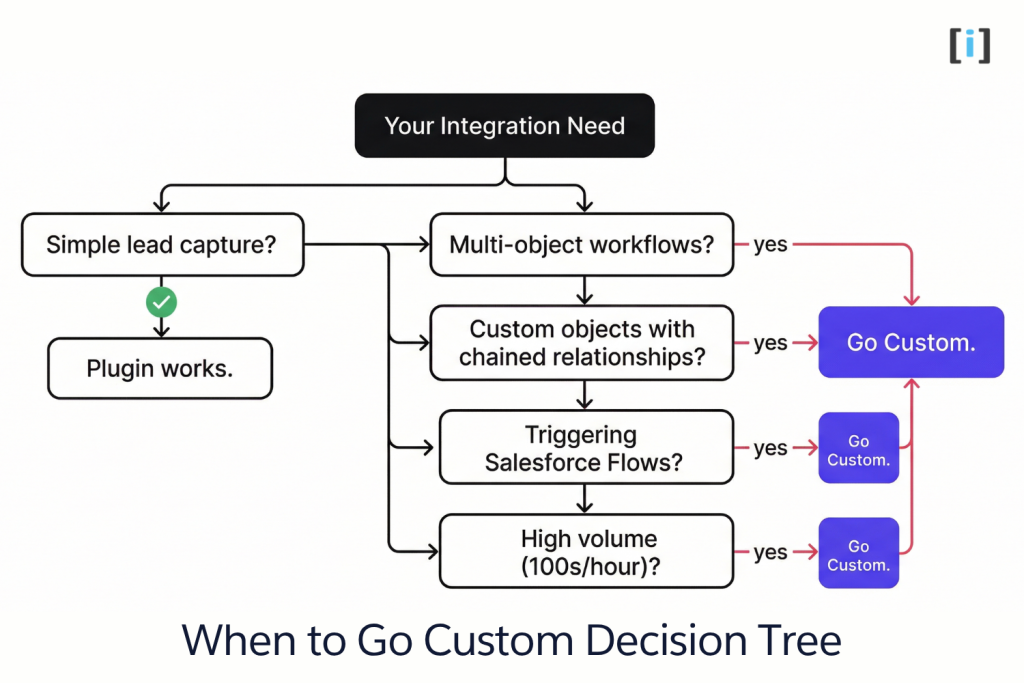
Standard plugins handle 80% of Gravity Forms Salesforce integration scenarios. Here’s when you need something custom:
Complex Multi-Object Workflows
If a single form submission needs to:
- Find or create an Account by company name
- Create a Contact linked to that Account
- Create an Opportunity linked to that Contact
- Attach uploaded files to the Opportunity
A standard plugin can’t orchestrate those chained lookups and relationships. You need custom middleware or Apex-based logic.
Triggering Salesforce Flows
Plugins create records — they don’t invoke specific Salesforce Flows with custom input variables, trigger approval processes based on form data, or call Apex REST endpoints. If your workflow requires that level of control, you need a custom API integration using Salesforce’s Composite API or Flow Actions API.
Advanced Data Transformation
Plugins offer basic A → B field mapping. They can’t:
- Split a full name into First Name + Last Name
- Aggregate line items from a Gravity Forms List field
- Apply complex routing logic (“If Product A AND US-based → Record Type ‘Domestic’, assign to Queue X”)
Custom middleware (PHP, Node.js, or an iPaaS like MuleSoft) gives you full control.
High-Volume Scenarios
If you’re processing hundreds of submissions per hour — during a product launch, event registration, or bulk import — synchronous API calls will hit rate limits. You need Platform Events, Bulk API, or an asynchronous queue to handle the load without losing submissions.
Best Practices for Your Gravity Forms Salesforce Integration
Before You Build
Define what data goes where. Before touching any plugin settings, map out which form fields need to reach which Salesforce fields, on which objects. Write it down. This prevents the “I’ll figure it out as I go” scramble that leads to junk records.
Test in a sandbox first. Connect the plugin to a Salesforce sandbox or developer org. Submit test entries. Check that records appear correctly. Only then switch to production.
Document your setup. Record the plugin version, feed configurations, field mappings, and any conditional logic. When something breaks six months from now, you’ll thank yourself.
During Configuration
Map required fields first. If Salesforce requires Last Name, Company, or any custom required field, map those before anything else. Missing required fields = failed submissions.
Align picklist values. Gravity Forms dropdowns and Salesforce picklist values must match exactly. “United States” ≠ “US”. Mismatches cause silent failures.
Use upsert to prevent duplicates. Configure your feed to update existing records by email or external ID instead of always creating new ones. Your Salesforce admin will appreciate a clean database.
After Go-Live
Monitor error logs weekly. Check the plugin’s error log regularly. Failed submissions often pile up silently — especially when Salesforce validation rules change.
Keep plugins updated. Gravity Forms and its add-ons release updates that fix bugs and maintain API compatibility. Falling behind on updates is asking for trouble.
Back up before changes. Before updating plugins, changing Salesforce validation rules, or modifying feeds, back up your WordPress database and export your Salesforce data.
Pro Tip: Set up a Salesforce report that counts records created by your integration user. If the count drops unexpectedly, something is broken — even if no one has reported an issue.
Gravity Forms Salesforce Integration Cost
The Gravity Forms Salesforce plugin requires a paid Gravity Forms license. Here’s the breakdown:
| Plan | Price | Sites | Salesforce Add-On | Notes |
|---|---|---|---|---|
| Basic | $59/year | 1 site | Via third-party add-on (e.g., CRM Perks) | No official Salesforce add-on at this tier |
| Pro | $159/year | 3 sites | Via third-party add-on | Includes Zapier add-on as an alternative |
| Elite | $259/year | Unlimited | Official Salesforce Add-On included | Full API integration, priority support |
Additional Costs to Consider
- Salesforce API usage: High-volume forms may push you toward API limit overages. Monitor usage in Salesforce Setup → System Overview.
- Third-party add-ons: If you use CRM Perks or another third-party Salesforce connector instead of the official one, factor in their licensing cost.
- Custom development: If your requirements exceed plugin capabilities (see “When to Go Custom” above), budget for custom middleware or Apex development.
The ROI Case
The plugin costs $59–$259/year. A single sales rep spending 30 minutes a day on manual data entry costs far more than that. If the integration saves even one hour a week across your team, it pays for itself in the first month.
Troubleshooting Gravity Forms Salesforce Issues
When submissions aren’t reaching Salesforce, here’s where to look:
Submissions Not Appearing in Salesforce
- Check the feed configuration. Is the Salesforce feed active on that specific form? Did you accidentally add conditional logic that’s filtering out submissions?
- Check required fields. If a required Salesforce field isn’t mapped (or the visitor left it blank), the record creation fails silently on some plugins.
- Check OAuth authentication. Expired tokens are a common culprit. Re-authenticate the connection in Forms → Settings → Salesforce.
Validation Rule Errors
Salesforce validation rules can block record creation. If your form data doesn’t meet a validation rule’s criteria, the API returns an error. Check the plugin’s error log for the specific rule that fired.
API Limit Errors
If you see “REQUEST_LIMIT_EXCEEDED” in your logs, you’ve hit your Salesforce org’s daily API call limit. Options: reduce unnecessary API calls, request a limit increase from Salesforce, or batch submissions using custom middleware.
Duplicate Records
If you’re seeing duplicates, you likely have the feed set to “Create” instead of “Upsert.” Switch to upsert mode and specify a unique identifier (email, external ID) to match against existing records.
Pro Tip: Gravity Forms keeps a log of every submission under Forms → Entries. Cross-reference the entry timestamp with your Salesforce record’s CreatedDate to verify data is flowing correctly.
FAQs
Does the Gravity Forms Salesforce integration work in real time?
Yes. Data is sent to Salesforce immediately when the form is submitted. It’s a one-way sync — changes in Salesforce won’t reflect back in Gravity Forms. The transfer happens via the Salesforce REST API, so make sure you’re within your API call limits.
Can I send form data to multiple Salesforce objects from one form?
Yes. The Gravity Forms Salesforce Add-On supports multiple feeds per form. One submission can create records in different objects — a Lead, an Opportunity, and a Task, for example. Each feed is independently configured with its own field mapping and conditional logic.
Can Gravity Forms update existing Salesforce records instead of creating duplicates?
Yes, with the API-based add-on. Configure the feed to use upsert mode — it checks for a matching record by email, external ID, or another unique field. If found, it updates the existing record. Web-to-Lead can’t do this.
Do I need the Elite license for the Gravity Forms Salesforce Add-On?
The official Gravity Forms Salesforce Add-On requires an Elite, Nonprofit, or Developer license. If you’re on Basic or Pro, you can still connect to Salesforce using:
A third-party add-on like CRM Perks Salesforce Integration
Salesforce’s free Web-to-Lead feature
Middleware like Zapier (included with Pro license)
The official add-on offers the most reliable, native API connection — but it’s not the only path.
Can I send file uploads from Gravity Forms to Salesforce?
Yes. Advanced integration plugins can map file upload fields to Salesforce Files or Attachments on the newly created record. Check your specific plugin’s documentation — not all support this out of the box.
Why are my Gravity Forms leads not showing up in Salesforce?
Common causes:
Missing or incorrect field mapping — a required Salesforce field isn’t filled
Expired OAuth token — re-authenticate in Forms → Settings → Salesforce
Salesforce validation rules blocking the record
Inactive feed — the Salesforce feed on that form is toggled off
Conditional logic — the feed has conditions that filter out the submission
Check the plugin’s error log first — it usually shows the exact API error.
Still not sure which integration method fits your setup? Gravity Forms is just one of many ways to get data into Salesforce — see our Salesforce Form Options overview for the full picture. Or talk to an Arrify integration specialist who can help you pick the right approach.